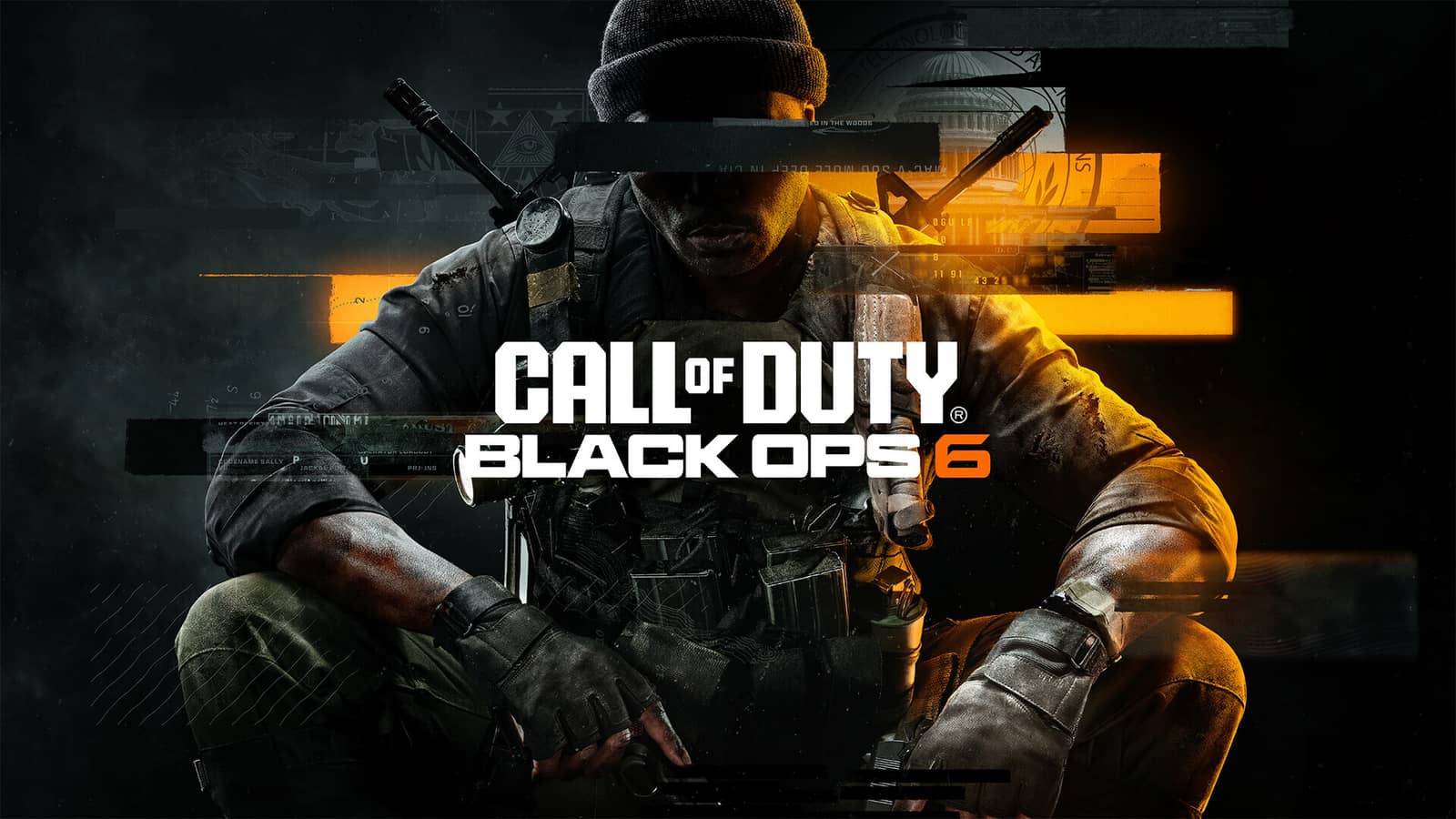
Call of Duty Black Ops 6: Best FPS Settings
The best Call of Duty Black Ops 6 FPS settings include Borderless Fullscreen, 100 render resolution, and a low FOV of 100-115 for competitive play.
4 min read
In brief
AI summaryCall of Duty Black Ops 6's Open Beta was expected to start on September 6, 2024.
Recommended FPS settings include Borderless Fullscreen display mode, 144 Hz refresh rate, and Dynamic Resolution off.
Lowering FOV increases FPS, but most players find the sweet spot between 100 and 115 for competitive play.
Contents7 sections
Call of Duty Black Ops 6 Best FPS Settings
 Call of Duty Black Ops 6 Best FPS Settings: Display
- Display Mode: Borderless Fullscreen
- Display Monitor: Your monitor
- Display Adapter: Your graphics card
- Display Refresh Rate: Preferably 144 Hz or higher
- Display Resolution: Preferably 1920×1080 or your desired resolution
- Dynamic Resolution: Off
- Aspect Ratio: Automatic
- NVIDIA Reflex Low Latency: On and Boost
- V-Sync (Gameplay): Off
- V-Sync (Menus): Off
- Display Gamma: To your monitor or preference
- Brightness: To your monitor or preference
- Focused Mode: Off
- High Dynamic Range (HDR): Off
Call of Duty Black Ops 6 Best FPS Settings: Quality
- Quality Presets: Custom
- Render Resolution: 100
- Dynamic Resolution: Off
- Upscaling/Sharpening: FidelityFX CAS
- AMD FidelityFX CAS Strength: 85
- Ray Tracing + Ray Reconstruction: Off
- VRAM Scale Target: 90
- Variable Rate Shading: Off
Details and Textures
- Texture Resolution: Low
- Texture Filter Anisotropic: Normal
- Depth of Field: Off
- Detail Quality Level: Low or Very Low
- Particle Resolution: Low or Very Low
- Bullet Impacts: On
- Persistent Effects: Off
- Shader Quality: Medium or Low (your preference)
- On-Demand Texture Streaming: Minimal
- Allocated Texture Cache Size: 16 Download Limits: On
- Local Texture Streaming Quality: Low
- Daily Download Limit (GB): 1.0

- Shadow Quality: Low or Very Low
- Screen Space Shadows: Off
- Ambient Occlusion: Off
- Screen Space Reflections: Off
- Static Reflection Quality: Low
Environment
- Tessellation: Off
- Volumetric Quality: Low or Very Low
- Deferred Physics Quality: Off
- Weather Grid Volumes: Off
- Water Quality: Off
View
- Field of View: Your preference, but the lower it is, the more FPS you can get
- ADS Field of View: Affected
- Weapon Field of View: Wide or default
- Third Person Field of View: 90
- Vehicle Field of View: Default or your preference
Camera
- World Motion Blur: Off
- Weapon Motion Blur: Off
- Film Grain: 0.00
- First Person Camera Movement: Minimum (50%) or your preference
- Third Person Camera Movement: Minimum (50%) or your preference
- Spectator Camera: Player Perspective
- Inverted Flash Bang: On
Depending on your PC's specs, you'll want to get triple-digit FPS numbers, but this won't give your game a great look.
As for refresh rate, using a monitor with 144 Hz or higher is preferred, but you might not have one on hand. Because of that, make sure to pick the highest option available to you. That's also why you should always choose 1920×1080 for your resolution.
When it comes to brightness and gamma settings in Call of Duty Black Ops 6, it depends on your monitor settings or how you want your game to look. While we'd suggest a setting of 55 Brightness and 2.2 (sRGB) Display Gamma, this setting will vary depending on your preference.As for your FOV, the lower you set it, the more FPS you'll get. However, you'll also lose the competitive advantage that a higher FOV can give you, so be careful. For most players, the sweet spot for FOV is between 100 and 115.
We hope the best Call of Duty Black Ops 6 FPS settings we've given you come in handy! This way, you can have the best settings in the game. Good luck out there!
About Call of Duty: Black Ops 6
Call of Duty: Black Ops 6 is a first-person shooter co-developed by Treyarch and Raven Software and published by Activision. It's the twenty-first entry in the main Call of Duty series and the seventh main game in the Black Ops sub-series, following Call of Duty: Black Ops Cold War.
For the latest news, don't forget to follow Gamer Papers or our social media accounts.
Sources
External links cited in this article