

How to Use Discord on Xbox: Connect Your Account and Voice Chat
To use Discord on Xbox, link your Xbox account in the Discord mobile app under Connections > Add > Xbox, then join a voice channel and tap Join on Xbox. You need both the Discord and Xbox mobile apps.

2 min read
In brief
AI summaryIn September 2022, Discord announced through its official Twitter account that Xbox users can voice chat and use Discord on Xbox.
To link Discord to Xbox, open the Discord mobile app, tap your profile picture, choose Connections, tap Add, select Xbox and sign in; both the Discord and Xbox mobile apps are required.
To join a Discord voice channel on Xbox, tap Join on Xbox in the Discord app, then tap Transfer Voice in the Xbox mobile app; Xbox PC needs a QR code scan with the Xbox mobile app.
Contents2 sections
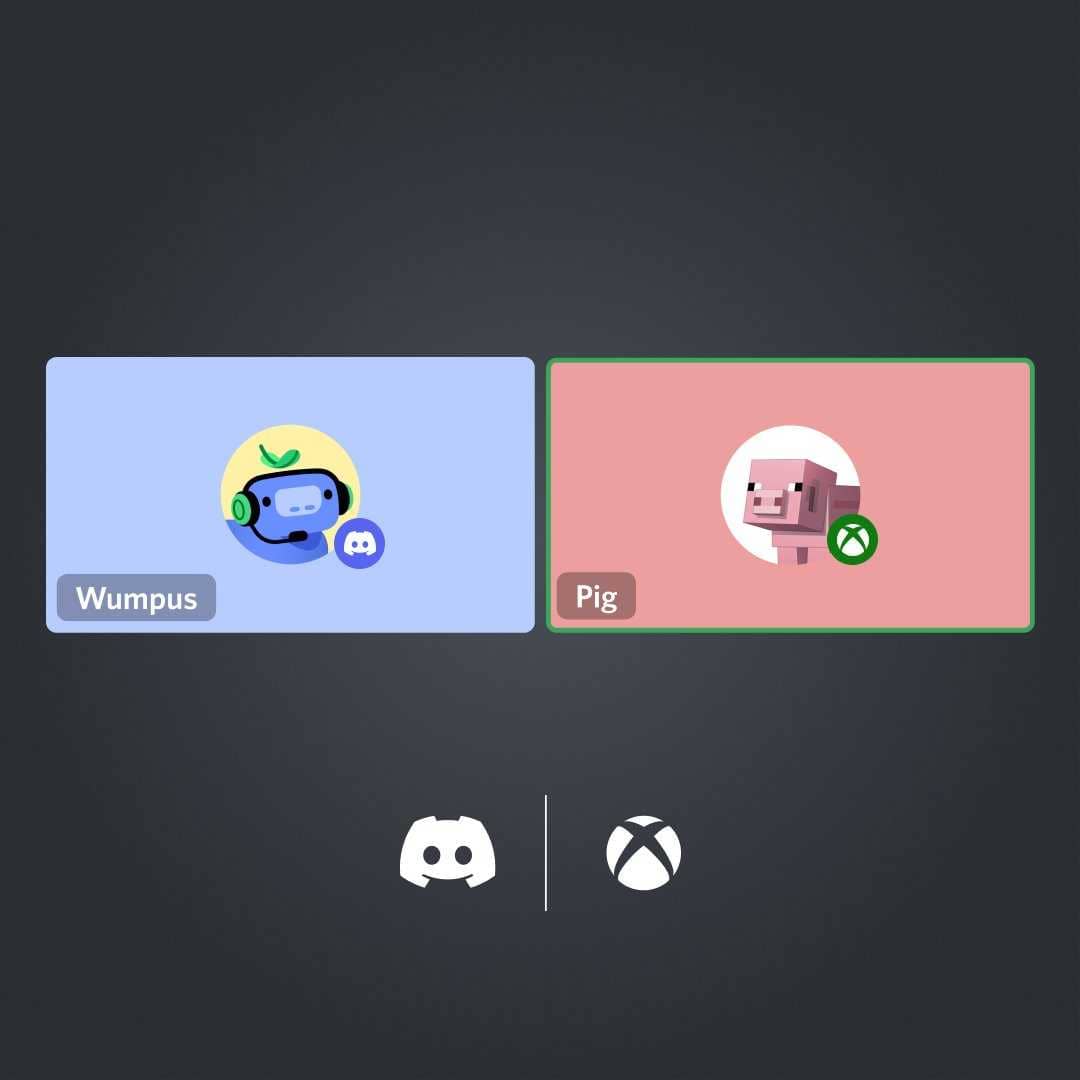
Discord's partnership with Xbox had been announced for some time, but nothing had shown up yet. Through Discord's official Twitter account, it has now announced that Xbox users can also voice chat and use Discord. Xbox's witty reply under Discord's tweet managed to make people smile:
We're friends fr fr now 💚
— Xbox (@Xbox) September 13, 2022
Here we answer how to connect the Discord app to Xbox and how to use it on Xbox, to guide you through using voice chat on Xbox.
 How Do You Connect the Discord App to Xbox?
To use this feature and link the apps to each other, you need the following on your mobile device:
- Xbox Mobile App
- Discord Mobile App
First, open the Discord app on your phone. Once in the app, tap your profile picture in the lower-right corner. Scroll down and select the Connections tab. On the Connections page, a tab that says Add will appear in the upper right. Tap it and scroll down until you select Xbox. Then you will see a prompt on your phone to start the linking process. You need to follow the process and sign in to your Xbox account through the Discord app. After the connection is made, you will get another prompt saying the Xbox Mobile App needs to be installed on your phone, so make sure you have it ready to use.
How Do You Use Discord on Xbox?
You need to join a Discord voice channel from your phone. Scroll up in the app and tap the tab that says Join on Xbox. The moment you tap it, the Xbox mobile app loads automatically, and from there, when you tap the Transfer Voice tab, you are ready to chat with your friends on Discord. You can also connect to a Discord voice channel on Xbox PC, but to do that you need to scan a QR code using the Xbox Mobile app.
Frequently asked questions
Questions answered in this article
How Do You Connect the Discord App to Xbox?
To use this feature and link the apps to each other, you need the following on your mobile device: First, open the Discord app on your phone. Once in the app, tap your profile picture in the lower-right corner. Scroll down and select the Connections tab. On the Connections page, a tab that says Add will appear in the upper right. Tap it and scroll down until you select Xbox. Then you will see a prompt on your phone to start the linking process. You need to follow the process and sign in to your Xbox account through the Discord app. After the connection is made, you will get another prompt saying the Xbox Mobile App needs to be installed on your phone, so make sure you have it ready to use.
Go to sectionHow Do You Use Discord on Xbox?
You need to join a Discord voice channel from your phone. Scroll up in the app and tap the tab that says Join on Xbox. The moment you tap it, the Xbox mobile app loads automatically, and from there, when you tap the Transfer Voice tab, you are ready to chat with your friends on Discord. You can also connect to a Discord voice channel on Xbox PC, but to do that you need to scan a QR code using the Xbox Mobile app.
Go to sectionSources
External links cited in this article
Bazen yazar, bazen tasarlar. Film bağımlısı, oyunlar hakkında yazmayı sever✨


