

Farming Simulator 22 Lag and Low FPS: Fixes for 2022
To fix Farming Simulator 22 lag, update the game and your graphics driver, set the Windows power plan to High performance, lower the in-game graphics settings and tune your NVIDIA or AMD control…

3 min read
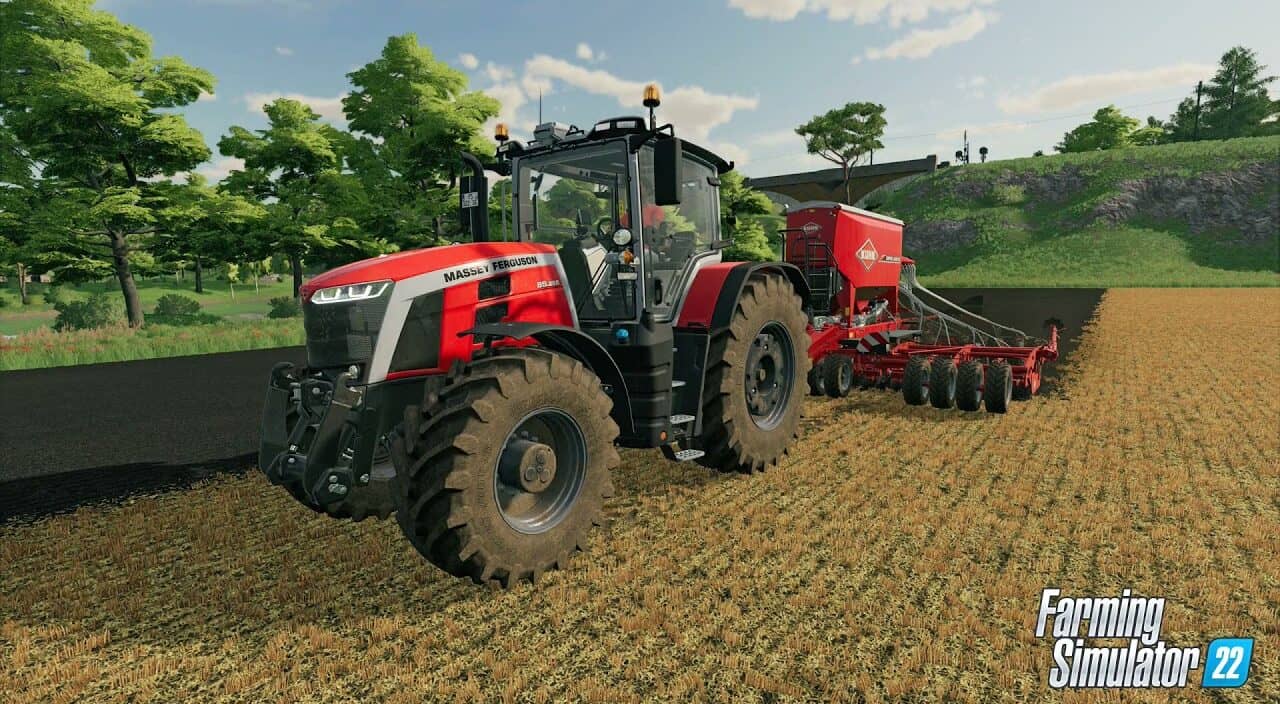
In brief
AI summaryAs of June 2022, Farming Simulator 22 FPS problems can be tackled by updating the game to the latest patch and updating or reinstalling the graphics driver.
Setting the Windows Power Plan to High performance and lowering in-game options such as V-Sync Off and Resolution Scaling 80% can improve performance.
NVIDIA users can set Low Latency Mode to Ultra and Power Management to Prefer Maximum Performance in the NVIDIA Control Panel to raise FPS.
Contents6 sections
Farming Simulator 22is a simulation game in which you take on the role of a modern farmer and build your own farm. With tons of virtual farmers, you do not have much time to plan crops, raise animals and manage the work, so you need to be quick. However, while handling this kind of work, we can run into the Farming Simulator 22 FPS problem . So how can the Farming Simulator 22 FPS/lag problem be fixed?
 Farming Simulator 22 FPS/Lag Problem 2022
To fix the lag in the game, you can try the following methods:
- Update the game to the latest version
- Update your graphics driver
- Set your PC's Power Plan to High performance
- Optimize the in-game graphics settings
- Change your graphics card settings
Update the Game to the Latest Version
Giants Software, the developer of Farming Simulator 22, regularly releases updates to fix bugs and improve game performance. An old patch can cause crashes in the game, so update the game to the newest patch whenever possible. You can restart the game to check whether the FPS problem is resolved.
Update Your Graphics Driver
If you have not updated your graphics driver for a long time, update and reinstall the driver. You can do this manually or automatically. To update your driver automatically, you can use Driver Easy. Driver Easy automatically recognises your system, finds the right drivers for your graphics card and Windows version, and installs them on your system.
- Download and install Driver Easy.
- Run Driver Easy and click the Scan Now button. Driver Easy will then detect any problem drivers.
- Click the Update button next to the flagged graphics driver to automatically download the correct version of that driver.
- Restart your computer after the update.
Set Your PC's Power Plan to High Performance
- Press the Windows logo key and R on your keyboard at the same time, then type powercfg.cpl and press Enter.
- In the window that opens, expand Hide additional plans and select High performance.
- You can now restart the game and check whether the changes took effect.
Optimize the In-Game Graphics Settings
Launch the game and open Options > Display Settings.
- Set V-Sync to Off.
- Reduce Resolution Scaling to 80%.
Set the Advanced Graphics Settings as follows:
- Multisample Anti-Aliasing: Off
- Post Processing Anti-Aliasing: Off
- DLSS: Performance or Balanced if your graphics card supports DLSS. If not, turn DLSS off.
- FidelityFX Super Resolution: Off
- Shadow Quality: Off; if you have a powerful PC, set this to Medium.
- Shadow Distance Quality: Low
- SSAO Quality: Low; if you have a powerful PC, set this to Medium.
- Lighting Quality: Low; if you have a powerful PC, set this to Medium.
- Object View Distance: 50 – 70
- Terrain LOD Distance: 50 – 70
- 3D Resolution Scaling: 50 – 100
- Max Mirrors: 0
- Texture Filtering: Bilinear
- Shadow Map Filtering: Low
- Terrain Quality: Low; if you have a powerful PC, set this to High.
- Foliage View Distance: 50 – 70
- Foliage Shadows: Off
- Mesh Tessellation Volume: 50 – 100
- Realistic Marker Lights: Off
- Texture Resolution: Low
- Max Shadow Lights: 1
- Shader Quality: Low
- LOD Distance: 50 – 80
- Cloud Quality: Low
- Max Tyre Tracks: 0 – 50
- Shading Rate: Low
Change Your Graphics Card Settings
If you are an NVIDIA user:
- Right-click your desktop and select NVIDIA Control Panel from the context menu.
- Click Manage 3D Settings on the left, then open the Program Settings tab. Select Farming Simulator 22 from the program list.
- Change the following settings: Max Frame Rate: Set this to a frame rate below your monitor's current refresh rate OpenGL rendering GPU: Set to your Nvidia GPU Power Management Mode: Prefer Maximum Performance Low Latency Mode: Ultra Vertical sync: Fast Texture filtering - Quality: Performance
- Click Apply to save the changes.
If you are an AMD user:
- Open AMD Radeon Settings.
- Go to Gaming > Global Settings. Then change the settings.
Bazen yazar, bazen tasarlar. Film bağımlısı, oyunlar hakkında yazmayı sever✨


