How to Do a Face Scan in NBA 2K22 With the MyNBA 2K22 App
To do an NBA 2K22 face scan, download the MyNBA 2K22 app, sign in with your PSN, Xbox Live, Steam or Nintendo details, open the Face Scan tab and scan your face from several angles in under a minute.

2 min read
In brief
AI summaryAs of September 2021, NBA 2K22 face scans are done through the MyNBA 2K22 mobile app, which was not yet on Google Play or the Apple App Store when the article was written.
To use the NBA 2K22 face scan, sign in with PSN, Xbox Live, Steam or Nintendo details, accept the terms, scan your face from different angles (under a minute) and upload the result to the 2K servers.
If your NBA 2K22 scan does not appear on the player creation page, redo the scan and make sure your internet connection is stable while uploading.
Contents2 sections
As NBA 2K22 gets ready to launch, along with roster updates and gameplay changes, new adventures await players in MyPlayer and The City mode.

Some players enjoy jumping straight into the action, while others may prefer to spend time creating their characters. Customizing a character can take hours, especially if you are trying to make your character look like yourself.
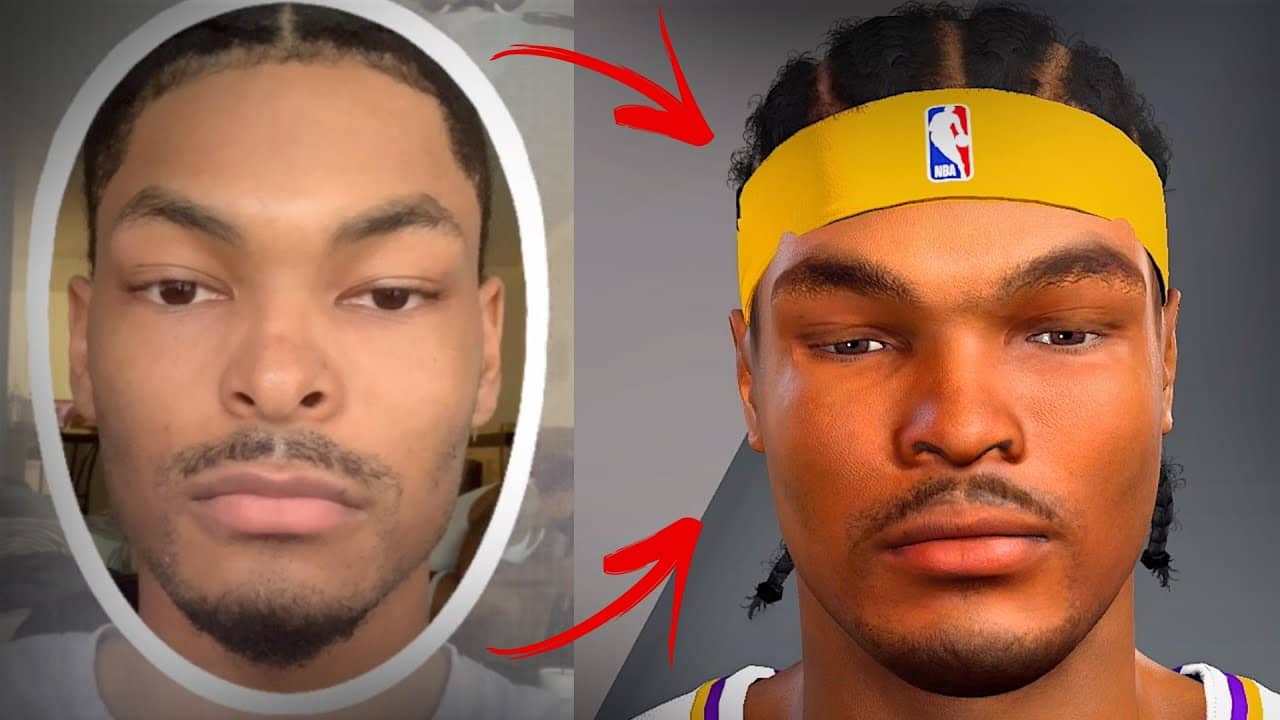
There is, however, a way to do this quickly. As in previous games, NBA 2K22 lets players scan their faces (face scan) so that their characters look like they do in real life. Although the system cannot produce one-to-one copies, the results are sometimes impressive.
To scan your face and make your NBA 2K22 character look like you, you need to download the MyNBA 2K22 app on your mobile device. At the time of writing, the app was not yet available on Google Play or the Apple App Store, but it will probably be released a few days after the approval stages are completed.
How Do You Do a Face Scan in NBA 2K22?

After downloading the app, launch it and sign in with your PSN, Xbox Live, Steam or Nintendo details. On the home screen, find the Face Scan tab and tap it. A series of terms and conditions that you must accept to continue will appear.
Follow the instructions that appear on your screen. The app requires you to scan your face from different angles, and the whole process takes less than a minute. After you finish scanning your face, you will be able to upload the results to the 2K servers.
What Should You Pay Attention to When Doing a Face Scan in NBA 2K22?

When you have successfully uploaded the scan, go back to NBA 2K22 and return to the player creation page. Your scanned face should appear there. If you cannot see your face in NBA 2K22 after using the app, you may need to redo the scan, but make sure you have a stable internet connection when uploading to the servers.
You can also check out our other articles about NBA 2K22:
- NBA 2K22 system requirements
- NBA 2K22 career mode
- NBA 2K22 top 10 players
Frequently asked questions
Questions answered in this article
How Do You Do a Face Scan in NBA 2K22?
After downloading the app, launch it and sign in with your PSN, Xbox Live, Steam or Nintendo details. On the home screen, find the Face Scan tab and tap it. A series of terms and conditions that you must accept to continue will appear. Follow the instructions that appear on your screen. The app requires you to scan your face from different angles, and the whole process takes less than a minute. After you finish scanning your face, you will be able to upload the results to the 2K servers.
Go to sectionWhat Should You Pay Attention to When Doing a Face Scan in NBA 2K22?
When you have successfully uploaded the scan, go back to NBA 2K22 and return to the player creation page. Your scanned face should appear there. If you cannot see your face in NBA 2K22 after using the app, you may need to redo the scan, but make sure you have a stable internet connection when uploading to the servers. You can also check out our other articles about NBA 2K22:
Go to section