

How to Transfer Photos From iPhone to iPhone
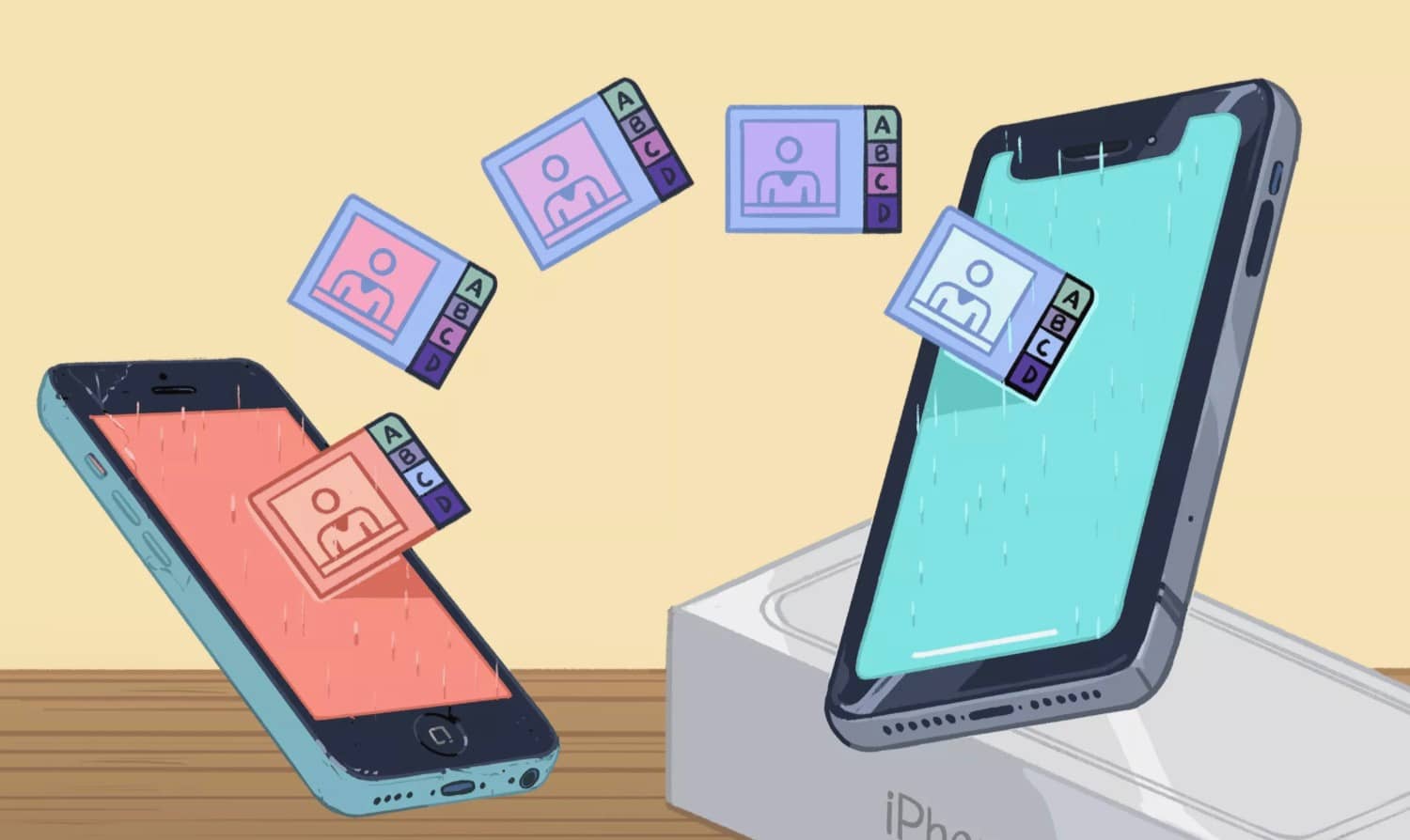
You can transfer photos between iPhones using AirDrop, iCloud, macOS Finder, or iTunes, whichever fits your setup best.

4 min read
In brief
AI summaryPhotos can be shared between iPhones using AirDrop, iCloud, or the macOS Finder app.
Sharing photos via AirDrop requires both Wi-Fi and Bluetooth to be turned on.
Backing up with iCloud and signing into the same Apple ID transfers your photos to a new iPhone automatically.
Contents6 sections
iPhone lets you share photos with friends, family, and coworkers in just a few taps. That said, sharing a handful of photos is a lot different from sharing a large number of them at once, and if you're transferring photos from an old iPhone to a new one (like an iPhone 14 or iPhone 14), for example, you might feel a bit anxious about it. Fortunately, it can still be done, and it's fairly easy.
In this article, we'll show you how to transfer photos from your iPhone to another iPhone, or from your old iPhone to a new one. The process is nearly identical from iOS 14 all the way to the latest iOS 16, so it covers almost every iPhone in active use today.

How to Transfer Photos From iPhone to iPhone? 2023
Transferring via AirDrop
Apple's AirDrop is an elegant and handy way to send photos to nearby people or receive photos from them, and it's extremely easy to use. Access Control Center by swiping up from the bottom of the screen (for Touch ID iPhones like the iPhone SE) or swiping down from the top-right corner of your handset (for iPhone X and later models).
- Enable Wi-Fi and Bluetooth on both phones and disable Personal Hotspot. Select the Network card (top left) in Control Center, or press and hold until it expands, then tap the AirDrop control to enable it if it isn't already.
- Select either Contacts Only or Everyone.
- Launch the Photos app, select the photos you want, and tap the Share icon.
- You'll see the AirDrop icon among several sharing options. Select it.
- The panel that appears shows nearby iPhones, other devices, or people with AirDrop enabled. Find and select that person's phone or contact ID. A download prompt will appear.
- That person may be asked to accept or decline the download. Tap Accept, and the photo will be added to the Photos app.
Transferring via iCloud
Let's say you have a new iPhone and want to transfer your existing photo collection to it. One way to do this is to back up your iPhone and then restore that backup while setting up your new phone. There are several ways to accomplish this, but the easiest is Apple's iCloud.
Using iCloud to transfer your photos wirelessly is the most seamless method. You only get 5 GB of storage for free, so if you have a lot of photos, you may need to purchase additional storage. If you have more than 5 GB of photos on your phone, keep in mind that you may want to offload all of that bulk anyway, unless you need it for professional reasons.
- Open Settings and select your name at the top.
- Tap iCloud > Photos and make sure Sync this iPhone is turned on.
- Sign in with the same Apple ID on your new iPhone and repeat the process: Settings > [Your Name] > iCloud > Photos, and turn on Sync this iPhone.
- Choose Optimize iPhone Storage or Download and Keep Originals. The first option saves storage space.
Transferring via macOS Finder
You can transfer all your photos and other data with a simple backup restore. If you have a Mac running macOS Catalina or newer, up to the latest macOS Ventura, you can share the photos from your old phone with your Mac, then load them onto your phone using the Finder app on a Mac computer.
- Plug your old iPhone into your Mac or MacBook with its cable.
- Open Finder by double-clicking the hard drive icon and select your device from the menu on the left, under Locations. You may be asked to trust the new device on both the Mac and the new iPhone. You can trust both.
- Under Backups, select Back up all of the data on your iPhone to this Mac, then Back Up Now.
- When it's done, unplug the old iPhone and connect the new iPhone. Then select Restore Backup.
Transferring via iTunes
Apple discontinued iTunes with macOS Catalina in 2019. If you're running macOS 10.14 (Mojave) or older, or using a Windows PC, you can use iTunes to transfer photos. Before following the steps below, make sure you've installed the latest version of iTunes.
- Plug your old iPhone into your computer and launch iTunes.
- Select your iPhone in iTunes and click Summary in the left panel.
- In the right pane, under Backups, click This computer, then click Back Up Now.
- Turn on your new iPhone, and the iOS Setup Assistant will offer you the option to restore from an iTunes backup.
- Connect your new phone to your computer and open iTunes.
- Select your new iPhone in iTunes and click Summary in the left pane, then Restore iPhone in the right pane. Click Accept. When the process is finished, all your photos will be on your new iPhone.
Our Latest Tech Articles
Frequently asked questions
Questions answered in this article
How to Transfer Photos From iPhone to iPhone? 2023
Apple's AirDrop is an elegant and handy way to send photos to nearby people or receive photos from them, and it's extremely easy to use. Access Control Center by swiping up from the bottom of the screen (for Touch ID iPhones like the iPhone SE) or swiping down from the top-right corner of your handset (for iPhone X and later models).
Go to section

