

What Is ThrottleStop and How Do You Use It?
ThrottleStop is software by UncleWebb that disables the CPU throttling laptops trigger while charging, letting you boost performance and extend battery life.

4 min read
In brief
AI summaryThrottleStop, first released in 2010 by UncleWebb, disables the CPU throttling laptops apply to prevent overheating while charging.
ThrottleStop lets users monitor CPU temperature in real time and adjust processor settings to improve performance or extend battery life.
ThrottleStop can be downloaded via Google, and exact usage steps vary by laptop brand, model, and processor.
Contents5 sections
What Is ThrottleStop? What Does It Do? How Do You Use It?
Computer technology is advancing every day. A problem that existed in a previous model tends to disappear in the new one, but with today's exchange rates, users who can't frequently buy a new laptop run into some issues. The most common of these is CPU throttling. When you plug in your laptop to charge, your processor gets throttled to avoid overheating issues, which lowers your computer's performance. That's exactly what ThrottleStop was developed for.

What Is ThrottleStop? 2022
Developed by UncleWebb and first released in 2010, ThrottleStop is software used to disable the processor-throttling feature that laptops trigger against overheating issues once you start charging them. With ThrottleStop, you can make many adjustments to your processor and measure temperature values in real time.
Using ThrottleStop software is recommended, but how safe it is remains unknown. That's because it's debatable how sound it is to disable a feature your computer activates to protect itself. Still, some users are known to have successfully disabled this feature with ThrottleStop, sped up their processor, and even extended their battery life.
What Does ThrottleStop Do?
If you're using an older laptop model, or even a newer one with a weaker processor, you'll notice it heating up and slowing down once you start charging it. This is the computer's self-protection mechanism. Most systems have one or all of three basic types of CPU throttling that trigger this feature.
This is exactly where ThrottleStop comes in. It says, why should my computer slow down just because I plugged it in, and removes the throttling by adjusting the processor settings. You keep an eye on things by monitoring CPU temperature in real time. You can even customize the changes you make to the settings to extend your laptop's battery life.
How Do You Download ThrottleStop?
You can download the ThrottleStop software from Google. Once downloaded, the installation process is extremely simple. You run the installer file you downloaded and grant the necessary permissions. In some cases you may be advised to restart your computer, but if you don't get such a prompt, there's no need to restart.
The most important thing to watch out for when downloading ThrottleStop is making sure you're downloading the most up-to-date version of the software. Outdated ThrottleStop versions have been known to either not work or cause various issues. Before running ThrottleStop, you can also update your CPU drivers if you like. You'll get much better results.

How Do You Use ThrottleStop?
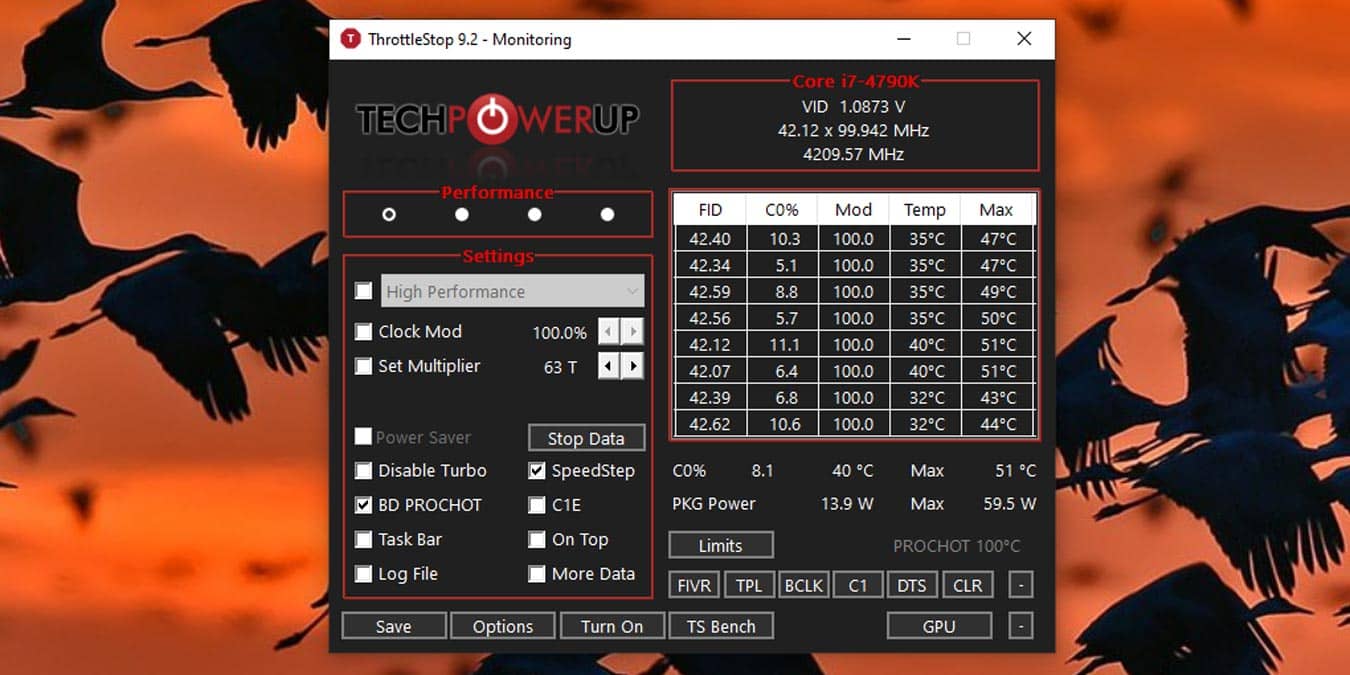
Unfortunately, we can't give you step-by-step instructions for how to use ThrottleStop, because the settings you need to make will vary depending on your computer's brand, model, and processor. In some cases you may even need to use trial and error. Let's go over the menus you'll see on ThrottleStop's main screen, so you at least have an idea;
- Save lets you save your settings.
- Options lets you view the options.
- Turn On / Off enables or disables the last settings you made.
- TS Bench shows you the effect of your adjustments on your processor.
- Clock Modulation / Chipset Clock Modulation lets you adjust your processor's and chipset's operating capacity.
- Set Multiplier lets you set the CPU clock speed and data transfer rate.
- Speed Shift – EPP lets you adjust processor behavior.
- Power Saver enables or disables power saving mode.
- Disable Turbo stops your processor from running at turbo power.
- BD PROCHOT stops your processor from running in emergencies when it's overheating too much.
- Task Bar pins the ThrottleStop software to the taskbar.
- Log File lets you view your process history.
- Stop Monitoring stops the ThrottleStop logging system.
- The C1E option is used when you're not keeping your computer active.
- On Top keeps the ThrottleStop software window on top.
- More Data logs data in more detail.
- Package Power shows you the power your processor is using.
- Temp shows you the core temperature.
- Limit Reasons is a user information screen.
- CLR resets the temperature logs.
- DTS adjusts temperature readings.
- C#% shows your processor's power and usage status.
- BLCK recalculates the CPU clock speed and data transfer rate.
- TPL lets you control turbo power on laptops that don't get a BIOS update.
- FIVR reverts your processor to its old, lower voltage state.
These are the basic headings and menu options you'll see when you run the ThrottleStop software, along with what they mean. When you run the software, you'll naturally get some warnings and recommendations from the system. By adjusting your settings within the scope of these warnings and recommendations, you'll get maximum efficiency out of your laptop's processor and battery.
Our Other Tech Articles
Frequently asked questions
Questions answered in this article
What Is ThrottleStop? 2022
Developed by UncleWebb and first released in 2010, ThrottleStop is software used to disable the processor-throttling feature that laptops trigger against overheating issues once you start charging them. With ThrottleStop, you can make many adjustments to your processor and measure temperature values in real time. Using ThrottleStop software is recommended, but how safe it is remains unknown. That's because it's debatable how sound it is to disable a feature your computer activates to protect itself. Still, some users are known to have successfully disabled this feature with ThrottleStop, sped up their processor, and even extended their battery life.
Go to sectionWhat Does ThrottleStop Do?
If you're using an older laptop model, or even a newer one with a weaker processor, you'll notice it heating up and slowing down once you start charging it. This is the computer's self-protection mechanism. Most systems have one or all of three basic types of CPU throttling that trigger this feature. This is exactly where ThrottleStop comes in. It says, why should my computer slow down just because I plugged it in, and removes the throttling by adjusting the processor settings. You keep an eye on things by monitoring CPU temperature in real time. You can even customize the changes you make to the settings to extend your laptop's battery life.
Go to sectionHow Do You Download ThrottleStop?
You can download the ThrottleStop software from Google. Once downloaded, the installation process is extremely simple. You run the installer file you downloaded and grant the necessary permissions. In some cases you may be advised to restart your computer, but if you don't get such a prompt, there's no need to restart. The most important thing to watch out for when downloading ThrottleStop is making sure you're downloading the most up-to-date version of the software. Outdated ThrottleStop versions have been known to either not work or cause various issues. Before running ThrottleStop, you can also update your CPU drivers if you like. You'll get much better results.
Go to sectionHow Do You Use ThrottleStop?
Unfortunately, we can't give you step-by-step instructions for how to use ThrottleStop, because the settings you need to make will vary depending on your computer's brand, model, and processor. In some cases you may even need to use trial and error. Let's go over the menus you'll see on ThrottleStop's main screen, so you at least have an idea; These are the basic headings and menu options you'll see when you run the ThrottleStop software, along with what they mean. When you run the software, you'll naturally get some warnings and recommendations from the system. By adjusting your settings within the scope of these warnings and recommendations, you'll get maximum efficiency out of your…
Go to section

