

Chivalry 2 FPS Boost: Settings to Fix Low FPS
To boost FPS in Chivalry 2, meet the system requirements (Core i3-4370, 8 GB RAM, GTX 660 minimum), update graphics drivers, lower Nvidia or AMD settings and run the game as administrator.

2 min read
In brief
AI summaryChivalry 2 minimum requirements are an Intel Core i3-4370, 8 GB RAM, Windows 10 64-bit, a GTX 660 or Radeon HD 7870 2 GB and 20 GB of storage; recommended is a Core i7 6700 with 16 GB RAM and a GTX 1070.
To boost Chivalry 2 FPS, update graphics drivers via DxDiag details and set Nvidia options such as Power Management to Maximum Performance and Low Latency Mode to Off.
In July 2022, Chivalry 2 (released June 2021) had just launched on Steam; the guide also suggests closing background apps and running the game as administrator.
Contents6 sections
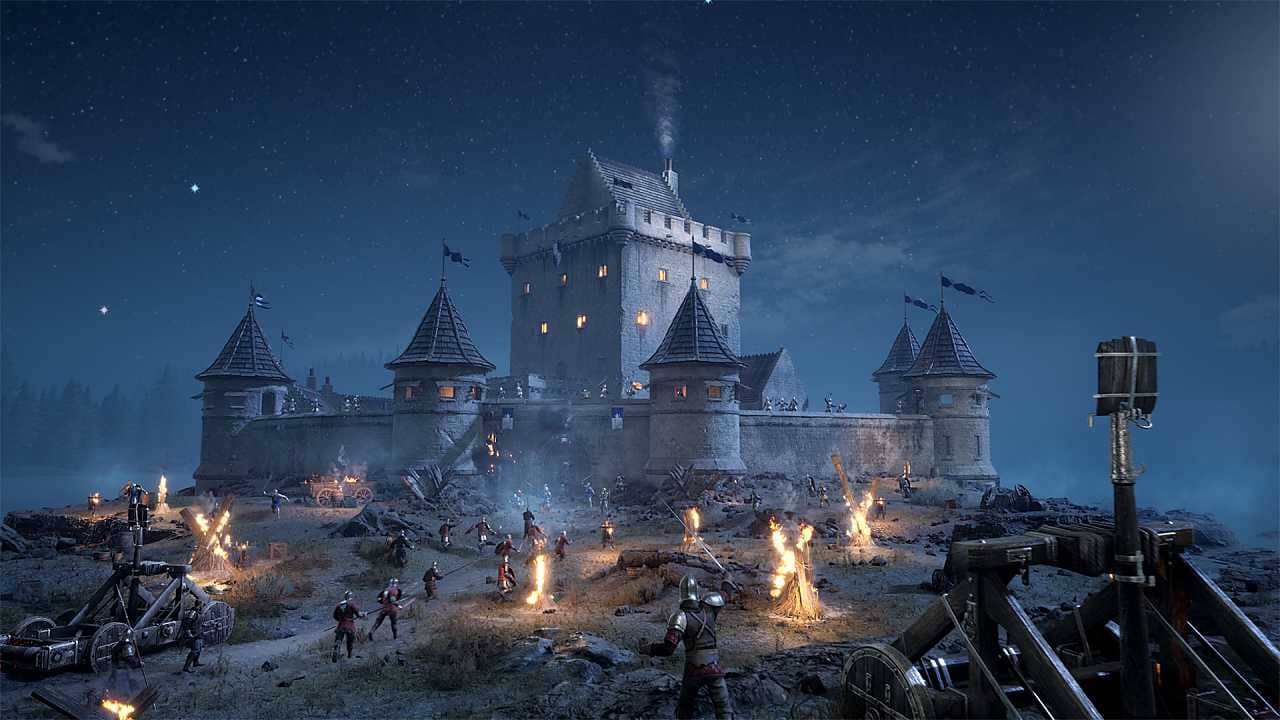
Inspired by medieval movie battles, Chivalry 2 is a multiplayer first-person slasher game. Although the game was released in June 2021, it has just launched on Steam. In the game, where battles and quests take center stage, many players are experiencing a low FPS problem. So how do you boost FPS in Chivalry 2? We will make some suggestions for you. We hope they help!
 How Do You Boost FPS in Chivalry 2 (2022)?
Check the System Requirements
Make sure you have the hardware needed to run Chivalry 2 smoothly. If you can't meet the game's minimum system requirements, you are likely to have trouble launching the game.
Minimum Requirements
- Processor: Intel Core i3-4370
- RAM: 8 GB
- OS: Windows 10 64bit
- GRAPHICS: NVIDIA GeForce GTX 660 or AMD Radeon HD 7870 2 GB
- Storage: 20 GB
Recommended Requirements
- Processor: Intel Core i7 6700 or AMD Ryzen 5 3500x
- RAM: 16 GB
- OS: Windows 10 64bit
- GRAPHICS: NVIDIA GeForce GTX 1070 or AMD RX Vega-56
- Storage: 20 GB
Update Your Graphics Card Drivers
- Press Windows + R.
- Type "DxDiag" and press OK.
- When the DirectX Diagnostic Tool loads, select the Display tab.
- The name and manufacturer of the graphics card will be given in the Device section.
- Go to the manufacturer's website to get the latest driver. For help with driver updates, contact the driver manufacturer.
Change the Graphics Settings
Nvidia Settings
- Threaded Optimization: On
- Image Sharpening mode: Off
- Power Management: Maximum Performance
- Low Latency Mode: Off
- Texture filtering – Quality: Performance
AMD Settings
- Radeon Anti-Lag: Disabled
- Radeon Chill: Disabled
- Radeon Boost: Disabled
- Image Sharpening: Disabled
- Radeon Enhanced Sync: Disabled
- Wait for Vertical Refresh: Always Off
- Anti-Aliasing: Use application settings
- Anti-Aliasing Method: Multisampling
- Morphological Anti-Aliasing: Disabled
- Anisotropic Filtering: Disabled
- Texture Filtering Quality: Performance
- Surface Format Optimization: Enabled
- Tessellation Mode: Override application settings
- Maximum Tessellation Level: Off
- OpenGL Triple Buffering: Disabled
- 10-Bit Pixel Format: Disabled
- GPU Workload: Graphics
Close Unnecessary Background Apps
There may be many apps taking up space and processing power on your computer. These may be antivirus apps or apps with heavy graphics. To free up resources, disable apps like these.
Run the Game as Administrator
- Right-click the Chivalry 2 .exe file.
- Select Properties.
- Select the Compatibility tab.
- Check the "Run this program as an administrator" option.
- Save your changes.
Frequently asked questions
Questions answered in this article
How Do You Boost FPS in Chivalry 2 (2022)?
Make sure you have the hardware needed to run Chivalry 2 smoothly. If you can't meet the game's minimum system requirements, you are likely to have trouble launching the game. Press Windows + R. • Type "DxDiag" and press OK. • When the DirectX Diagnostic Tool loads, select the Display tab. • The name and manufacturer of the graphics card will be given in the Device section. • Go to the manufacturer's website to get the latest driver. For help with driver updates, contact the driver manufacturer.
Go to sectionBazen yazar, bazen tasarlar. Film bağımlısı, oyunlar hakkında yazmayı sever✨


