

How to Connect a Keyboard and Mouse to Steam Deck
You can pair a wireless keyboard and mouse to Steam Deck over Bluetooth 5.0, then set a custom control layout for games that need one.

3 min read
In brief
AI summarySteam Deck supports wireless keyboard and mouse setups thanks to its unrestricted Bluetooth 5.0 support.
To connect one, enable Bluetooth from Steam Deck's Quick Settings or Settings menu and pair the devices.
Players can build a custom keyboard and mouse control layout per game if no template already exists.
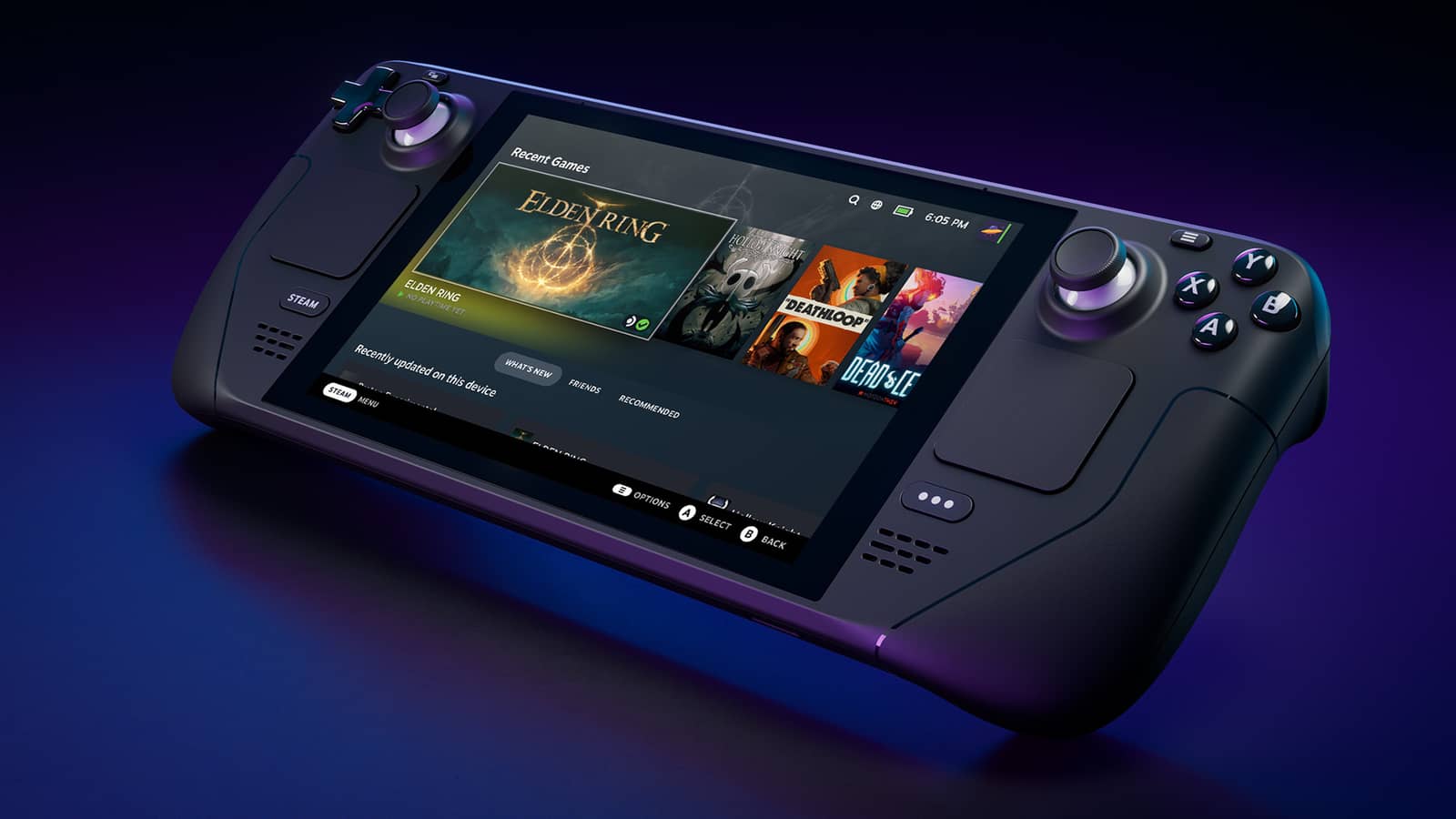
Steam Deck is packed with controls. There are so many that you can tweak just about anything related to how you work and play. But a pop-up keyboard and a retractable mouse didn't quite fit, so you're on your own for those. The good news is that setting up a keyboard and mouse on Steam Deck is entirely possible. You may want to switch to this option for certain games that don't play the same way without one, or if you're planning to do serious work in desktop mode.

How Can You Connect Your Keyboard and Mouse to Steam Deck?
- Use a compatible wireless keyboard and mouse. While devices like the Steam Deck Docking Station (not yet released) will make managing wired connections easier, for now wireless devices are the best way to get your keyboard and mouse working on the Steam Deck. Luckily, the Steam Deck comes with unrestricted Bluetooth 5.0 support, meaning it can work with just about any Bluetooth device. If you want to buy a new Bluetooth keyboard or mouse, we've got you covered with our guides to the best wireless keyboards and best wireless mice.
- Make sure your keyboard and mouse are fully charged, turned on, and ready for their first pairing with the Steam Deck. If either has pairing buttons or similar features, make sure they're ready to go.
- You don't need to switch to desktop mode to use a keyboard and mouse. Just select the QAM button — the "…" button — in the bottom right of the Deck. This opens the menu on the right side. From there, head to the gear icon where you'll find the Quick Settings menu.
- At the bottom of Quick Settings, select the Other option. This should open a small Bluetooth menu. Make sure Bluetooth is enabled here — it may not be on by default.
- Exit the QAM menu and select the primary Steam button to open the options menu. Go to Settings and select it.
- Select Bluetooth from the menu on the left. On the screen on the right, you'll see all your available Bluetooth options. Look for the section labeled for pairing. Keep your keyboard and mouse nearby. If they have pairing buttons, now's the time to press them.
Once you see your keyboard and mouse show up as ready to pair, select them and wait for the Steam Deck to pair, then connect. It can take a few seconds for each device.
- If you want to play games with a keyboard and mouse, you should also check your control layout. The Steam Deck tries to switch to an external-device layout when it detects connected devices, but this doesn't always work correctly for a keyboard and mouse.
Find the game you want to play on the Steam Deck and select the Controller icon on the right side of the title. This will open the controller settings, where you can check your current layout. To check the available layout options, select the right-facing arrow on the current layout. If you see an available keyboard and mouse layout, switch to it.
- If there's no template for a keyboard and mouse, you can always create your own by selecting a new layout, going to Edit, and heading to the Mouse and Keyboard sections at the top of the menu, where you can set your own template for commands and more. Keyboard and mouse controls won't work the same way in every game, but this kind of customization can help. Make sure the Deck doesn't switch back to a different layout the next time you launch the game — reorder the priority of your layouts if needed.
Note: If you're already in Desktop mode, all these options will work directly from the Desktop menu, where the Bluetooth button is located in the bottom right corner of the screen. It's generally easier to set up your keyboard and mouse before switching to desktop mode.
Frequently asked questions
Questions answered in this article
How Can You Connect Your Keyboard and Mouse to Steam Deck?
Once you see your keyboard and mouse show up as ready to pair, select them and wait for the Steam Deck to pair, then connect. It can take a few seconds for each device. Find the game you want to play on the Steam Deck and select the Controller icon on the right side of the title. This will open the controller settings, where you can check your current layout. To check the available layout options, select the right-facing arrow on the current layout. If you see an available keyboard and mouse layout, switch to it. Note: If you're already in Desktop mode, all these options will work directly from the Desktop menu, where the Bluetooth button is located in the bottom right corner of the…
Go to section

