

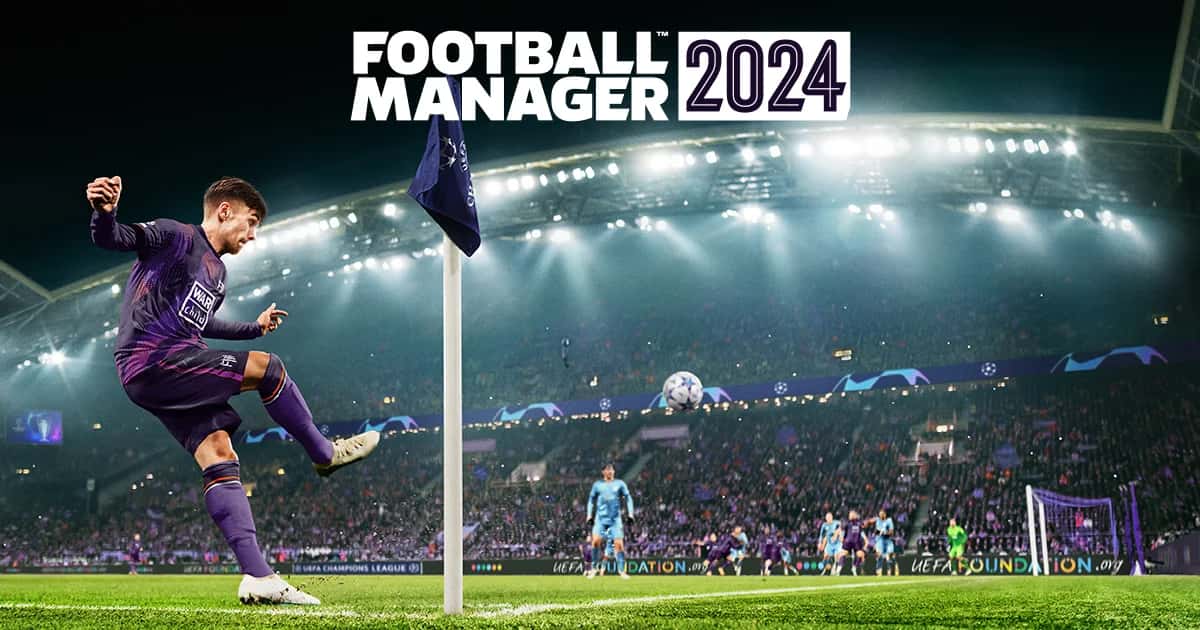
Football Manager 2024 (FM24) players can install community-made face packs by copying them into the game's graphics folder and reloading the skin in Preferences.

- Football Manager 2024 (FM24) is in early access, and players are searching for the best FM24 face packs.
- Face packs are added by mod developers in the Football Manager community to enhance the in-game experience.
- To install face packs, copy them into the graphics folder and reload the game's skin from Preferences.
Football Manager 2024 (FM 24) is currently in early access, and players are looking for the best FM24 face packs in the game.
Face packs are a feature added by mod developers within the Football Manager community. Having players' real faces will enhance your in-game experience. If FM 24 is going to be your first football experience, you might be wondering how to download FM24 face packs.
 How to Download Football Manager 2024 (FM 24) Face Packs
Copy the folder to the following location: /Users/<yourname>/Library/Application Support/Sports Interactive/Football Manager 2024/graphics
You may have trouble finding this location. To make things easier, you can follow the steps below:
- Open Finder
- Click "Go" on the menu bar and select "Go to Folder"
- c) Copy to the following location: ~/Library/Application Support/Sports Interactive/
- d) Open the "Football Manager 2024" folder
- e) Open the "graphics" folder (or create one if it doesn't exist)
- f) Move the downloaded files into the "graphics" folder
When you download the FM24 skin, put it into the graphics folder where you should find it: Documents/Sports Interactive/Football Manager 2022/graphics.
If the files you downloaded are in .zip or .rar format, you need to extract them and then add these files to the folder mentioned above.
After doing this, you need to refresh your game for the changes to be saved. You can do this by following these steps:
- Open Football Manager
- Click Preferences on the start screen
- Click the "Advanced" tab
- Select "Interface" on the right side
- Scroll down to the Appearance heading
- Uncheck "Use caching to reduce page load times"
- Check "Reload skin when confirming changes in preferences"
- Click "Reload Skin"
You should go back to Preferences and follow the same steps, but this time check "Use caching to reduce page load times" — while turning it off helps new graphics load, you should always keep it on to improve performance.
For the latest news, follow the Gamer Papers website and our social media accounts.
Sources
External links cited in this article
LoL, TFT ve VALORANT sever bir oyun sever ve oyuncu. Mobil platformlarda ise tam bir Clash of clans hastası.
Comments (0)
Log in to leave a comment giriş yap.
No comments yet. Be the first!
Related Posts
All Football Manager →
FM 25 Roland Sallai: Galatasaray Player Analysis
In FM 25, Roland Sallai's best position is right wing in the Winger (Attack) role, where he can help Galatasaray offset Kerem Aktürkoğlu's departure with pace and goal threat.

FM 25 Delayed: What Features Were Removed?
Football Manager 25 was delayed over its move to the Unity engine, adding women's football for the first time while dropping international management and player weights.

FM 25 Wonderkids: Best Young Talents to Sign
A scouting list of FM 25's top wonderkids across positions, from Yan Couto and Warren Zaïre-Emery to Rasmus Højlund and Jorrel Hato.