

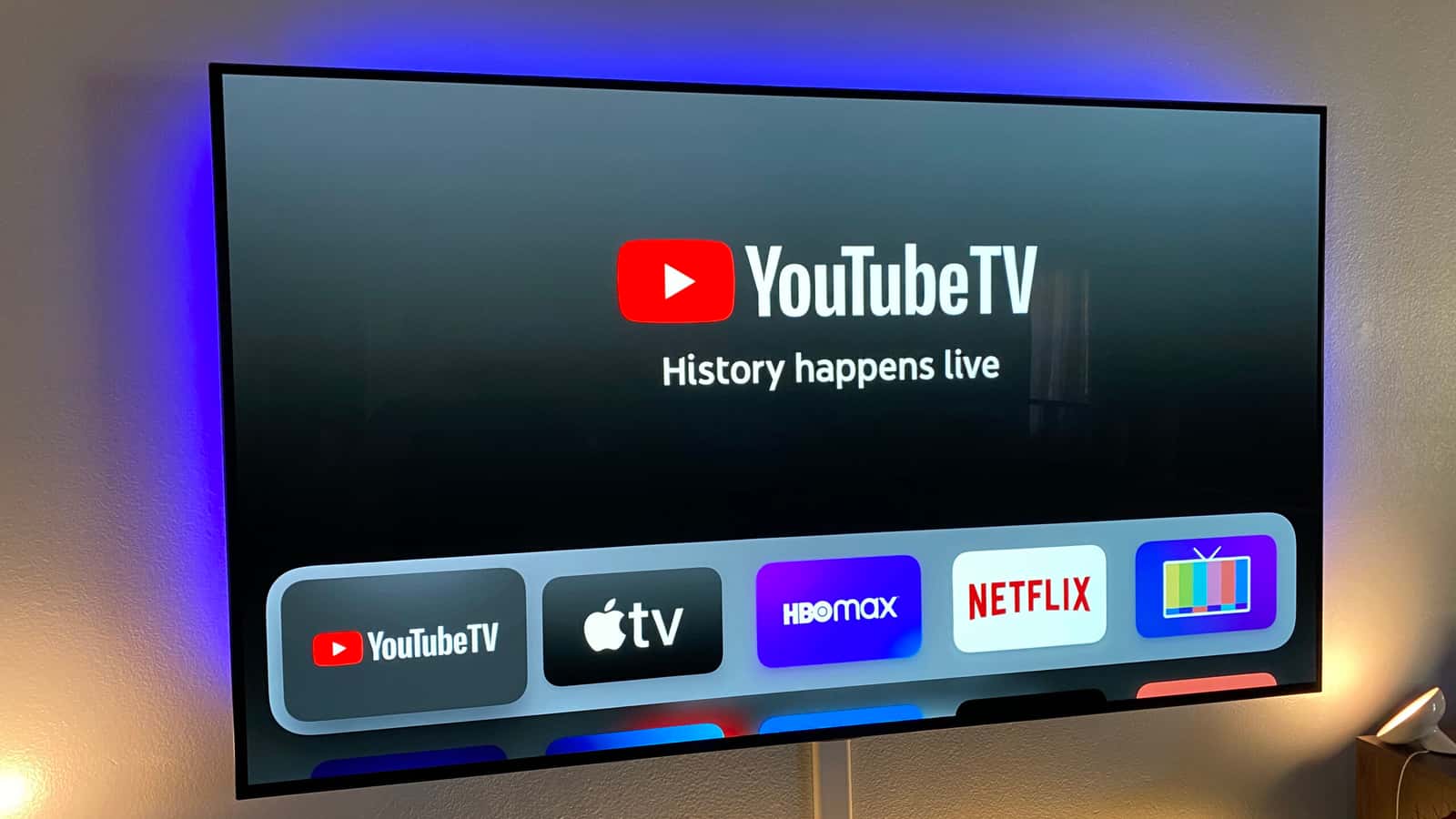
You can hide channels on YouTube TV from the Live Guide in a web browser or from the Sort menu in the mobile app on Android or iOS.

- On YouTube TV's website, channels can be hidden from the Live Guide page under Settings by clicking the red checkmark next to a channel.
- The YouTube TV mobile app lets users hide channels by tapping Live, then Sort, then Edit next to the Custom option.
- Newly added YouTube TV channels land at the bottom of a custom list in an inactive state and must be enabled manually.
YouTube TV has a lot of channels. But what if you don't actually need all 100 channels? What if having fewer channels genuinely gives you a better YouTube TV experience? That's not just possible, it's something you should definitely do. So how do you hide a channel on YouTube TV? Let's find out!

How Do You Hide a Channel on YouTube TV?
How Do You Hide a Channel in a Web Browser?
Setting up your custom channel list on YouTube TV is simple and takes as long as you want it to. You could spend all day rearranging things and hiding as many channels as you like. But here's a big warning: YouTube TV occasionally adds new channels. When that happens, they land at the bottom of your custom list in an inactive state. So if you want to watch them, you'll need to enable them manually.
- Go to tv.youtube.com in a web browser.
- Click your profile picture in the top right.
- Select Settings from the dropdown options.
- Click Live Guide in the navigation on the left.
- To disable a channel, click the red checkmark so it disappears. To enable a channel, click the empty circle. To reorder channels, hold the two-line handles on the left and drag them up or down.
How Do You Hide a Channel on Your Phone or Tablet?
This is also quite simple and works the same way whether you're on a phone or a tablet, Android or iOS.
- Open the YouTube TV app on whichever device you have.
- Tap the Live button.
- Tap the Sort button.
- Tap the Edit button next to Custom.
- Uncheck the channels you don't want to appear. You can also reorder channels by holding the handles on the right and dragging them up or down.
Comments (0)
Log in to leave a comment giriş yap.
No comments yet. Be the first!
Related Posts
All News →
Turkey Game Industry Report 2024 Released
Turkey's 2024 Game Industry Report shows the country's gaming market grew to over $810M with 48M+ active players, alongside a new digital guide to local game companies.

Loldle Answers: Daily League of Legends Puzzle
Loldle is a daily League of Legends guessing game with five modes (Classic, Quote, Ability, Emoji, Splash); December 6, 2024's Classic answer was Fiddlesticks.

Monopoly GO Dice Links: Free Dice Rewards
Monopoly GO's free dice links refresh daily and can be redeemed instantly for 25 or 30 free dice each, plus tips like auto refills every 60 minutes, daily gifts, and sticker trading to earn even more.