

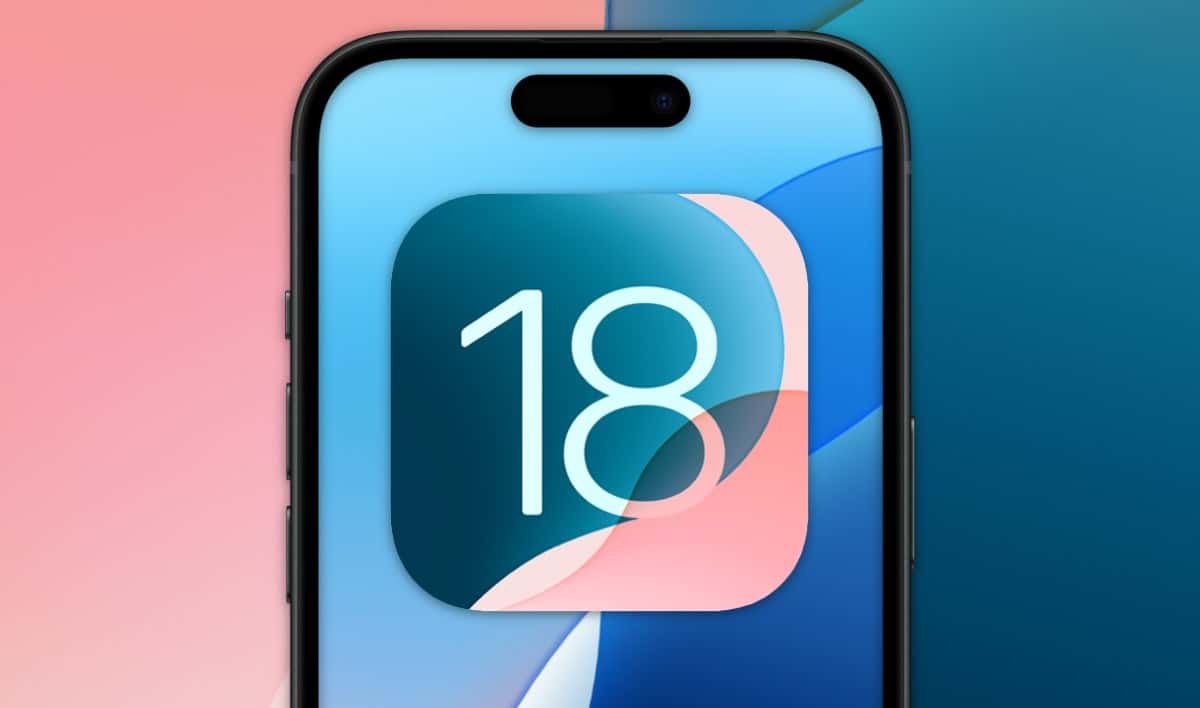
Backups made on a newer iOS version can't be restored to an older one, so Apple recommends backing up via iCloud or a Mac/PC before installing the iOS 18 update.
- iOS 18 brings a redesigned Control Center, deeper home screen customization, and RCS support in Messages for richer texts with Android users.
- Apple recommends backing up an iPhone via iCloud or a Mac/PC before installing iOS 18, since newer-version backups can't restore to older iOS.
- To install, go to Settings, then General, then Software Update, select iOS 18, and tap Update Now with sufficient battery and Wi-Fi.
iOS 18 Update Guide! How Do You Install It?
Apple has released the iOS 18 update for iPhone users. This update includes many new features and improvements. However, the Apple Intelligence feature Apple had previously announced isn't included in this update. This AI-powered feature will be made available at a later date. In this article, we'll cover the new features iOS 18 brings and walk you through how to install this update on your iPhone step by step.
iOS 18 Update Guide! How Do You Install It?
In this iOS 18 update guide, we'll cover the new features that come with iOS 18, backing up your iPhone, and how to install iOS 18 on your phone.
iOS 18 Update Guide: What's New in iOS 18?
Even though Apple Intelligence isn't included in this update yet, iOS 18 brings significant new features. First, there are now far more options to personalize your home screen. You'll now have more control over widgets and app layouts. On top of that, Control Center has been completely redesigned. Users will be able to access core controls much faster and more easily.
The Messages app has also gotten a major update. It now offers RCS (Rich Communication Services) support. This feature lets Messages work better with other platforms. This makes richer content sharing with Android users possible. The Mail app, meanwhile, has gained more advanced sorting options, which helps users keep their inbox tidier.
iOS 18 also brings new features to the Maps app. The addition of topographic features lets users get a more detailed map experience. Mountains, valleys and other natural formations can now be seen more clearly on the map. The Wallet app is drawing attention with a new "Tap to Cash" feature. This feature lets you make quick payments through your digital wallet at physical stores.
Additionally, the Photos app has undergone a major change with iOS 18. A new Gallery has been added to the top of the app, and viewing options have also been improved. This lets you view your photos more comfortably and in a more organized way.
You May Also Like: No Object Removal from Photos in iOS 18
iOS 18 Update Guide! How Do You Install It?
 iOS 18 Update Guide: Back Up Your iPhone
Backing up your device before installing any iOS update can be an important safeguard against any issues you might run into. This is especially true if you're using beta software — skipping a backup can carry major risks. So the first step in this iOS 18 update guide should be backing up your iPhone.
The most practical way to back up is using iCloud. However, if you don't have enough space in iCloud, or want a more secure backup, doing a manual backup with a Mac or PC is strongly recommended. iCloud only keeps your last three backups and backs up automatically every 24 hours. If you run into an issue with iOS 18 and need to go back to iOS 17, a Mac or PC backup could be your best lifesaver. Backups taken from a newer iOS version can't be restored to devices running an older version, so a computer backup is always safer.
To back up your iPhone:
- Backing up via iCloud: Go to Settings > [Your Name] > iCloud > iCloud Backup, and tap "Back Up Now."
- Backing up via Mac or PC: Connect your iPhone to your computer and start the backup process through Finder (macOS) or iTunes (Windows).
Install iOS 18 on Your iPhone
And the final step of the iOS 18 update guide is installing iOS 18 on your phone. However, before doing this, make sure your device has enough charge and use a Wi-Fi connection for the update.
You can follow these steps for the iOS update guide:
- Open the Settings App: Open the Settings app on your iPhone.
- Select General: In the Settings menu, tap "General."
- Select Software Update: In this menu, select "Software Update" at the top.
- Select iOS 18: The iOS 18 update will appear on screen. Select this update.
- Tap Update Now: Tap "Update Now" to download and install the update.
For the latest news, follow Gamer Papers and our social media accounts.
Sources
External links cited in this article
Comments (0)
Log in to leave a comment giriş yap.
No comments yet. Be the first!
Related Posts
All News →
Turkey Game Industry Report 2024 Released
Turkey's 2024 Game Industry Report shows the country's gaming market grew to over $810M with 48M+ active players, alongside a new digital guide to local game companies.

Loldle Answers: Daily League of Legends Puzzle
Loldle is a daily League of Legends guessing game with five modes (Classic, Quote, Ability, Emoji, Splash); December 6, 2024's Classic answer was Fiddlesticks.

Monopoly GO Dice Links: Free Dice Rewards
Monopoly GO's free dice links refresh daily and can be redeemed instantly for 25 or 30 free dice each, plus tips like auto refills every 60 minutes, daily gifts, and sticker trading to earn even more.