

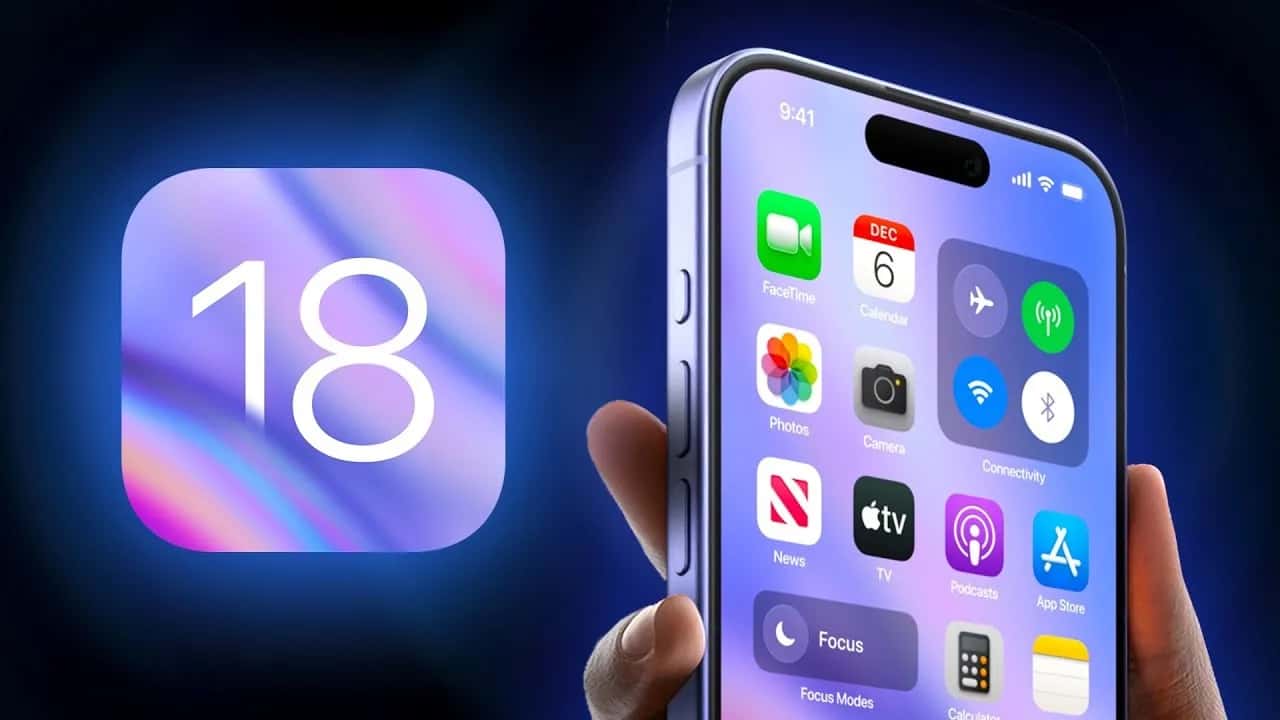
iOS 18 launched without its Clean Up object removal feature; Apple confirmed it will arrive in October with the iOS 18.1 update.
- iOS 18 shipped without the 'Clean Up' object removal feature users were expecting, disappointing many.
- Apple confirmed Clean Up will roll out in October with the iOS 18.1 update.
- The Clean Up tool will use on-device AI to automatically detect and remove unwanted objects from photos in the Photos app.
iOS 18 Doesn't Have Object Removal From Photos! Clean Up Didn't Arrive!
Apple's mobile operating system iOS aims to give users a better experience with new updates every year. iOS 18, released in 2024, continues this tradition and brings many exciting features with it. However, the "Object Removal From Photos" feature, also known as "Clean Up," which many of us were eagerly waiting for, was not available at iOS 18's launch. This feature unfortunately doesn't work yet, and users are unhappy about it. Apple has announced that this issue will be resolved with the iOS 18.1 update.
iOS 18 Doesn't Have Object Removal From Photos! Clean Up Didn't Arrive!
iOS 18 brought many of the innovations users were waiting for. Performance improvements, new security features, a smoother interface, and AI-powered tools are among the highlights of this release. However, one of the most notable new features was Clean Up, which lets you remove unwanted objects from photos. This tool lets you easily remove an unwanted object, person, or element from a photo. However, this feature wasn't usable at iOS 18's initial launch, which left users disappointed.
Although Apple had stated it would ship this feature with iOS 18's launch, the Clean Up tool couldn't be released due to technical issues. According to the company's statement, this feature will reach users in October with the iOS 18.1 update. While iOS 18's initial release focused on performance improvements and other features, the Clean Up feature is still in its final stages of development. Apple has high expectations for this feature, and additional development is needed to deliver a more polished experience.
This delay is reportedly due to the extra time needed to optimize the AI algorithms for devices, so they can edit users' photos as efficiently as possible.
You Might Be Interested In: How to Change App Icon Colors in iOS 18
How Do You Hide Apps in iOS 18?
You may want to keep your existing apps tucked away in the App Library to keep your phone tidy. Or you may want to hide your apps to protect your privacy. If you're wondering how to do it, we recommend reading our article on how to hide apps in iOS 18.
When Will the iOS 18 Object Removal From Photos (Clean Up) Feature Arrive?
According to Apple's statements, the Clean Up feature will be available in October with the iOS 18.1 update. After downloading and installing iOS 18.1, users will be able to use this feature in the Photos app. This AI-powered feature in particular will be able to automatically detect and remove unwanted objects from photos. Removing objects from photos will let users create cleaner, more professional-looking photos.
How Do You Use the Object Removal From Photos (Clean Up) Feature?
- Open the Photos App
First, open the Photos app on your device. Your entire photo library will appear.
- Select the Photo You Want to Edit
Choose the photo you want to work on from your photo library. (It can be a landscape or a group photo, whichever you prefer.)
- Enter Edit Mode
Tap the Edit button at the bottom of the screen to edit the photo you selected. This will let you make edits to the photo.
- Select the Clean Up Tool
After entering edit mode, you'll see the Clean Up option at the bottom of the screen. Select this tool to start removing objects.
- Wait for the AI Model to Load
If you're using the Object Removal From Photos feature for the first time, you'll need to download Apple's AI model to your device. This will cause a delay of a few minutes, but the tool will run smoothly afterward.
- Run Automatic Object Detection
After tapping the Clean Up icon, the AI will automatically detect elements to remove, like people or objects in the photo, and mark them with colored outlines.
- Make Manual Edits
If you want to remove other elements besides these objects, you'll need to do this manually. Circle the unwanted object with your finger, tap it, or select it by color to remove it.
- Use the Zoom In and Zoom Out Features
You'll want to use the zoom in and zoom out features to more easily edit small details. This lets you make more precise edits.
- Finish Editing
When you're done editing your photo, tap the Done button in the top right corner of the screen. This will complete and save your edit.
About iOS 18
It is the upcoming eighteenth major release of Apple's iOS operating system for iPhone. Apple announced this release on June 10, 2024, at the 2024 Worldwide Developers Conference. It is the direct successor to iOS 17 and was announced alongside watchOS 11, iPadOS 18, and macOS Sequoia.
For the latest news follow Gamer Papers and our social media accounts.
Sources
External links cited in this article
Comments (0)
Log in to leave a comment giriş yap.
No comments yet. Be the first!
Related Posts
All News →
Turkey Game Industry Report 2024 Released
Turkey's 2024 Game Industry Report shows the country's gaming market grew to over $810M with 48M+ active players, alongside a new digital guide to local game companies.

Loldle Answers: Daily League of Legends Puzzle
Loldle is a daily League of Legends guessing game with five modes (Classic, Quote, Ability, Emoji, Splash); December 6, 2024's Classic answer was Fiddlesticks.

Monopoly GO Dice Links: Free Dice Rewards
Monopoly GO's free dice links refresh daily and can be redeemed instantly for 25 or 30 free dice each, plus tips like auto refills every 60 minutes, daily gifts, and sticker trading to earn even more.