

What Is RAM? Types, How Much You Need, and Installation
RAM is a computer's fast, short-term memory; this guide covers its types like DDR4 and DDR5, how much you need, and how to install it.

6 min read
In brief
AI summaryRAM is a device's short-term memory, giving fast access to data that apps, games, and the operating system need.
Common RAM types include DDR4, DDR3, DDR2, and the newest DDR5, with each generation offering higher speeds.
Having enough RAM, usually 8 GB or more on a modern Windows PC, is essential for operating systems, games, and applications to run smoothly.
Contents4 sections
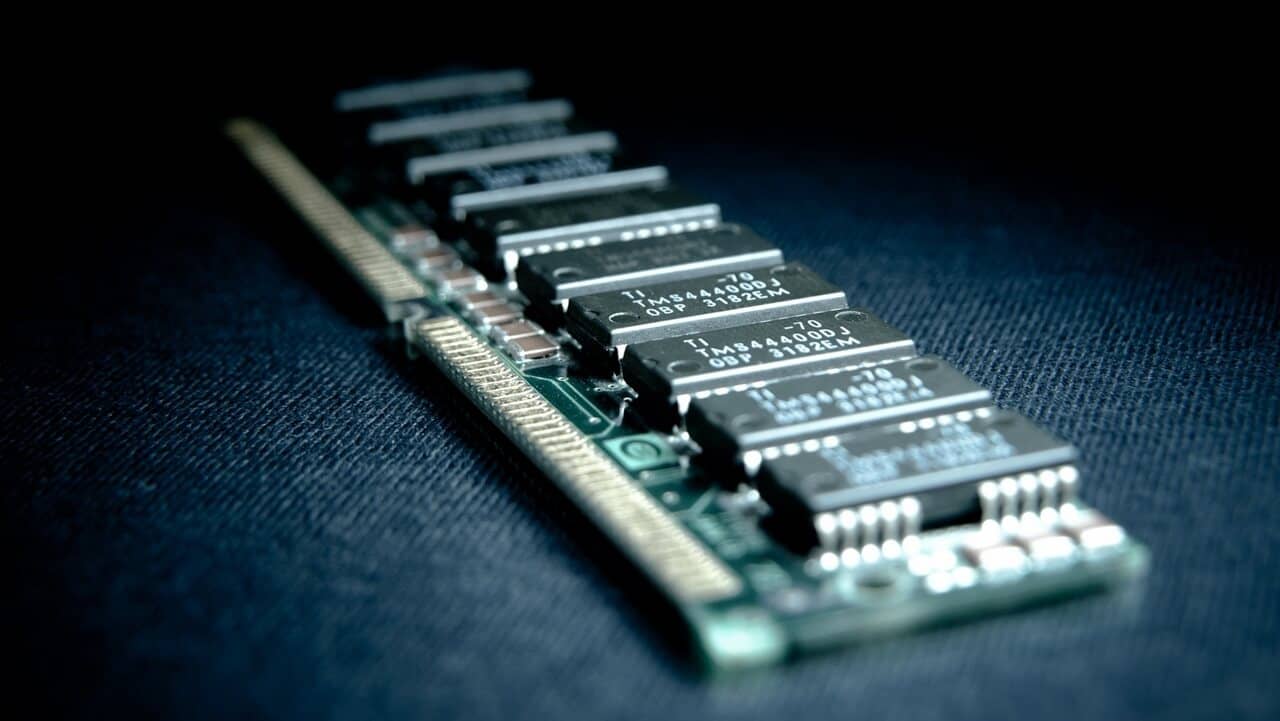
Random access memory, or RAM, is a critical component of everything from desktop computers to smartphones. RAM is a high-speed, short-term storage solution that gives fast access to information that applications, games, and the operating system itself need, versus much slower, longer-term storage like hard drives.
Still, just like the other components in your devices, there are many different types of RAM. RAM speed can be affected by its type, model, or generation, and its price can vary wildly depending on the capacity you buy and which device it's going into. You'll find the answers to questions like what is RAM and what does it do? What types of RAM are there? How much RAM do you need? How do you install RAM? in this article.

What Is RAM and What Does It Do?
RAM is essentially a device's short-term memory. It reads information that an application or the operating system may need in the near future and temporarily stores it for fast access by the CPU, graphics card, or any other component that might need it. This information stays in RAM, where it's easily accessible, until you close the program or restart your device. RAM is then cleared and ready to take on new, relevant data.
RAM keeps other components (like a hard drive or even a solid-state drive, or SSD) from having to dig into the device's slower storage every time you open a new browser tab or a new enemy loads in for you to fight. No matter how fast modern storage is compared to drives from years past, it's still much slower than RAM. However, these storage components are necessary because they provide longer-term storage for that data once RAM is no longer powered.
What Are the Different Types of RAM?
"RAM," or "memory," typically refers to dynamic random access memory (DRAM), or more precisely, synchronous dynamic random access memory (SDRAM) for modern systems. The terminology doesn't matter much beyond the technical details, but it's useful to know that the terms are often used somewhat interchangeably in casual use.
The most common type of desktop RAM sold today is DDR4, though older systems may use DDR3 or even DDR2, and the newest systems may use DDR5. The numbers indicate the generation of the RAM; each successive generation offers higher speeds through higher bandwidth — a higher megatransfer rate per second. Each generation also brings physical changes and a reduction in power demand, which is why they aren't interchangeable.
Mobile platforms like laptops, tablets, and smartphones use Low Power Double Data Rate (LPDDR) memory, which is also available in several generations, including LPDDR4 and the newest, LPDDR5X. While not quite as fast as the best DDR5 RAM, they offer performance roughly comparable to desktop-class DDR memory. However, they require less power to run, which helps save battery life. They also come in different shapes and sizes, such as being soldered directly onto the motherboard, or as SODIMM (Small Outline Dual In-line Memory Module), which is still a replaceable stick but more compact than the DIMM-style memory sticks used elsewhere.
Another term commonly used, especially in gaming, is VRAM (video RAM). While it was once a separate piece of technology, VRAM is now used to refer to the dedicated memory on a graphics card. It can also refer to the system memory in game consoles, but in either case, it only concerns memory reserved for the GPU.
Most modern graphics cards, like AMD's new RX 7000 series, use GDDR6, but Nvidia exclusively uses GDDR6X RAM, found on RTX 3000 and RTX 40 series graphics cards.
How Much RAM Do You Need?
You need to make sure you have enough RAM. Operating systems, games, and applications all need a certain amount of RAM to run, and even more to run well. This is usually between four gigabytes (GB) and 16 GB, though any modern computer running Windows really shouldn't have less than 8 GB. Anyone who wants to do a lot of video editing or heavy multitasking may want 32 GB or more.
Having more than the minimum amount of RAM is very important. A PC doesn't just run the current application — it also runs other services and tasks in the background. That said, having an extremely large amount of system memory won't make a PC run faster, and once you have enough memory, having faster memory is better than having more of it.
How Do You Install RAM?
- Unplug the power cable from your system, and if needed, remove the other rear-panel cables so you can safely lay your system on its side.
- Remove the side panel (usually on the left) to get full access to the interior. The RAM slots are long and are normally located to the right of the processor and its thick heatsink. There are typically two to eight of these slots, and each has tabs (or wings) on both ends that lock the sticks in place. Press these tabs toward the motherboard to remove and take out the old sticks.
Some motherboards only have a single tab. In that case, press the tab down and slide the RAM stick out while trying to keep it level.
- Check your motherboard's manual to determine the correct slots your new memory should go in. If you're only using one or two sticks, some motherboards prefer the second and fourth slots. Others prefer the first and third. Since the slots determine how much bandwidth your RAM has, it's important to check your motherboard's manual here.
Before inserting the RAM, make sure the tabs on both ends of the slot are pushed back so they lean away from the slot.
Keep in mind that you can only install RAM one specific way. Along the edge with the metal contacts, you'll see a notch that isn't centered. You need to line up this notch with the — again, not centered — notch inside the motherboard's memory slot. If it's flipped around, the stick won't seat properly.
Once you're sure the RAM stick is properly aligned, press down on its edges with your thumbs until the stick clicks into place. The tabs will lock into place at this point, holding the memory securely.
If the stick doesn't seat relatively easily, make sure you have it oriented correctly. Forcing RAM that isn't lined up properly can damage your motherboard. If you're unsure, double-check. A flashlight can genuinely help you see what you're doing.
That said, installing RAM can take a reasonable amount of pressure. Don't force anything, but apply enough pressure while pressing the stick down.
- Once all the sticks are seated in their slots, make sure the wing clips are locked to hold the sticks firmly in place. If everything checks out, shut down the computer. Then reconnect all the cables and boot up the system.
Frequently asked questions
Questions answered in this article
What Is RAM and What Does It Do?
RAM is essentially a device's short-term memory. It reads information that an application or the operating system may need in the near future and temporarily stores it for fast access by the CPU, graphics card, or any other component that might need it. This information stays in RAM, where it's easily accessible, until you close the program or restart your device. RAM is then cleared and ready to take on new, relevant data. RAM keeps other components (like a hard drive or even a solid-state drive, or SSD) from having to dig into the device's slower storage every time you open a new browser tab or a new enemy loads in for you to fight. No matter how fast modern storage is compared to…
Go to sectionWhat Are the Different Types of RAM?
"RAM," or "memory," typically refers to dynamic random access memory (DRAM), or more precisely, synchronous dynamic random access memory (SDRAM) for modern systems. The terminology doesn't matter much beyond the technical details, but it's useful to know that the terms are often used somewhat interchangeably in casual use. The most common type of desktop RAM sold today is DDR4, though older systems may use DDR3 or even DDR2, and the newest systems may use DDR5. The numbers indicate the generation of the RAM; each successive generation offers higher speeds through higher bandwidth — a higher megatransfer rate per second. Each generation also brings physical changes and a reduction in…
Go to sectionHow Much RAM Do You Need?
You need to make sure you have enough RAM. Operating systems, games, and applications all need a certain amount of RAM to run, and even more to run well. This is usually between four gigabytes (GB) and 16 GB, though any modern computer running Windows really shouldn't have less than 8 GB. Anyone who wants to do a lot of video editing or heavy multitasking may want 32 GB or more. Having more than the minimum amount of RAM is very important. A PC doesn't just run the current application — it also runs other services and tasks in the background. That said, having an extremely large amount of system memory won't make a PC run faster, and once you have enough memory, having faster memory is…
Go to sectionHow Do You Install RAM?
Some motherboards only have a single tab. In that case, press the tab down and slide the RAM stick out while trying to keep it level. Before inserting the RAM, make sure the tabs on both ends of the slot are pushed back so they lean away from the slot. Keep in mind that you can only install RAM one specific way. Along the edge with the metal contacts, you'll see a notch that isn't centered. You need to line up this notch with the — again, not centered — notch inside the motherboard's memory slot. If it's flipped around, the stick won't seat properly. Once you're sure the RAM stick is properly aligned, press down on its edges with your thumbs until the stick clicks into place. The tabs…
Go to sectionBazen yazar, bazen tasarlar. Film bağımlısı, oyunlar hakkında yazmayı sever✨


