

How to Add a Widget to the iPhone Home Screen (iOS 14)
To add a widget on iPhone in iOS 14, touch and hold an empty area until the apps jiggle, tap the plus (+) at the top left, pick a widget and tap Add Widget, then tap Done.

3 min read
In brief
AI summaryApple's iOS 14 brought home screen widgets to iPhone, and they can also sit on the leftmost widget page and the rightmost App Library page.
To add an iPhone widget, press an empty area or widget until apps jiggle, tap the plus (+) button at the top left, choose a widget, tap Add Widget and then Done.
To remove an iPhone widget, enter edit mode, tap the minus (-) button at the widget's top left and tap Remove.
As you know, Apple introduced its new operating system iOS 14 and made it available for all supported iPhone models. How do you add a widget to the home screen on iPhone? How do you put a widget on the iPhone home screen in iOS 14? How do you add a widget to the home screen on iPhone? In this article, we showed how to add a widget to the home screen, one of the new features that came with iOS 14. Here are the details..

How Do You Add a Widget to the iPhone Home Screen? (2023)
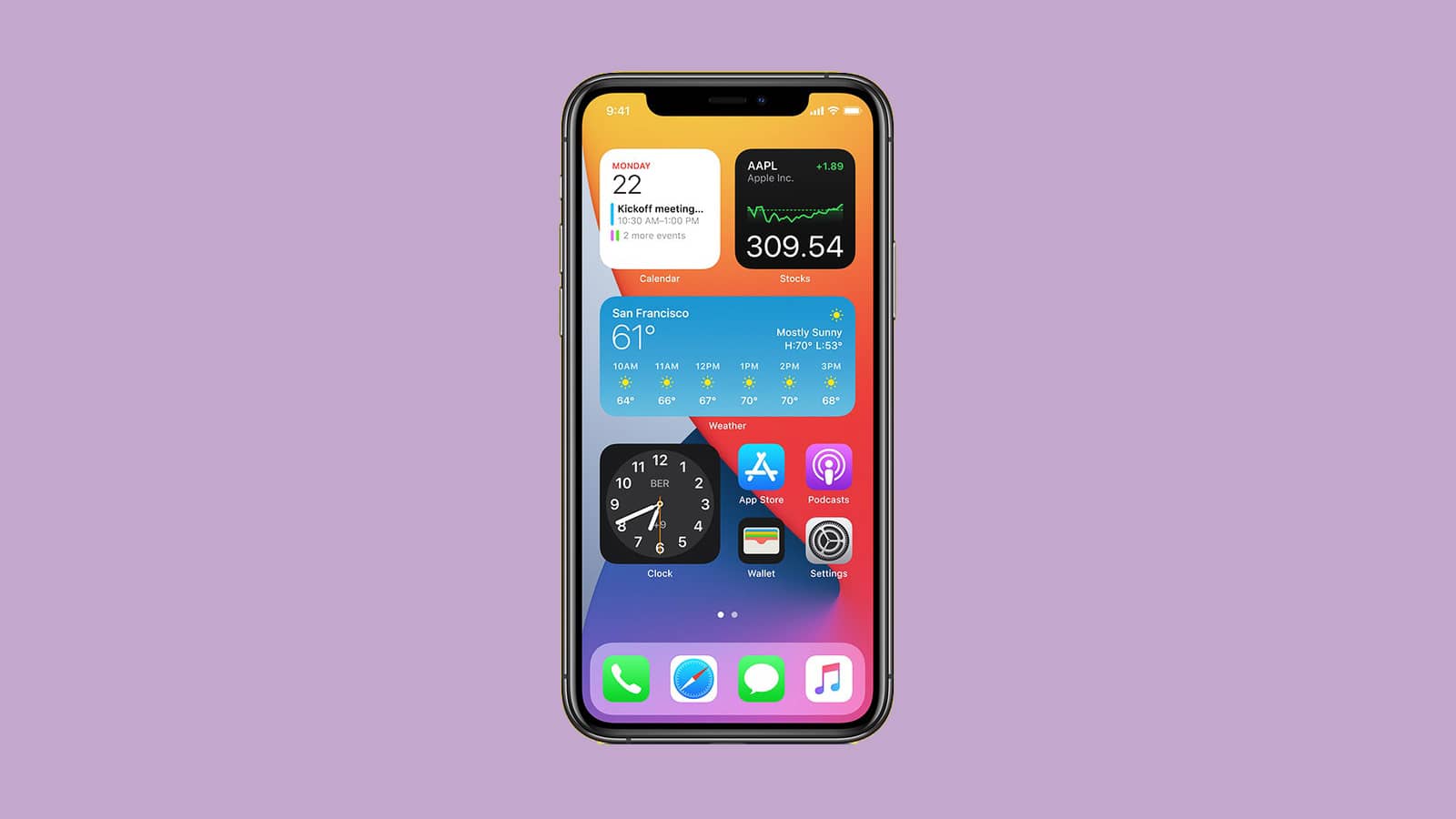
To add a widget to your iPhone home screen, touch and hold an empty area until the apps jiggle, tap the plus (+) button at the top left, choose a widget and tap the Add Widget button. iOS 14, which excited and intrigued iPhone users with many new features, was downloaded and installed by many iPhone users in a short time. Home screen widgets, which we know especially from Android phones, came to Apple iPhone users with iOS 14. This feature, which had been requested by many Apple users for a long time, has finally come to the iPhone too.
With this new update, these widgets now appear on the leftmost page of our devices' screens (where the widgets are), on the rightmost page (where the App Library is) and on our device's home screen. Users can arrange these highly functional and visually pleasing widgets in this area to their own preference. Users can also place these and other widgets on their devices' home screens, in the sections where apps are. That way, users can reach up-to-date information from their favorite apps at a single glance.
So where and how are iPhone home screen widgets edited? Below we showed where this new iOS 14 feature is edited and how new widgets can be added. By following the steps below, you can add new widgets to your iPhone's home screen and decide where they go to your own liking.
To add widgets to your iPhone home screen and edit widgets:
- First, on your iPhone's home screen, press with your finger on any widget or an empty area until the apps jiggle.
NOTE: You can also start this process by pressing and holding any app on your device's screen and tapping the 'Edit Home Screen' option in the window that appears.
- When the apps start to jiggle, tap the plus (+) button at the top left of the screen.
- The widgets you can add to your device's home screen will then appear. From here, tap the widget you want to add to your device's home screen.
- Finally, to add the widget to your home screen, tap the "Add Widget" button in that section. Your widget will then be added to your device's home screen.
If you wish, you can press and hold the widget you added to your home screen and place it wherever you like on your home screen. After you finish positioning it, tap the 'Done' button at the top right of the screen to end the widget-adding process.
NOTE: If you wish, you can also add a widget to the home screen by pressing and holding the relevant widgets on the widget-adding page and dragging them to your device's home page.
NOTE: To remove any widget or widgets on your device's home screen, while you are in the screen editing mode, tap the minus (-) button at the top left of the relevant widgets and then tap the 'Remove' option in the window that appears.
Frequently asked questions
Questions answered in this article
How Do You Add a Widget to the iPhone Home Screen? (2023)
To add a widget to your iPhone home screen, touch and hold an empty area until the apps jiggle, tap the plus (+) button at the top left, choose a widget and tap the Add Widget button. iOS 14, which excited and intrigued iPhone users with many new features, was downloaded and installed by many iPhone users in a short time. Home screen widgets, which we know especially from Android phones, came to Apple iPhone users with iOS 14. This feature, which had been requested by many Apple users for a long time, has finally come to the iPhone too. With this new update, these widgets now appear on the leftmost page of our devices' screens (where the widgets are), on the rightmost page (where the App…
Go to sectionLoL, TFT ve VALORANT sever bir oyun sever ve oyuncu. Mobil platformlarda ise tam bir Clash of clans hastası.


