

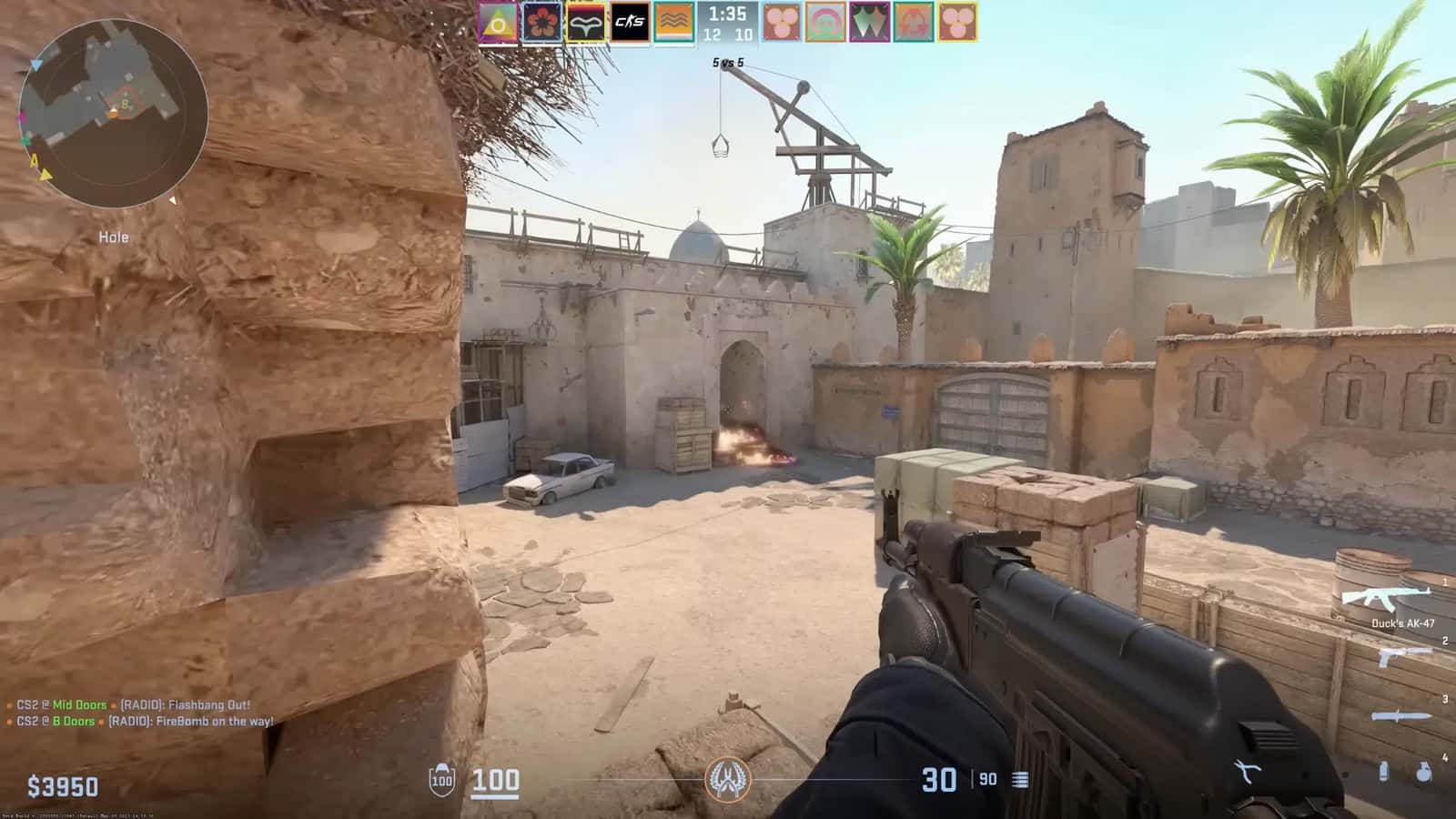
CS2 launch options like -novid, +fps_max 0 and -tickrate 128 can cut load times, remove FPS caps and reduce lag on both PC and older hardware.

- CS2 launch options are set via Steam's Properties > General > Set Launch Options, and can boost FPS or reduce load times.
- A recommended CS2 launch option string includes -novid, +fps_max 0, +mat_queue_mode 2, -tickrate 128, and +cl_interp 0.031.
- Some options like +fps_max 0 can cause overheating on weaker systems, so values should be tuned to each player's average FPS.
CS2 Launch Options! CS2 Startup Commands 2025!
Counter-Strike 2, known for short as CS2 , is known as a competitive first-person shooter and offers players a great experience. However, in some cases you may want to boost your game's performance or reduce lag. That's where CS2 launch options come in.
CS2 launch options let you customize how the game starts up, which can improve your performance and experience. In this article, you'll learn how to use CS2 launch options and which options give the best results. Here are the current 2025 CS2 launch options!

What Are CS2 Launch Options?
Launch options are special commands or settings that need to run before the game starts up. These options can shorten your game's load time, boost performance, and let you disable or change certain special settings. CS2 launch options let players optimize their graphics and network settings for a smoother gaming experience.
To use launch options, you need to add specific commands through Steam before opening CS2. To do this, right-click CS2 in your Steam library, go to the Properties tab, and enter the commands you want to add in the Launch Options field.
How Do You Set Launch Options?
Launch options can positively affect your gaming experience, but since every system is different, not every command has the same effect on every computer. In particular, unlimited FPS commands like +fps_max 0 can cause overheating on some systems. Also, when using the -threads command, it's important to find out how many processor cores your system supports and set it accordingly. Otherwise, you may run into lag or performance drops in your game.
- Open the Steam client and go to your Library.
- Right-click CS 2 and select Properties.
- Open the General tab and click the Set Launch Options button.
- Enter the launch options and click OK.
CS2 FPS Drop Sorununa Güncel Çözümler Getirdik!
CS2 Launch Options 2025
- -full (-fulscreen) - The game will start in fullscreen mode.
- -window - The game will start in windowed mode. Commands with a similar effect: -windowed , -startwindowed and -sw
- -noborder - The game window will have no border.
- -x333; -y 333 - Sets the position of the CS2 window along the X or Y axis.
- -w 1920; -h 1080 - Sets the desired CS2 screen resolution (graphics settings): h for height, w for width.
- +cl_showfps 1 - Your FPS will be displayed in the top-right corner.
- -high - Use this launch option to set CS 2's process priority to high.
- -nojoy - Disables joysticks/gamepad support.
- -console - This option forces the console to open when the game starts.
- -dil English - Customizes the interface language for CS 2. In this case English is specified, but you can use any other language you want.
- -threads - You're supposed to enter the number of cores your processor has here, but CS2 sets this on its own based on your processor, so this command has no effect.
- +r_drawparticles 0 - This launch option disables particle animation; graphics get worse but performance may improve.
- -nod3d9ex1 - Command to turn off the d3d9ex mode technology. Worth trying since game performance can also improve.
- -autoconfig - This command lets you restore your configuration file settings to default.
- +exec filename - Launch option that starts the configuration with your game settings (.cfg). The file should be placed in the "Steam\SteamApps\common\Counter-Strike Global Offensive\cs2\cfg" folder.
- +mat_disable_fancy_bleding 1 - This command is for fancy blending and lowers texture quality, which boosts performance as a result.
- -r_emulate_g - OpenGL emulation, works only on Windows, may boost FPS.
- -softparticlesdefaultoff - Sets up particle settings for CS2.
- -nopreload - Cancels preloading of models, files and textures.
- -nohltv - Turns off all GOTV and Source TV features.
- -limitvsconst - Limits the number of vertex shaders to 256.
- -forcenovsync - Turns off Vsync technology.
- +violence_hblood 0 - Command that removes violent elements in the game, particularly blood and low-violence elements.
- +r_dynamic 0 / 1 - Turns dynamic lighting on/off.
Berk Rip Tepe's latest CS2 settings!
 The Best CS 2 Launch Options
There are plenty of launch options in CS 2, but it's not true that you're required to use all of them. Most of them don't do anything and aren't suitable for every computer.
In our opinion, the best launch options are: -freq 240 -d3d9ex -novid -no-browser +mat_queue_mode 2 +fps_max 0 +cl_interp_ratio 1 +cl_interp 0.031 -tickrate 128 +cl_cmdrate 128 +cl_updaterate 128 +cl_forcepreload 1
- -freq 240 - Customizes the refresh rate for CS2. Possible refresh rate values are: 60, 75, 120, 144, 165, 240, 265, 285, 360.
- -d3d9ex - Turns on Direct3D 9Ex technology, a command that offloads about 40% of the load from the CPU when loading the graphics card. In fullscreen mode, ALT+TAB makes the game minimize and restore much faster, and the productivity boost is noticeable.
- -novid - Disables the intro video.
- -no-browser - This command no longer works in the Panorama UI. The browser you could see while connecting to a server was removed a while back.
- +mat_queue_mode 2 — A very useful command that enables multi-core rendering, resulting in higher FPS.
- +fps_max 0 - This command removes the FPS cap. If you own a high-end PC that averages 400-500+ FPS, use fps_max 0, or on a mid-range PC use 200-300-400 to avoid input lag and rising var/sv values. The value should be chosen based on your average FPS.
- +cl_interp_ratio 1, +cl_interp 0.031 — Interpolation settings. The vast majority of people play with values of 1 and 0, and as a result feel discomfort while shooting: your crosshair appears to shake and jitter. Never use an interp value other than 0.031 when playing CS online, but the ratio should be tested between 1 and 2. Interp 0 is good for LAN games.
- -tickrate 128 - Sets your client's tick rate, which applies to offline servers and games you play with bots.
- +cl_cmdrate 128, +cl_updaterate 128* — The number of updates sent and received per second with the server. In other words, the value should be the maximum, i.e. 128.
- +cl_forcepreload 1 - The game loads all map files before you connect to the server, reducing the load on your computer during the match.
You can play the game here !
For the latest news,
Sources
External links cited in this article
LoL, TFT ve VALORANT sever bir oyun sever ve oyuncu. Mobil platformlarda ise tam bir Clash of clans hastası.
Comments (0)
Log in to leave a comment giriş yap.
No comments yet. Be the first!
Related Posts
All CS 2 →
CS2 FPS Boost Codes and Console Commands
These CS2 console commands and settings tweaks, including fps_max and cl_showfps, help you boost FPS and monitor performance in Counter-Strike 2.
How to Fix the CS2 Downloading Content Error
CS2's Downloading Content error is usually caused by server issues, weak connections, low disk space or corrupted files, and is often fixed by verifying game files or restarting Steam.
CS2 FPS Drop Fix: Causes and Solutions
CS2 FPS drops usually come from outdated GPU drivers, mismatched graphics settings, background apps, or an unstable network connection.