EA FC 24 Won't Open on Epic Games? Here's the Fix
EA FC 24 not launching on Epic Games is usually fixed by verifying file integrity, updating graphics drivers, or disabling antivirus software temporarily.
3 min read
In brief
AI summaryEpic Games users can run into a 'won't launch' issue when starting EA FC 24.
Fixes include verifying file integrity, updating graphics drivers, and checking antivirus software.
If the issue persists, reinstalling the game or contacting Epic Games technical support is recommended.
Contents3 sections
Epic Games EA FC 24 Won't Open!
Epic Games continues to be a popular digital game platform thanks to its vast game library and user-friendly interface. However, users sometimes run into a "won't launch" issue when starting EA FC 24. In this article, we'll take a detailed look at why EA FC 24 won't open through the Epic Games Launcher and how to fix it. Here's how to fix the Epic Games EA FC 24 won't open issue:
Here We Are With EA FC 24 Ultimate Team's Special Argi Tactic!
You can check out our article on the lag issue in EA FC 24...
 Epic Games EA FC 24 Won't Open: Detailed Troubleshooting Guide
Problem Analysis and Solution Steps:
1. Verify File Integrity:
Verifying EA FC 24's file integrity through the Epic Games Launcher is the first step to fixing any corruption in the game files. This step will help detect missing or corrupted files. Here's the step-by-step process:
- Right-click on EA FC 24 in the Epic Games Launcher.
- From the menu that opens, use the "Verify" option.
- This will fix any potential issues with the game files.
2. Update Graphics Drivers:
Outdated graphics drivers can affect game performance. Make sure to keep your computer's graphics drivers up to date. Here's how to update them:
- Visit your graphics card manufacturer's website.
- Download and install the latest driver updates.
3. Check Antivirus and Security Programs:
Antivirus programs can sometimes block game files by mistake. To check for this:
- Temporarily disable your antivirus program.
- Launch the game and check the status.
Epic Games "You Are Visiting Our Service Too Frequently" Error and How to Fix It
4. Check Your Internet Connection:
It's hard to play online games without a stable internet connection. So:
- Make sure your internet connection isn't dropping and its speed is sufficient.
- Check your browser to make sure you can connect to the game servers securely.
5. Check for Epic Games and EA FC 24 Updates:
Check for the latest updates for both the platform and the game. These updates play a critical role in fixing issues. Here's how to update:
- Check for the latest updates for Epic Games Launcher and EA FC 24.
- Download and install the updates.
6. Check DirectX and Visual C++ Updates:
Make sure the DirectX and Visual C++ components needed for the game to run properly are up to date. Here's how to update them:
- Download and install the latest DirectX and Visual C++ versions from Microsoft's official website.
You can also follow us on social media:
Additional Tips and Help:
- Reinstall the Game:
- If the steps above don't fix the issue, completely uninstall and reinstall EA FC 24.
- Epic Games Technical Support:
- If the issue persists, contact Epic Games' technical support team. They can provide detailed information and help.
If you still can't set the game to Turkish, click here!!
By following this detailed troubleshooting guide step by step, you can find an effective solution to EA FC 24 launch issues. Keep in mind that every computer is different, and solutions may vary depending on your personal system configuration.
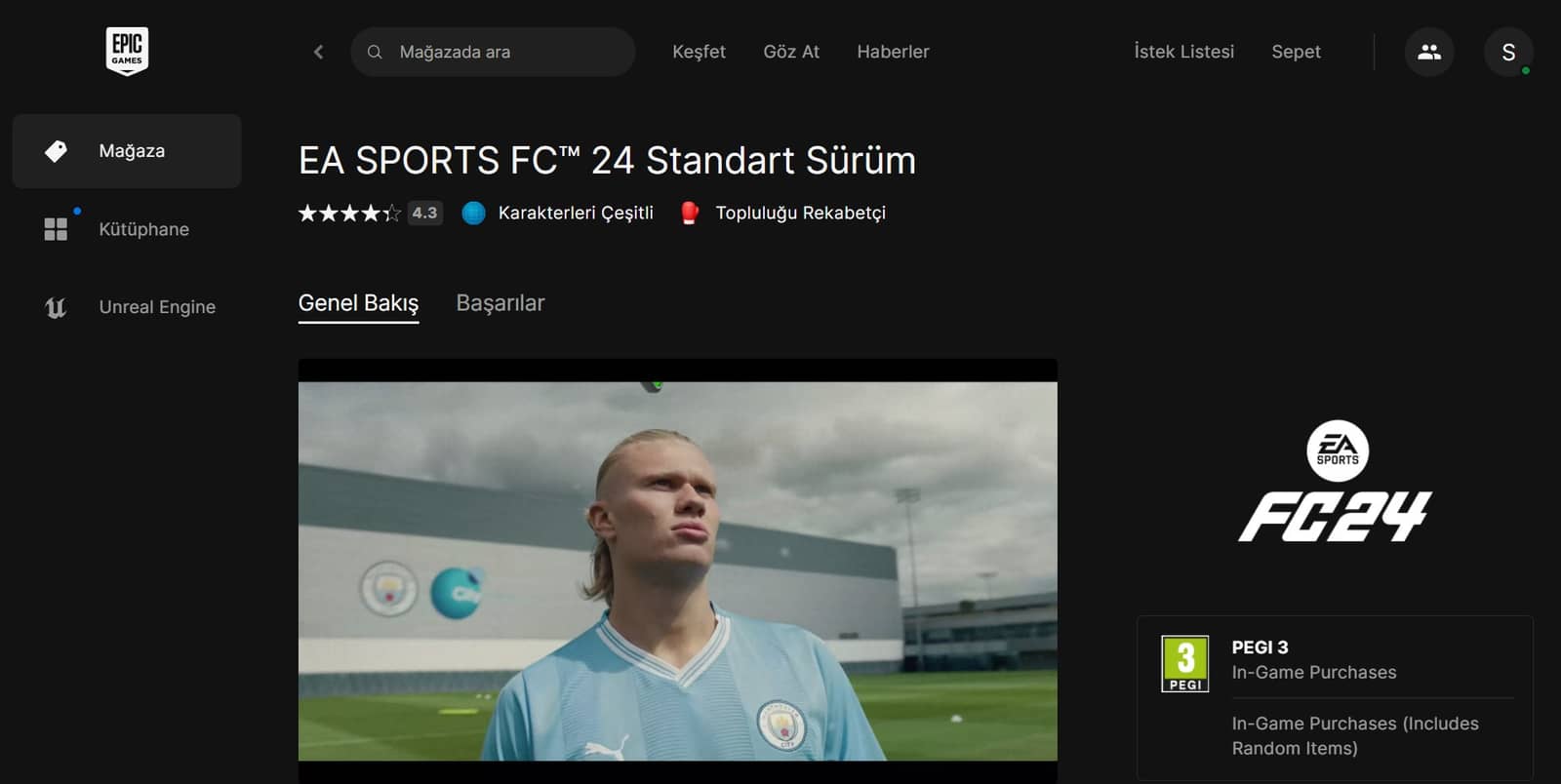
You can reach the EA FC 24 Epic Games page here.
For our video explaining the difference between the FC 24 Ultimate and Standard Editions;
Sources
External links cited in this article
- 01Here We Are With EA FC 24 Ultimate Team's Special Argi Tactic!youtube.com (opens in a new tab)
- 02You can also follow us on social media:instagram.com (opens in a new tab)
- 03A post shared by Gamer Papers (@gamerpaperscom)instagram.com (opens in a new tab)
- 04herestore.epicgames.com (opens in a new tab)