

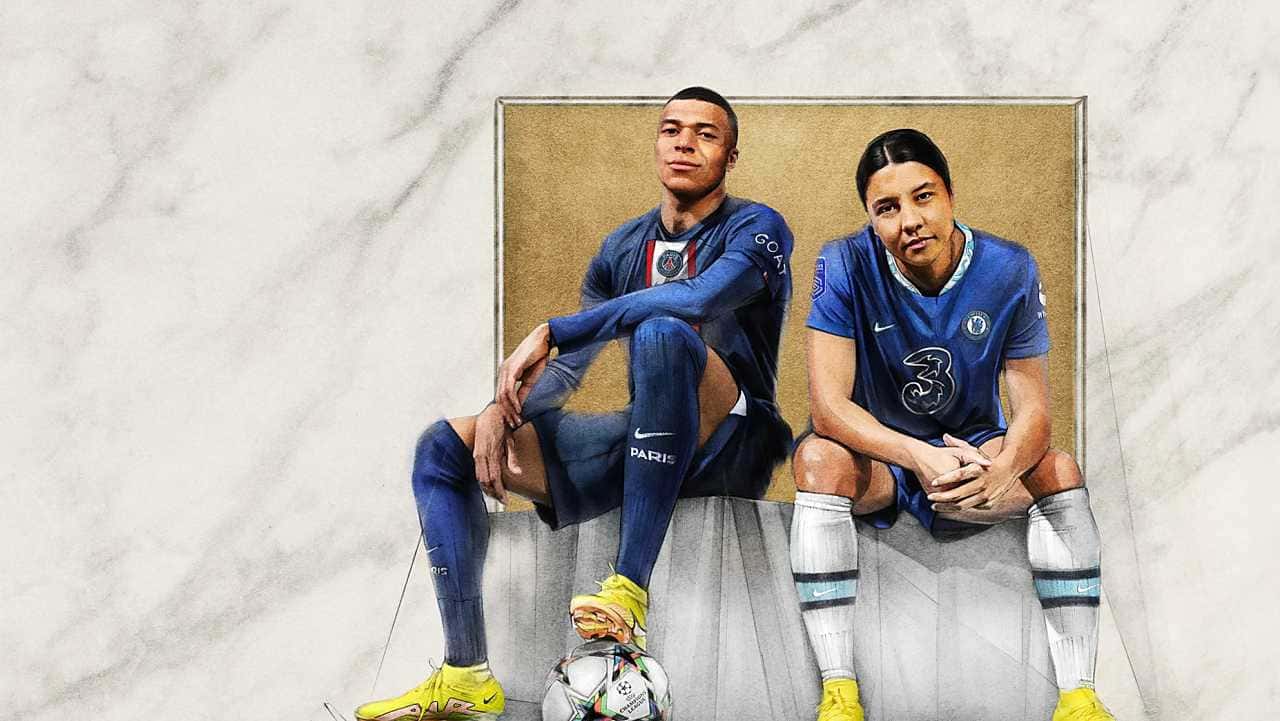
The FIFA 23 disconnect issue can often be fixed by updating GPU drivers, verifying game files, or running the game as administrator.

- FIFA 23 has been crashing on all platforms and getting stuck on the loading screen, with some players reporting a disconnect issue.
- Suggested fixes include restarting the console, updating the game to its latest version, and verifying the integrity of game files, which can take 10 to 15 minutes.
- Updating graphics card drivers and running FIFA 23 as an administrator are also listed as possible fixes, including for an anti-cheat error.
How Do You Fix the FIFA 23 Disconnect Issue? FIFA 23 Keeps Kicking Me Out, What Should I Do?
FIFA 23 has been crashing on all platforms for a while and getting stuck on the loading screen. Some players are also complaining about the disconnect issue. These kinds of issues in the game are usually caused by the game itself not being optimized, along with bugs and glitches. Players can try updating their GPU drivers and verifying the integrity of the game files to fix these issues. We'll go over some possible fixes for these problems, but we're not saying any of them will work a hundred percent of the time. Still, these fixes could help make things easier for you. So, how do you fix the FIFA 23 disconnect issue? FIFA 23 keeps kicking me out, what should I do?
 FIFA 23 Disconnect Issue 2023
Restart the Game or Console
- First, you need to completely shut down your system and make sure it's fully off.
- Turn off the power to it from the main power source, and just in case, unplug the cable too, to make sure no excess electricity is passing through it.
- Give it roughly two to three minutes so there's no potential power left inside your hardware.
- Plug everything back in and start up the platform.
- Go back into FIFA 23 and check whether the fix worked.
Update the Game to Its Latest Version
PS4 and PS5:
- Find the FIFA 23 app on your home screen or go to your game library.
- Press the Options button on your DualShock or DualSense controller.
- A dropdown menu will open showing you a list of options related to the game.
- Select the "Check for Updates" option, then check whether the latest version of the game has been downloaded.
Xbox Consoles:
- Go to the My Games & Apps section, which is basically the library found somewhere on your Xbox console's home screen.
- Scroll down. Find the setting for managing updates for the apps and games installed on the system.
- Select the Update All option, which will automatically add all pending updates for your games to the download queue.
Verify the Integrity of the Game Files
- Open Steam by searching for it in the Windows search bar, or preferably by pinning it to your taskbar for easy access.
- Find the game in your library list and right-click on it.
- A small dropdown menu will open where you need to click on Properties.
- A new menu will open where you can change and interact with various options for the game.
- Go to the Local Files menu.
- Click on Verify Integrity of Game Files to start the process.
- This process can take about 10 to 15 minutes and mostly depends on the size of the application.
- Once it's done, the launcher will notify you if there are any missing files that need to be re-downloaded.
Update Your Graphics Card Drivers
AMD and Nvidia frequently release new updates, so if you've installed either of these graphics cards, keep in mind that they'll be releasing new updates. With Nvidia's GeForce Experience or AMD's Radeon software, you can easily switch to manually scanning for new driver updates by opening either card's control panel.
Run the Game as Administrator
- Find FIFA 23's main directory on your system.
- You can go directly to the folder, or you can also change the game's local files from the store launchers.
- Right-click on the executable file named ".exe" and select Compatibility options.
- All you need to do is check the box for Run This Program as an Administrator.
- Remember to save these settings and apply them, then go back into the game. It's also reportedly been said that there's a working fix for the anti-cheat error in FIFA 23, so try this method for yourself.
LoL, TFT ve VALORANT sever bir oyun sever ve oyuncu. Mobil platformlarda ise tam bir Clash of clans hastası.
Comments (0)
Log in to leave a comment giriş yap.
No comments yet. Be the first!
Related Posts
All FIFA →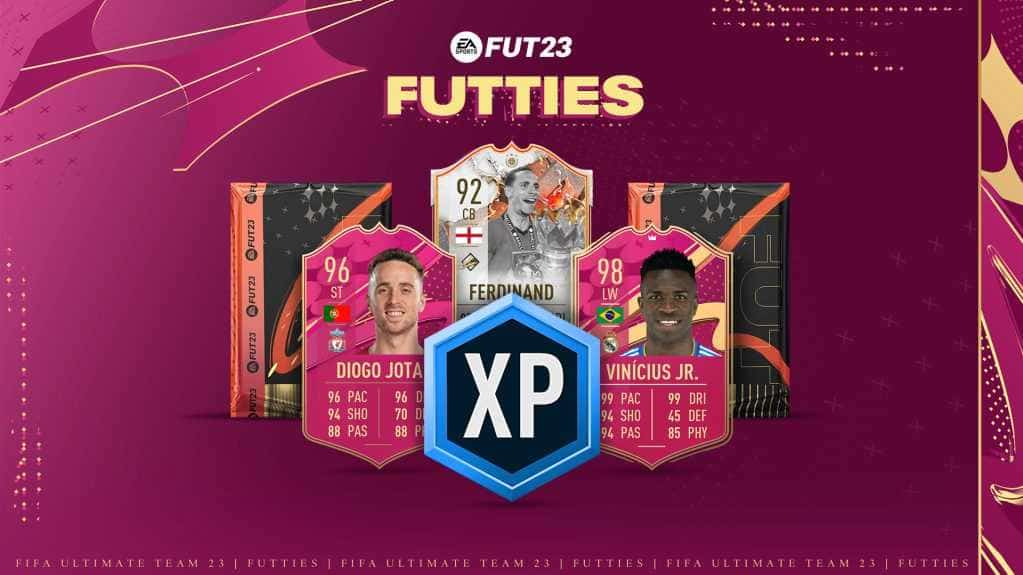
FIFA 23 FUTTIES Team 2: Player Predictions
FIFA 23's FUTTIES Team 2 was predicted to launch July 28, 2023, with Messi, Ibrahimovic, Mudryk, Diaby, and Brahim Diaz tipped for pink cards.
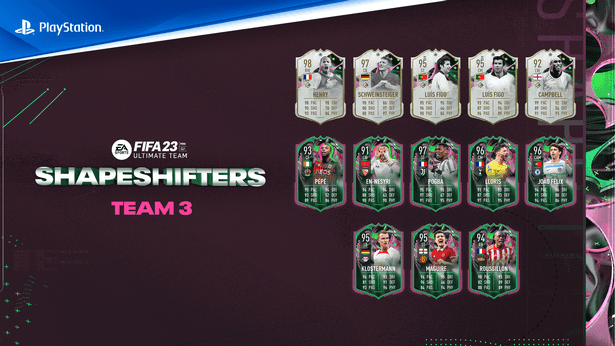
FIFA 23 Shapeshifters Team 3 Review
FIFA 23 Ultimate Team's Shapeshifters Team 3 has arrived, featuring Thierry Henry at RW (98 OVR) and Bastian Schweinsteiger converted to centre-back (97 OVR).
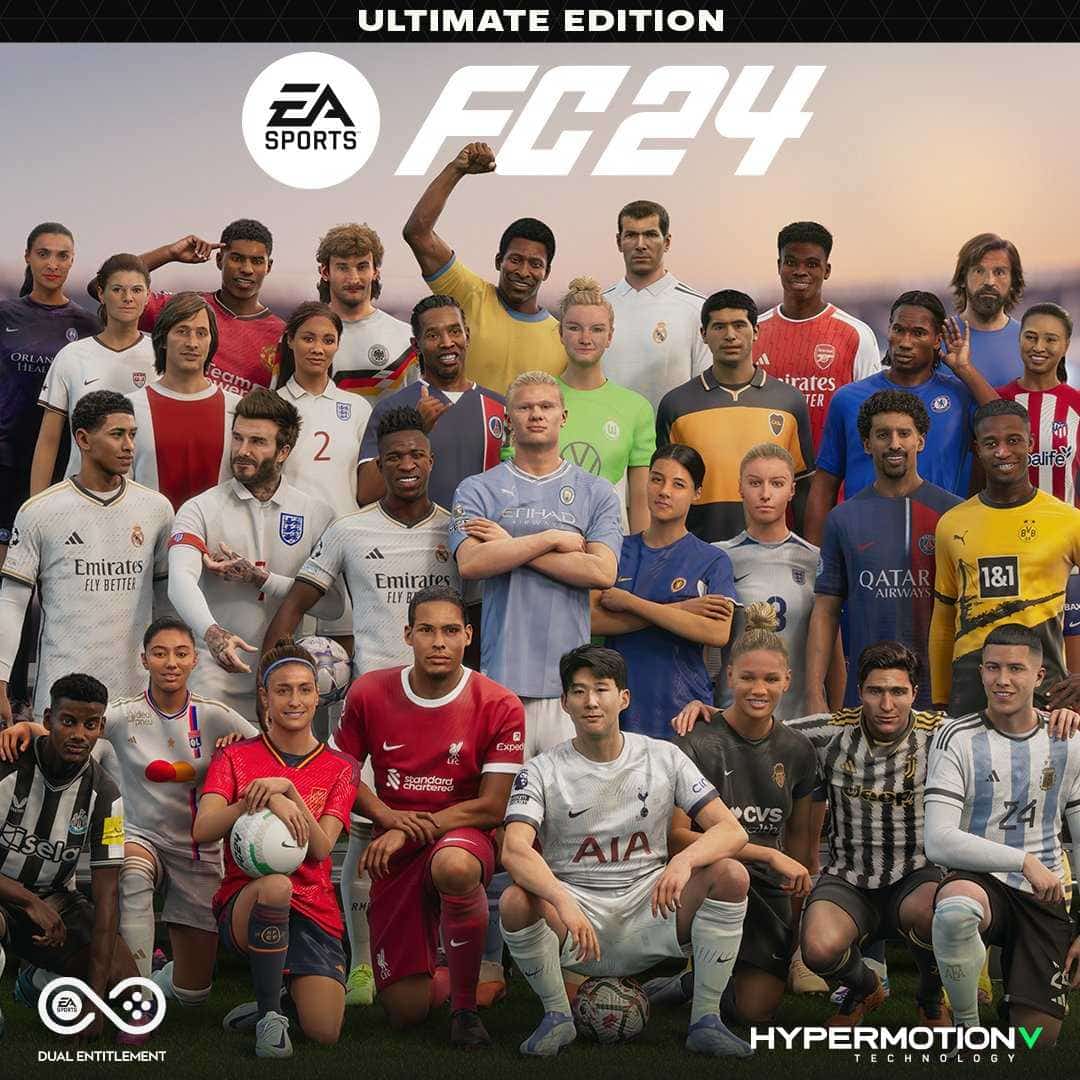
Why Fans Criticized FC 24's Player Faces
EA's FC 24 Ultimate Edition cover drew criticism over face scans of players like Ronaldinho, Marta and Bukayo Saka not matching their real likenesses.