

How to Fix an Internet Connection Problem: Step-by-Step
To fix an internet connection problem, unplug your modem for 20 seconds and wait 3-4 minutes, then check its lights and cables, test another device, try an Ethernet cable and finally reset the modem.

4 min read
In brief
AI summaryTo fix an internet connection problem, first unplug the modem, plug it back in after 20 seconds and wait 3-4 minutes, then check that the Power light and 4 other lights are green.
If the internet light is off, check that the gray DSL cable is fully seated (a 'click') in the ADSL or DSL socket, and check that your device is not in airplane mode with Wi-Fi off.
Try another device, forget and re-add your network, set IP settings to automatic, test the modem with an Ethernet cable, and as a last step hold the recessed reset button for 3 seconds.
Contents10 sections
The internet has spread into our whole lives. A life without the internet is hardly possible anymore. Do not panic when you see that your internet is down or you have a connection problem. Before calling your internet provider's call center or leaving a fault report at its online transactions center, it may be a problem you can solve yourself. In this article, we will explain the solutions you can try for an internet connection problem.
How do you fix an internet connection problem? What are the solutions? Let's look at the answers to these questions together!
How Do You Fix an Internet Connection Problem? 2022

Make Sure Your Modem Is Receiving Internet Data
Let us start with the simplest but most effective method: sometimes, after short power outages or for no reason at all, modems can stop receiving internet data. The simplest fix is to unplug the modem and plug it back in after 20 seconds. After waiting 3-4 minutes, you can check whether the internet has come back.
Make Sure Your Modem's Internet Light Is On
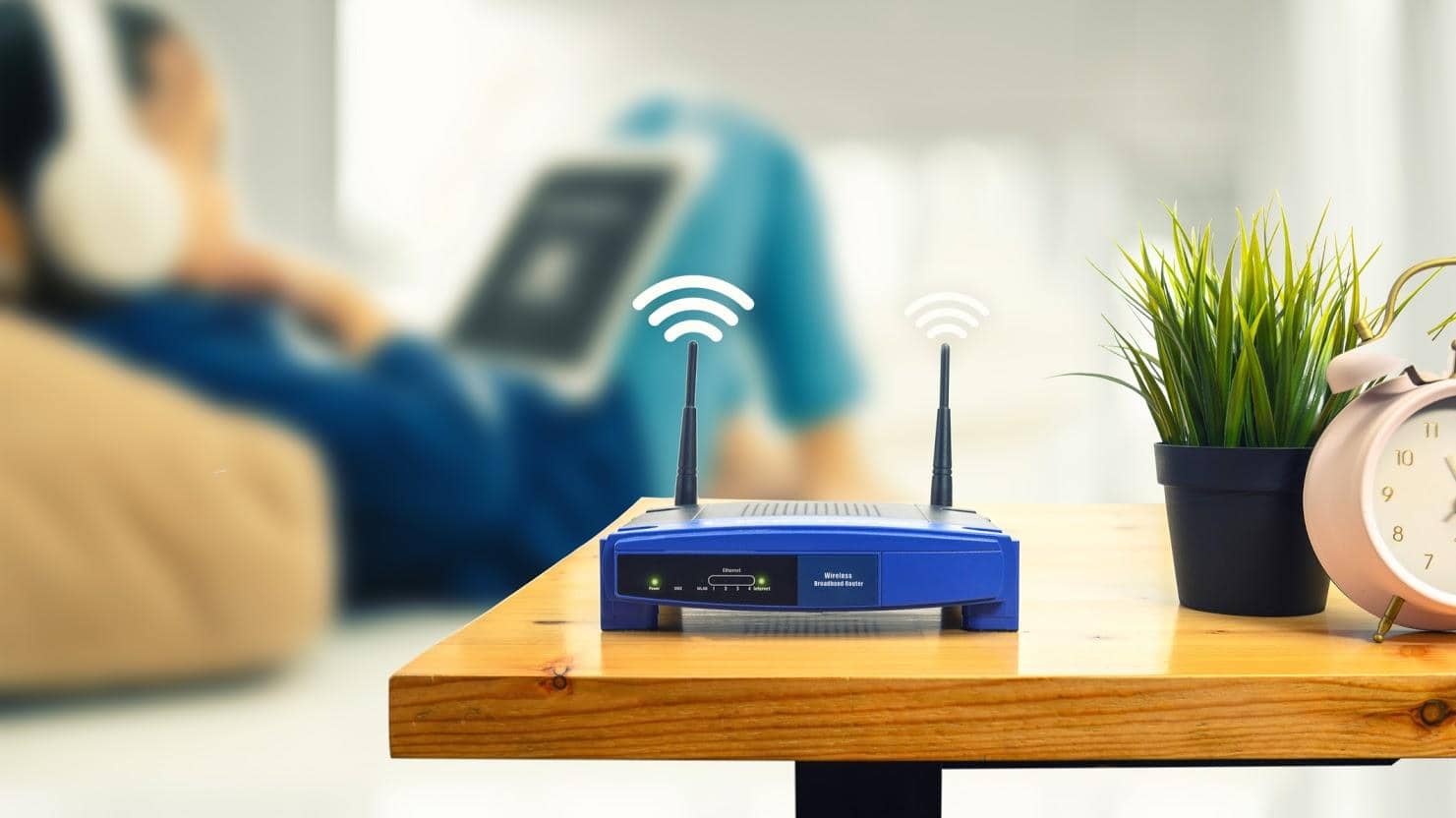
If we tried this method and it did not work, let us immediately check whether the modem's internet light is on. Generally, besides the Power light, 4 more lights should be lit green on your modem. If the button labeled DSL, Internet or E is lit, you actually have internet, which can mean the problem comes from something else. Let us keep trying them one by one.
Check Whether the Cables Are Making Contact
If your internet light is not on, you may need to consider the possibility of a physical loss of contact. It may have happened while your child was playing at home, while cleaning, and so on. Checking this is very easy. We need to make sure that the gray cable with a transparent tip coming out of the wall, which we call the 'DSL cable', is fully seated in the socket labeled ADSL or DSL. By unplugging and replugging the cable, you can be sure it is fully seated in the socket when you hear a 'CLICK' sound.

Check Your Device
Still cannot get online? Let us keep trying.. It may be related to the device you are trying to connect with. So first, make sure the device you are trying to connect (mobile phone, tablet, computer) has not accidentally switched to airplane mode, and then that the Wireless (Wi-Fi) feature has not been turned off.
Check Your Connection Settings
You have made sure of that and there is still no internet; then let us move on to the next step. Sometimes devices can delete the automatic connection on their own. It will be useful to check again whether your device is connected to your home Network. If it is not connected, you can try connecting by entering your username and password again.
Try Another Device
Not working? We will make many more attempts; could it be that there is internet but there is a problem with the device you are trying to get online with? The easiest way to test this is to check whether another device at home connects to the internet. If other devices at home connect to the internet, there is probably a problem with your device. To fix this, you can try the following 2 steps on the device that does not connect:
- From the Network and Internet Settings menu, select Wireless - Manage Known Networks, then find your own Network, click it and press the 'FORGET' button. Then, as if connecting to a new network, find your network and try connecting by typing the username and password.
- Your device may be having a problem not getting an IP. Let us test that as well: go to Network and Sharing Center - click your network's name - Properties - Internet Protocol Version menu, and make sure all settings are 'AUTOMATIC'.

Test Your Modem's Wireless Feature
Your modem's Wireless (Wi-Fi) feature may have failed. Now let us test that. For this, take the Ethernet cable, which is probably in your modem's box and is generally yellow. Plug one end of the Ethernet cable into the back of the modem and the other end into your computer. If you can get online with the cable, it may mean your modem's wireless feature is faulty. For this, you will need to follow the modem fault procedures.
Reset Your Modem
We have tried all the methods but still cannot connect to the internet from any device; there is one last method to try. Resetting our modem! To reset the modem, you need to press the recessed 'reset' button on the back of the modem for 3 seconds with the tip of a pen or a pin.
More Tech Articles
Frequently asked questions
Questions answered in this article
How Do You Fix an Internet Connection Problem? 2022
Let us start with the simplest but most effective method: sometimes, after short power outages or for no reason at all, modems can stop receiving internet data. The simplest fix is to unplug the modem and plug it back in after 20 seconds. After waiting 3-4 minutes, you can check whether the internet has come back.
Go to section

