

How to Set Up a Google Home Device: Step-by-Step Guide
To set up a Google Home device, plug it in, install the Google Home app, sign in with a Google account, match the numbers shown on both screens and choose the device's room.

4 min read
In brief
AI summaryTo set up a Google Home device, plug it into an outlet, keep your phone nearby and install the Google Home app on your iPhone or Android device.
In the Google Home app, sign in with a Google account, tap the New device detected notification or + > Set up device, and confirm with Yes when the numbers on the Hub and phone match.
After setup, Google Home lets you link Voice Match, music and video services, Google Duo and Google Photos, and restarting the software is the suggested fix for freezes during initial setup.
Contents8 sections
Adding a Google device to your home will let you join smart home technology. Also, you'll only need to spend a few extra seconds to optimize your Google Home experience. From installing the Google Home app on your smartphone to syncing all your devices, we will share the steps you need to follow when setting up your Google Home device. So let's take a look at how to set up a Google Home device and how the setup works.
 How Do You Set Up a Google Home Device? 2023
Start by Plugging the Device In
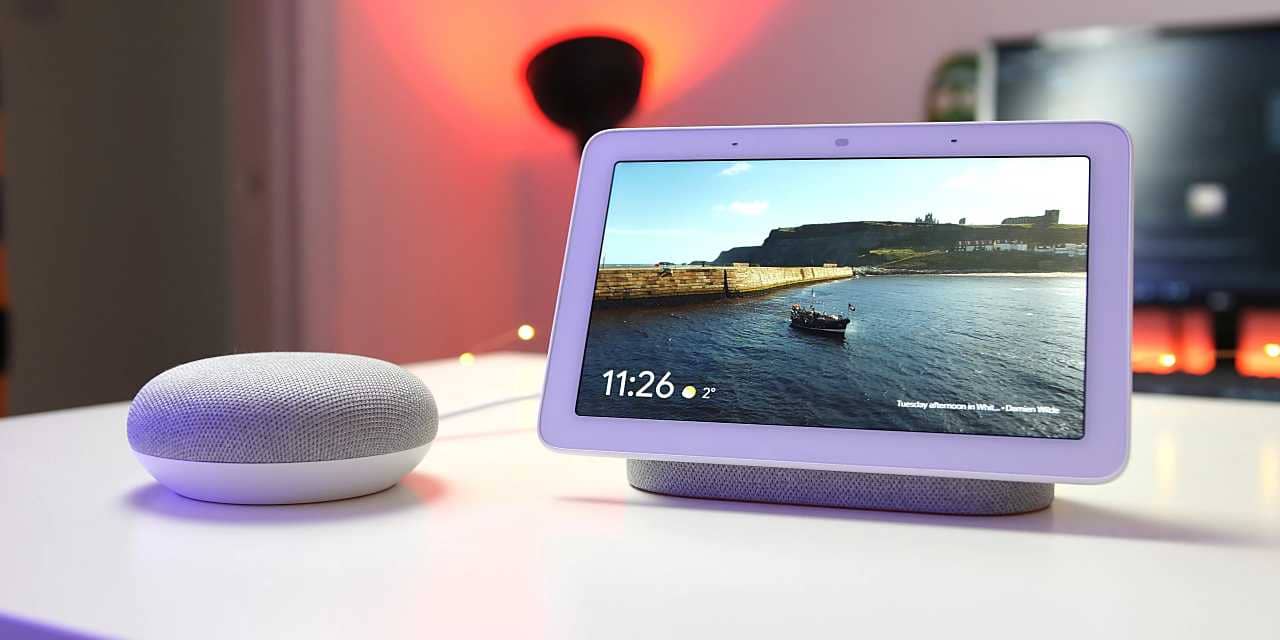
To get started, first plug your Google Home device into an outlet. Keep your phone nearby too, because you need to pair the two. Place your device in a central, easily accessible location. The biggest plus of having a Nest Hub or another Google Home-enabled product is its versatile voice commands.
Install the Google Home App
Find the Google Home app on your iPhone or Android device. When prompted, agree to turn on location permissions, because it makes it easier for the device to report the correct local weather, tell you the location of the nearest Walgreens, and so on.
Sign In With Google
You'll need a Google account to use a Google Home device. If you have a Gmail address, enter it. If you don't have an account yet, create a new account by going to gmail.com on your laptop or smartphone.
Open your Google Home app and give it a little time to get its bearings. Usually at this point the Google Home app will pop up things like "New device detected" or "Set up device". Select that notification to get started. If you don't see the notification, select the + sign on the Home screen and select Set up device to start the app.
A series of numbers will appear on both your Hub's screen and your phone, and these numbers need to match. Select Yes to confirm that the numbers match and that you're connecting the right device. Choose which room the device will be in, and you're now ready to connect.
Make sure you set your Google Home device's location.
Link Accounts
- Voice Match: Voice Match can recognize your voice and tell it apart from several other voices. It's a great feature if multiple people in the home will use the Google device and have their own Google accounts. However, it means Google will collect additional information about you.
- Music services: Your devices can connect to services such as Spotify, Pandora, TuneIn, iHeartRadio and more.
- Video services: If you have a Google device with a screen, such as a Nest Hub, you should also link any video services you have. Supported video services include Netflix, CW, CBS, HBO Max, Hulu, Flex, YouTube, Viki, Crackle, Red Bull, Starz and Google Play Movies and TV.
- Google Duo: Some Google devices can make phone calls or video calls. Home will ask if you want to set up this service through Google Duo.
- Google Photos: If you have a device with a screen, Home asks if you want to link your Google Photos account so it can show slideshows of your photos. This gives your device an extra use. Other customization options are also available.
- When you're done, Google will give you the chance to review all your choices.
Set Your Preferences
To fully personalize your Google Home device, tap the Menu button on the left side of the app, then tap Account Preferences. If you go to Settings > More settings > Assistant, you can change your assistant's language or add another language. By tapping News and then Customize, you can choose which news sources you want Google Home to pull from when reading you the news.
Change How Google Assistant Addresses You
If you scroll to Personal Info in the app, you'll see a spot that lets you change your nickname, and you can even teach Google Assistant how to pronounce it correctly. That way, you can decide for yourself how the voice assistant will address you.
Restart the Software If You Run Into Freezes or Crashes
Freezes and crashes are unfortunately common in the Google Home app. Sometimes you try to pair the app with your home system and get no response. If you are in the initial setup stage, restarting the software can successfully get you past the problem. Keep trying again until it works.
Frequently asked questions
Questions answered in this article
How Do You Set Up a Google Home Device? 2023
To get started, first plug your Google Home device into an outlet. Keep your phone nearby too, because you need to pair the two. Place your device in a central, easily accessible location. The biggest plus of having a Nest Hub or another Google Home-enabled product is its versatile voice commands. Find the Google Home app on your iPhone or Android device. When prompted, agree to turn on location permissions, because it makes it easier for the device to report the correct local weather, tell you the location of the nearest Walgreens, and so on.
Go to sectionChange How Google Assistant Addresses You
If you scroll to Personal Info in the app, you'll see a spot that lets you change your nickname, and you can even teach Google Assistant how to pronounce it correctly. That way, you can decide for yourself how the voice assistant will address you. Freezes and crashes are unfortunately common in the Google Home app. Sometimes you try to pair the app with your home system and get no response. If you are in the initial setup stage, restarting the software can successfully get you past the problem. Keep trying again until it works.
Go to sectionBazen yazar, bazen tasarlar. Film bağımlısı, oyunlar hakkında yazmayı sever✨


