

How to Use WhatsApp Web on iPhone and Android
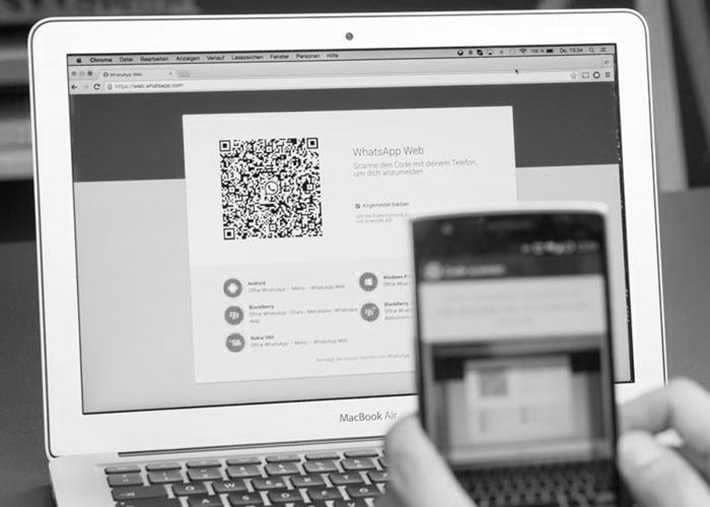
To use WhatsApp Web, go to web.whatsapp.com on your computer, then on your phone open Linked Devices, choose Link a Device and scan the QR code shown on screen.

2 min read
In brief
AI summaryWhatsApp Web is the browser version of WhatsApp Messenger and works as an extension of your mobile account, with all messages synced between phone and computer.
On iPhone, use Settings, Linked Devices, Link a Device; on Android, tap the three dots in Chats, choose Linked devices, then Link a device, and scan the QR code at web.whatsapp.com.
After linking, WhatsApp Web shows your chat list with Status, new chat and a menu to create groups, edit your profile, search archived chats and view starred messages.
Contents3 sections
How Do You Use WhatsApp Web? 2023 iPhone, Android! What Are Its Features?
WhatsApp is known as one of the most popular international online communication services. In short, WhatsApp Web can be described as the browser version of the WhatsApp Messenger chat and video/voice calling app from iOS and Android. Desktop WhatsApp comes in two varieties: a downloadable system app for Mac and Windows, or a browser-based version. WhatsApp Web and WhatsApp Desktop function as extensions of your mobile WhatsApp account, and all messages are synced between your phone and your computer. So how do you use WhatsApp Web? What are its features?
 How Do You Use WhatsApp Web on iPhone?
- Go to https://web.whatsapp.com in your computer's browser.
- Launch WhatsApp on your iPhone.
- On the iPhone, select Settings > Linked Devices.
- Select the Link a Device button. The camera view will open in WhatsApp.
- Hold your phone up to the code on your screen to pair it. The WhatsApp page in your browser will immediately refresh to sign in to WhatsApp and show your existing chat list.
How Do You Use WhatsApp Web on Android?
- Launch WhatsApp on your Android phone and select the three dots in the upper right of the Chats pane.
- Select Linked devices and then Link a device.
- Hold your phone up to the QR code on your computer to pair it.
- Your smartphone account will now be linked to the web version of the app.
- You can send and receive messages from your computer's desktop browser.
What Are the WhatsApp Web Features? 2023
After scanning the QR code, you can view your WhatsApp chat list directly on the web page. On the left, you can see your chats and, if you have saved it, your message history by clicking a contact to open the chat. There are three icons at the top left of the web page: Status, new chat and a menu offering a list of nested options. The Status option shows all statuses posted by your contacts and lets you reply from the reply field at the bottom of the pane. Clicking new chat opens the contact list on the left side of the page. From here you can create a new group or start a conversation. The three-dot drop-down menu lets you create a new group, change the information in your profile, search archived chats, view starred messages, change settings such as notifications and chat wallpaper, or log out.
Frequently asked questions
Questions answered in this article
How Do You Use WhatsApp Web on iPhone?
Go to https://web.whatsapp.com in your computer's browser. • Launch WhatsApp on your iPhone. • On the iPhone, select Settings > Linked Devices. • Select the Link a Device button. The camera view will open in WhatsApp. • Hold your phone up to the code on your screen to pair it. The WhatsApp page in your browser will immediately refresh to sign in to WhatsApp and show your existing chat list.
Go to sectionHow Do You Use WhatsApp Web on Android?
Launch WhatsApp on your Android phone and select the three dots in the upper right of the Chats pane. • Select Linked devices and then Link a device. • Hold your phone up to the QR code on your computer to pair it. • Your smartphone account will now be linked to the web version of the app. • You can send and receive messages from your computer's desktop browser.
Go to sectionWhat Are the WhatsApp Web Features? 2023
After scanning the QR code, you can view your WhatsApp chat list directly on the web page. On the left, you can see your chats and, if you have saved it, your message history by clicking a contact to open the chat. There are three icons at the top left of the web page: Status, new chat and a menu offering a list of nested options. The Status option shows all statuses posted by your contacts and lets you reply from the reply field at the bottom of the pane. Clicking new chat opens the contact list on the left side of the page. From here you can create a new group or start a conversation. The three-dot drop-down menu lets you create a new group, change the information in your profile,…
Go to section

