

Best Android 12 Tips and Tricks: Material You, One-Handed Mode and More
As of May 2022, the best Android 12 tips are one-handed mode (Settings, System, Gestures), Material You themes, a resizable app grid, redesigned widgets and the Privacy Dashboard with camera and mic…

5 min read
In brief
AI summaryAs of May 2022, Android 12, first seen on the Google Pixel 6 in October, was rolling out to other Android devices with a redesigned notification shade and improved privacy controls.
Enable Android 12 one-handed mode under Settings, System, Gestures, One-handed mode, then swipe down from the bottom of the screen to use it.
Android 12's Material You recolors the interface and icons from your wallpaper, and the app grid can be set to 5 x 5 (default), 4 x 4, 4 x 5, 3 x 3 or 2 x 2.
Contents7 sections
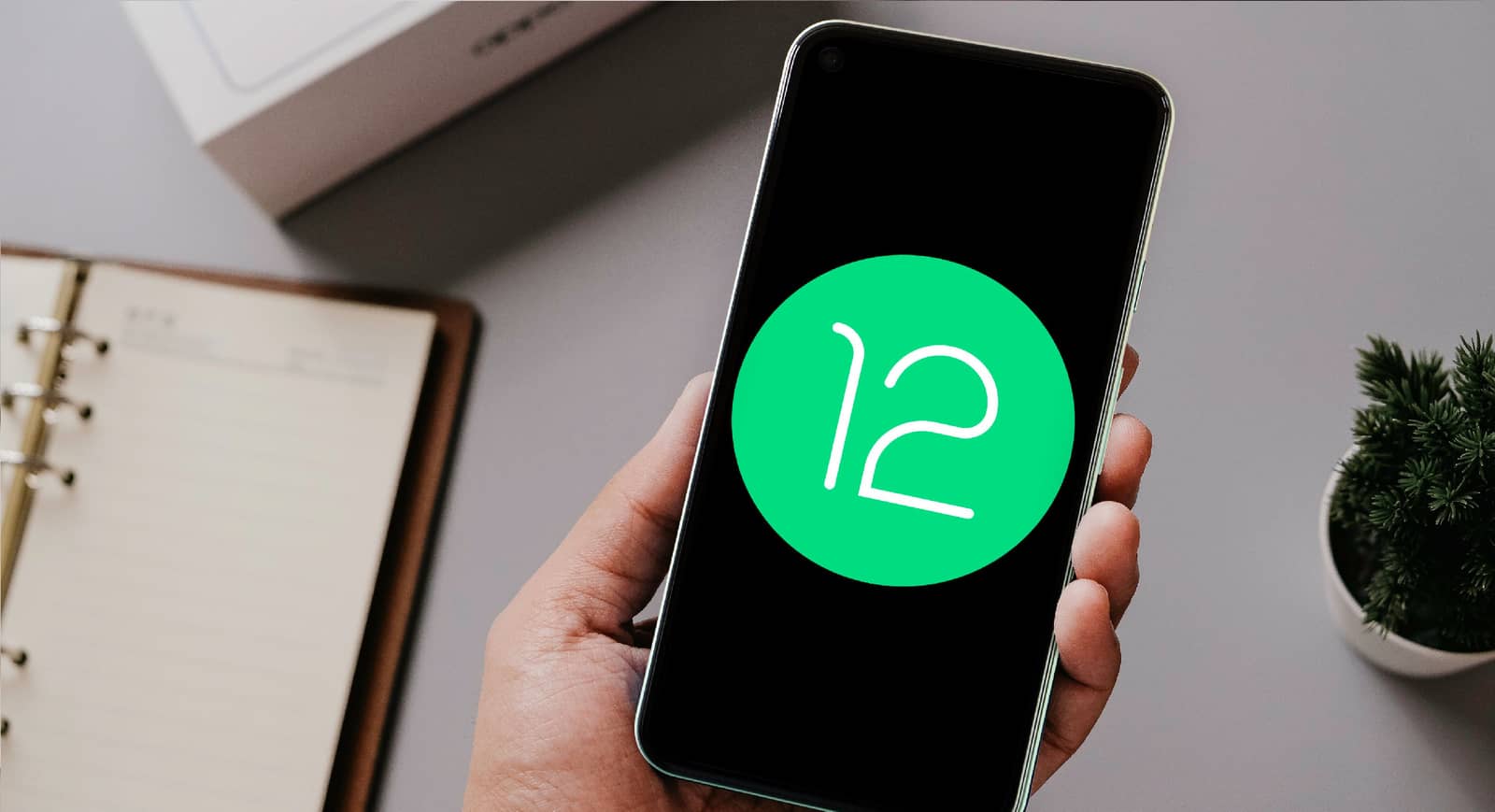
After first appearing on the Google Pixel 6 in October, Android 12 is now steadily rolling out to other Android devices. With a modern and stylish redesign complete with a revamped notification shade and improved privacy controls, it represents one of the most significant updates Android has seen in years. Not only that, its core features hide a series of pleasant touches that will improve your basic experience in various ways. In this article, we have compiled all the main Android 12 tips and tricks to help you get the most out of your device.
Android 12 Tips and Tricks
Use Your Phone With One Hand

For those who like to use their phone with one hand, or anyone among us who multitasks, Google has introduced a new one-handed mode in Android 12. Here is how to enable it:
- Go to Settings > System > Gestures > One-handed mode.
- Select Use one-handed mode. You can also adjust settings here, such as setting a timeout for one-handed mode or setting it to exit when you switch between apps.
- Swipe down from the bottom of the screen to activate one-handed mode.
- To exit one-handed mode, you can wait for the timeout to expire (if you have set one) or swipe up to get past the shortened screen. You can also lock your phone or switch to landscape mode to exit one-handed mode.
Choose Your Phone's Theme With Material You
Probably the new feature of Android 12 is Material You. It changes the color scheme of your phone's user interface and icons based on your wallpaper choice. The effect is quite subtle, but it also helps change the vibe it gives off while providing your device's interface and layout with more aesthetic unity. Material should be enabled by default on any device updated to Android 12. However, you can change your current wallpaper by doing the following and explore how it will affect your phone's interface.
- Go to Settings > Wallpaper & style. Alternatively, long-press any empty area on your phone's home screen and then select Wallpaper & style.
- If you want to choose a different background for your home screen, select Change wallpaper. Preset wallpapers are divided into different categories, and you can also choose from your own photos by selecting My photos.
- After deciding on a wallpaper, you can choose between Wallpaper colors and Basic colors. Most of the Material You experience lies here: if you select Wallpaper colors, your phone changes the colors of certain text and backgrounds based on your wallpaper's color scheme.
Conversely, if you select Basic colors, the interface will be colored according to basic color schemes and will have little to do with your wallpaper choice.
- Another thing you can do in Settings > Wallpaper & style is to enable Themed icons. If you turn this on, the icons on your home screen and elsewhere are colored or shaded according to your wallpaper.
Currently, this feature can only work with first-party Google apps, but updates to third-party apps will improve compatibility in the future.
Rearrange Your Home Screen Layout
Another nice design tweak offered by Android 12 is the ability to change how apps are arranged on your phone's home screen. Basically, you can choose between different grids, with smaller grids resulting in fewer but larger app icons on each page of your home screen.
- Go to Settings > Wallpaper & style > App grid.
- Select the app grid you want to use. The default is 5 x 5, but you can choose among 4 x 4, 4 x 5, 3 x 3 and 2 x 2. As mentioned above, smaller grids cause fewer but larger app icons to appear on your home screen. As a result, you will need to navigate through more pages on your home screen to reach certain apps.
Dress Up Your Widgets

Android offered home screen widgets before they were fashionable. That said, Android 12 brings some significant revisions to its widgets, including a nice redesign and the ability to customize them in various ways.
- Long-press any empty space on your phone's home screen, then tap Widgets.
- Browse through your apps until you find the one you want to add a widget for.
- Select and hold the widget you want, then drag it to your desired location on your home screen.
- If a widget is editable, you will see the edit icon (it looks like a pencil) when you tap and hold the widget. In the case of the Clock app/widget, tapping the edit icon lets you choose among different clock faces.
Take Control of Your Privacy
Google may not have a spotless reputation when it comes to privacy, but Android 12 sees the tech giant going a long way toward making its Pixel and other Android devices more private. In particular, Android 12 expands the range of privacy controls available to users, who can now turn off microphone and camera access globally (meaning no app can use them).
Another thing you can now do is go to the new Privacy Dashboard to check all your permissions. To see which apps have been granted which permissions, go to Settings > Privacy > Privacy dashboard. If you use a Samsung Galaxy, the Privacy Dashboard is called Permission Usage History, so look for it in Settings > Privacy instead.
Here is how to add microphone and camera access controls directly to your Quick Settings.
- Swipe down from the top of the home screen to reveal the Quick Settings menu. Swipe down again to reveal the edit button (it looks like a pencil). Select it.
- Scroll down and find the buttons for camera access and microphone access. Drag and drop them into the Quick Settings panel. Select the arrow to save your changes. You can now go to the Quick Settings menu to turn off camera and/or microphone access for all your apps.
More Tech Articles
- Instagram Nickname Suggestions Are Here
- Instagram Posting Times 2022
- How Do You Create Instagram Filters?
- How Do You Change Your Instagram Username? 2022
- What Are the Instagram Photo Editing Tactics? 2022
- How Do You Add an Instagram Account on TikTok? 2022
- How Do You Create a Pinterest Business Account?
- Pinterest Account Finding Guide
- Downloading Pinterest Photos 2022
- Guide to Installing the Android Operating System on a PC 2022
- What Is ThrottleStop, What Is It For and How Do You Use It?
- How Do You Fix the Throttlestop CPU Not Supported Error?
- The Best Apple iPhone 13 Screen Protectors


