

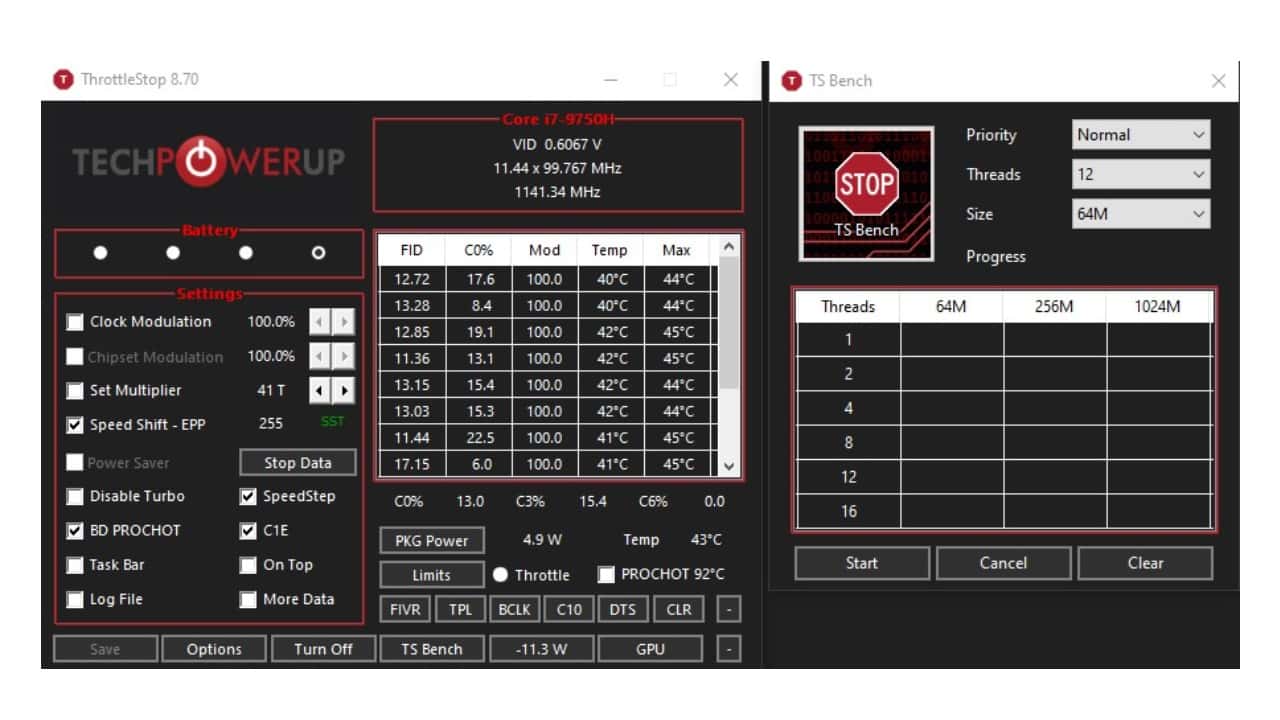
ThrottleStop's CPU Not Supported error usually comes from outdated software or an incompatible processor, and updating ThrottleStop or checking CPU compatibility fixes it.

- The ThrottleStop CPU Not Supported error is usually caused by outdated software or an incompatible processor.
- Fixing it means using the latest ThrottleStop version and confirming your processor is compatible, since it only supports Intel chips.
- If the error persists, try a different charging adapter or consider that the laptop may simply be too old for a fix.
How to Fix the ThrottleStop CPU Not Supported Error? 2022
When you plug in your laptop to charge, the system tries to eliminate potential overheating issues by limiting your processor's performance, but that will lower your computer's performance. ThrottleStop was developed to fix issues like this.
If you're wondering what ThrottleStop is and how it works, we covered that earlier in this article. Like any mechanism, ThrottleStop can sometimes cause problems. Let's take a look at how to fix the ThrottleStop CPU Not Supported error.
How to Fix the ThrottleStop CPU Not Supported Error? 2022
- Method 1: Make sure you're using the latest version of ThrottleStop.
- Method 2: Make sure your processor is up to date and compatible with ThrottleStop.
- Method 3: Try charging your laptop with a different adapter.
- Method 4: It might be time to get a new computer.

Method 1: Make Sure You're Using the Latest Version of ThrottleStop
We mentioned that outdated ThrottleStop software won't work and can cause many different problems. One of these problems is the ThrottleStop CPU Not Supported error. If you're getting this error, the first thing you should check is your ThrottleStop version. You may have accidentally downloaded an older version through the link above. Delete it, install the new one, and try again.
Method 2: Make Sure Your Processor Is Up To Date And Compatible With ThrottleStop
Another common cause of the ThrottleStop CPU Not Supported error is outdated CPU drivers or processors that aren't compatible with ThrottleStop. The ThrottleStop software only supports Intel-core processors. If you're using an AMD processor or a different brand, ThrottleStop won't work. If your Intel processor isn't working, try updating it. The ThrottleStop CPU Not Supported error will definitely be resolved.
Method 3: Try Charging Your Laptop With A Different Adapter
We mentioned that the ThrottleStop software disables a feature that limits your processor against overheating issues once you start charging your laptop. That means the voltage output of the adapter you charge your laptop with matters a great deal too. If you're getting the ThrottleStop CPU Not Supported error, try using a different adapter. Older adapters in particular commonly cause the ThrottleStop CPU Not Supported error.
Method 4: It's Time To Get A New Computer
There are problems even ThrottleStop software can't fix. If you've tried everything and nothing works, it might be time to get a new computer somehow, whether through installments, a loan, or a promissory note. Because if your computer is too old, even ThrottleStop can't offer a solution.
We answered the commonly asked questions about ThrottleStop, which measures your temperature levels while maximizing your processor and battery performance, what it is, what it does, and how to use it, and covered the details you should know about this software. If you use ThrottleStop, feel free to share your experience in the comments.
Our Other Tech Articles
Comments (0)
Log in to leave a comment giriş yap.
No comments yet. Be the first!
Related Posts
All News →
Turkey Game Industry Report 2024 Released
Turkey's 2024 Game Industry Report shows the country's gaming market grew to over $810M with 48M+ active players, alongside a new digital guide to local game companies.

Loldle Answers: Daily League of Legends Puzzle
Loldle is a daily League of Legends guessing game with five modes (Classic, Quote, Ability, Emoji, Splash); December 6, 2024's Classic answer was Fiddlesticks.

Monopoly GO Dice Links: Free Dice Rewards
Monopoly GO's free dice links refresh daily and can be redeemed instantly for 25 or 30 free dice each, plus tips like auto refills every 60 minutes, daily gifts, and sticker trading to earn even more.