

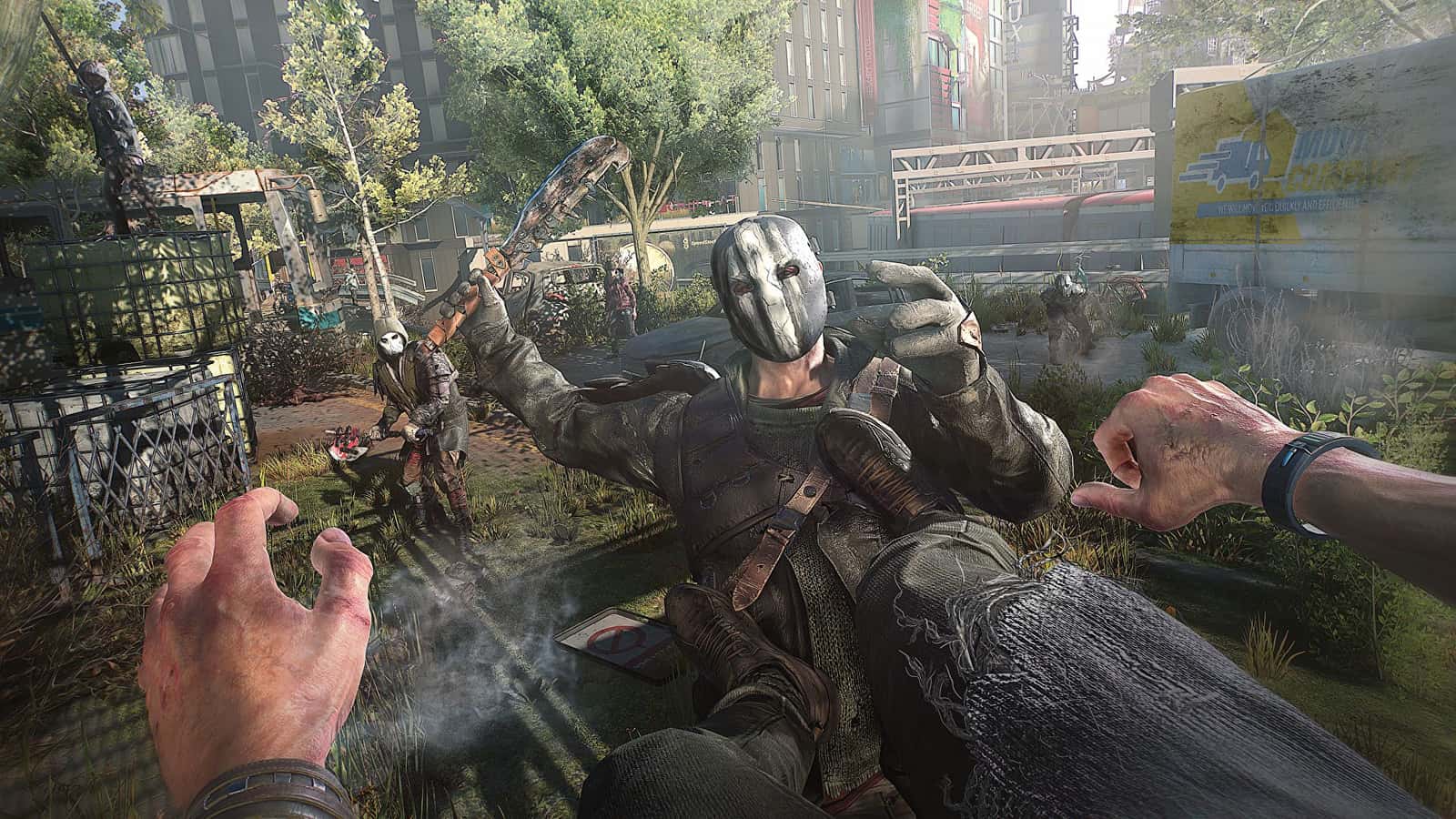
You can fix Dying Light 2 FPS drops by updating your graphics driver, verifying game files, and lowering settings like particle and reflection quality.

- Dying Light 2 Stay Human players reported low-quality graphics, low FPS, and stuttering shortly after launch.
- Recommended fixes include checking the minimum specs (Intel Core i3-9100/AMD Ryzen 3 2300X, 8GB RAM, GTX 1050 Ti/RX 560), downloading game updates, and closing background processes.
- Further fixes include updating Windows and graphics drivers, verifying game file integrity on Steam or Epic Games Launcher, and lowering settings like particle, reflection, and fog quality.
Dying Light 2 Stay Human takes us to one of the last surviving cities. But this new game has some bugs. Players are getting low-quality graphics, low FPS and stuttering — quite literally everything you wouldn't want in a game. If you're not sure what to do about it, you've come to the right page.
How Do You Fix the Dying Light 2 FPS Issue? How Do You Fix FPS Drops?
1. Make Sure Your PC's Hardware Is Up to Spec
Before changing any Windows or in-game settings, you need to make sure your PC at least meets the required minimum specs.
- 64-bit processor and operating system required, OS: Windows® 7
- Processor: Intel Core i3-9100 / AMD Ryzen 3 2300X
- RAM: 8 GB RAM
- Graphics card: NVIDIA® GeForce® GTX 1050 Ti / AMD Radeon™ RX 560 (4GB VRAM)
- Storage: 60 GB of free space required
Once your existing hardware meets the requirements, you can try the following methods to improve your low frame rate.
2. Download Your Game Updates
Early in a new game's life cycle, developers release patches with significant performance improvements and bug fixes. So enable automatic updates to make sure you don't miss one. By default, automatic updates are enabled. But sometimes that might not be the case for you. So you can enable it manually in Steam or Epic Games Launcher by following the instructions below.
Steam Updates
- Open your Steam client. Under LIBRARY, right-click your game title and select Properties.
- Select the UPDATES tab and choose to always keep this game updated under AUTOMATIC UPDATES.
Epic Games Launcher Updates
- Open your Epic Games Launcher. Go to your game under LIBRARY.
- Click the gear icon (three dots) next to your game to enter the settings menu.
- Make sure the Auto-Update option is turned on.
If having the latest game updates doesn't give you the best performance, you should try the next fix below.
3. Close Background Processes
There are certain background programs known to waste resources. They can slow things down and eat into your bandwidth, which will be an issue for multiplayer and connection-dependent games. To prevent this from happening, follow the steps below to close some background processes.
(The screenshots below are taken from Windows 10. If you're running Windows 11, your screen will look a bit different. However, the steps taken are exactly the same.)
- On your keyboard, press the Windows logo + R keys at the same time to bring up the Run box.
- Type Taskmgr and press Enter.

- Click the CPU or Memory tab to check whether anything is using a large chunk of your CPU or RAM (for example, a web browser with dozens of tabs open).

- Find programs or processes that might be affecting your computer's performance, right-click them, and select End Task.

After doing this, restart your game and test whether you notice an FPS boost.
4. Check for Windows Updates
Windows updates usually fix bugs and compatibility issues in Windows and related software, and occasionally bring new features. Be sure to check for updates so you can take advantage of them. This can be the easiest way to fix the issue you're having without much further troubleshooting.
Windows 10 Update
- Type check for updates into the search box. Then click check for updates from the results.

- Click the Check for updates button. If updates are available, it will automatically start downloading and installing them. Just wait for the process to finish. You'll then be prompted to restart your computer.

Windows 11 Update
- Open Settings by pressing the Windows logo + I keys on your keyboard at the same time.
- Click Windows Update.

- Click Check for updates. If it detects any available updates, it will download them for you.

- Once it finishes downloading the updates, click Restart now to restart your PC. Or you can schedule the restart for later.

If updating Windows doesn't do the trick, move on to the next fix.
5. Update Your Graphics Driver
An outdated graphics driver is likely the culprit behind game issues, especially FPS drops. To fix your issues, you need to download and install the latest graphics driver for your system. Game-ready drivers are released regularly to optimize new games. To get the latest graphics driver, you can go to the manufacturer's download page and follow the on-screen instructions to manually download and install the correct driver for your system.
Or you can do it automatically with Driver Easy. It's an automatic driver update tool that helps you scan for and detect missing or outdated drivers, then download and install the latest drivers for your system directly from the device manufacturer. With Driver Easy, you don't have to hunt for driver updates yourself, since it does all the heavy lifting for you.
- Download and install Driver Easy.
- Run Driver Easy and click the Scan Now button. Driver Easy will then scan your computer and detect any devices with outdated drivers.

- Click Update All. Driver Easy will then download and update all of your missing and outdated device drivers, giving you the latest version of each one straight from the device manufacturer.
This requires the Pro version, which comes with full support and a 30-day money-back guarantee. When you click Update All, you'll be prompted to upgrade. If you don't want to upgrade to Pro, you can also update your drivers with the FREE version. All you need to do is download them one by one and install them manually. After updating your drivers, restart your computer and test your game. If your issue persists, move on to the next fix.
6. Verify the Integrity of Your Game Files
This can fix installation corruption that's keeping you from fully enjoying the game. Now follow the steps below to verify cache files in Steam or Epic Games Launcher.
For Steam
- Open your Steam client.
- Under LIBRARY, right-click Dying Light 2 and select Properties.
- Select the LOCAL FILES tab. Then click Verify integrity of game files…
- Steam will now verify your game's files. This process may take a few minutes. Once it's finished, close the window and launch your game.
For Epic Games Launcher
- Open your Epic Games Launcher. Go to your game under LIBRARY.
- Click the gear icon (three dots) next to your game to enter the settings menu.
- Select Verify from the dropdown menu.
Depending on the size of the game, verifying all of your files may take a few minutes. Once it's done, launch your game and test it.
7. Change In-Game Settings
Most games will automatically test your computer after installation and assign custom settings. However, these settings won't necessarily give frame rate the priority you want. Here are a few general settings to turn down (or off) for measurable performance gains.
- Go to the Options menu.
- Select the VIDEO tab at the top. Then make the following changes:
Window Mode: Fullscreen Resolution: Set this to match your monitor's resolution, no higher and no lower. Vertical Sync: Off
- Now scroll down and make the following changes:
Particle Quality: Low Contact Shadows Quality: None Ambient Occlusion Quality: None Global Illumination Quality: Low Global Illumination Quality: Low Reflection Quality: Low Fog Quality: Low
- Then apply the changes. Press Esc and click OK.
However, by applying these changes, you'll have to settle for less in-game visual detail. If you find you're sacrificing too much in your graphics settings to hit your frame rate target, there's always another option: upgrading to a new system with a faster GPU and CPU.
8. Enable Hardware-Accelerated GPU Scheduling
The next method you should try is enabling hardware-accelerated GPU scheduling. It's a feature that comes with a newer Windows update designed to boost in-game FPS. If you have the latest Windows version, the latest driver, and a Geforce 10 series or higher / Radeon 5600 or 5700 series graphics card, you can enable this feature and see whether you notice a performance boost. Now follow the steps below to enable it.
- Type "graphics settings" into the search box.
- Turn on Hardware-accelerated GPU scheduling. Then select Desktop app from the dropdown menu. Then click the Browse button.
- Go to your game's install folder. If you're using Steam, follow the instructions below to find your game's install folder. (If you're playing on Epic Games Launcher, the default is C:\Program Files\Epic Games\[Game Name].) Find the game's install folder in Steam:
- Open your Steam client.
- Under LIBRARY, right-click Dying Light 2 and select Manage > Browse local files.
- Then open the ph > work > bin > x64 folders. Click at the top to copy the file path.
- Paste the game's install file path into the address bar. Then double-click the game's exe file.
- Once it's added to the list, select it and click Options.
- Select High performance and click Save.
Doing this will make sure the game runs on the best graphics processor available on your computer without reducing any performance. However, if this doesn't give you any performance boost, try the next fix below.
9. Scan Your Computer for Corrupted Files
When your operating system gets corrupted, graphics errors and other critical issues can appear. Startup programs will be slower and response time will lag. You should run a full scan of your system to diagnose the issue you're having. Of course, you can do this manually. But it can take hours and might not fix your issues. In that case, you can use Restoro, a more powerful tool that scans your computer for invalid registry issues, fragmented files, and Windows fine-tuning.
More of Our Articles on Dying Light 2
Sources
External links cited in this article
Comments (0)
Log in to leave a comment giriş yap.
No comments yet. Be the first!
Related Posts
All Dying Light 2 →
Dying Light 2 Tips and Tricks Guide
A rundown of the best Dying Light 2 tips and tricks, covering looting, parkour, combat, stamina management and safe houses.
Dying Light 2: Should You Side With Marco or Julian?
In Dying Light 2's Cheers quest, siding with Marco gets Aiden 5 Flour plus 250 Old World Money, while turning him in leads to a tough boss fight for only a blue-tier weapon.
Dying Light 2 Weapons: Types, Locations, Repair
In Dying Light 2, weapons carry randomized stats and durability that drains with use, but players can find blunt, bladed, ranged, and opportunity weapons across Villedor and repair favorites with…