FC 27 Secure Boot Error: How to Fix It on PC
Getting a Secure Boot warning or EA Javelin Anticheat error in FC 27? How to check TPM 2.0, convert to GPT and enable Secure Boot in the BIOS, based on EA and Microsoft guides.

6 min read
Contents11 sections
The FC 27 Secure Boot error appears when EA Javelin Anticheat, the game's anti-cheat on PC, finds Secure Boot turned off. The fix: turn on TPM 2.0, make sure your Windows disk is GPT and enable Secure Boot in your BIOS.
The steps below follow EA's official help article and Microsoft's Windows 11 guide. If the error persists, EA's anti-cheat troubleshooting steps are at the end.
FC 27 Secure Boot error: is Secure Boot required?
The system requirements on FC 27's Steam page do not mention Secure Boot or TPM; they list "Windows 10/11 - 64-Bit (Latest Update)". But FC 27 launches with EA Javelin Anticheat on PC, and EA's Secure Boot article says some EA games require Secure Boot so Javelin-protected games can detect cheaters.
EA's anti-cheat help page also recommends enabling Secure Boot for the "application encountered an unrecoverable error" message, and an EA forum reply to a player whose FC 27 would not launch lists the same step. If you see a Secure Boot warning or an anti-cheat error, start here.
1. Check whether Secure Boot is on
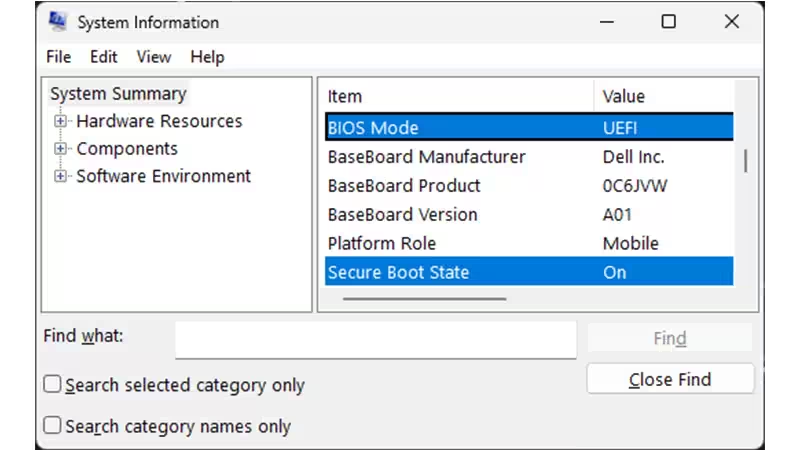
- Press Windows + R, type msinfo32 and press Enter.
- In System Information, select System Summary.
- Check BIOS Mode and Secure Boot State.
- If BIOS Mode is UEFI and Secure Boot State is Off, go to step 4.
- If BIOS Mode is Legacy, check whether your disk is MBR or GPT (step 3).
- If Secure Boot State says Unsupported, check your motherboard manual.
2. Check TPM 2.0
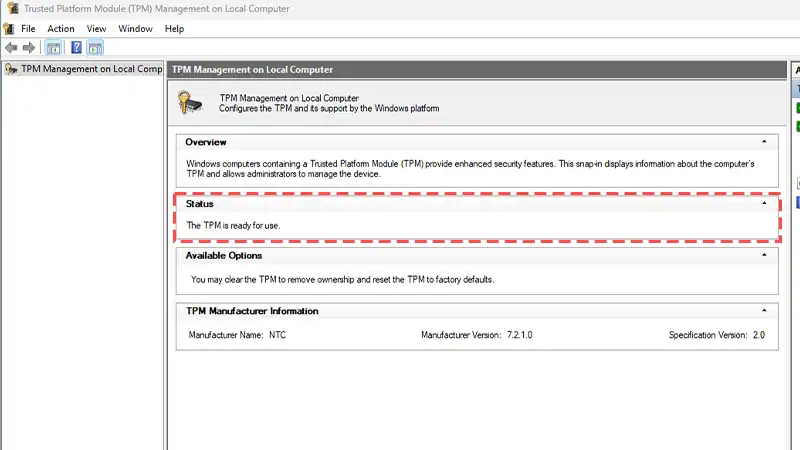
- Press Windows + R, type tpm.msc and press Enter.
- The Status box should say the TPM is ready for use.
If TPM is off, turn it on in your BIOS. The setting's name varies by manufacturer, so check your manual.
3. Is your Windows disk GPT?
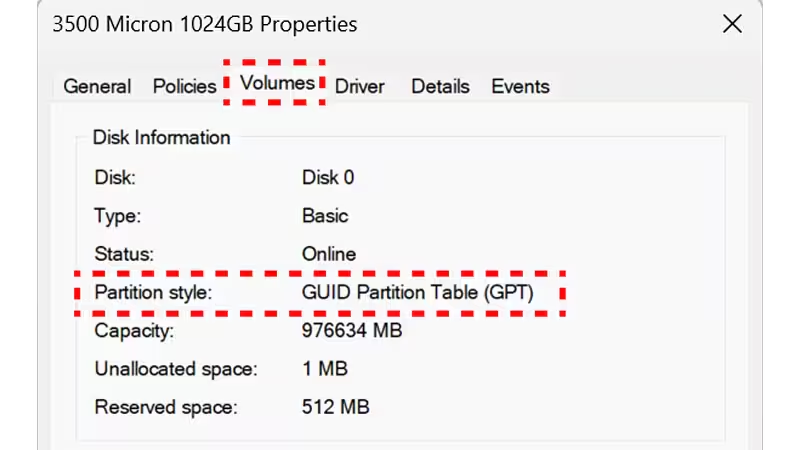
- Press Windows + X and open Disk Management.
- Right-click the left column of the OSDisk (C:) disk and choose Properties.
- On the Volumes tab, check Partition style.
If it says GUID Partition Table (GPT), you are fine. If it says MBR, EA suggests these commands:
- Press Windows + R, type powershell and press Ctrl + Shift + Enter to open an administrator prompt.
- Run mbr2gpt /validate /disk:0 /allowFullOS.
- If validation passes, run mbr2gpt /convert /disk:0 /allowFullOS.
The disk:0 part must match your disk number in the Disk Properties window. After converting, you may need to switch the firmware to UEFI boot. Microsoft says you need to move from legacy BIOS (CSM) mode to UEFI, and if both are enabled, UEFI must be the first or only option. Back up important files before you start.
4. Enable Secure Boot in the BIOS
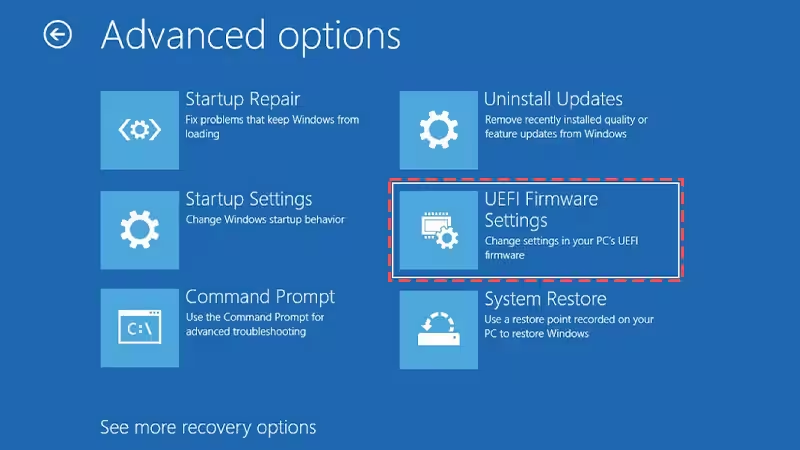
To reach UEFI settings in Windows 11, Microsoft describes this path:
- Go to Settings > System > Recovery and select Restart now next to Advanced startup.
- Choose Troubleshoot > Advanced options.
- Select UEFI Firmware Settings and click Restart.
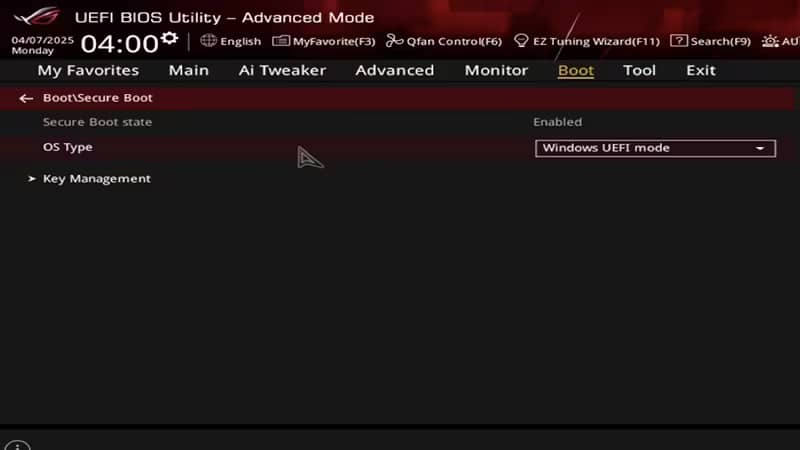
In the BIOS, EA's example uses these steps (menu names vary by motherboard brand):
- Open the Boot tab. If you cannot find it, use the BIOS search; in EA's example it opens with F9.
- Set Secure Boot state to Enabled.
- Set OS Type to Windows UEFI mode.
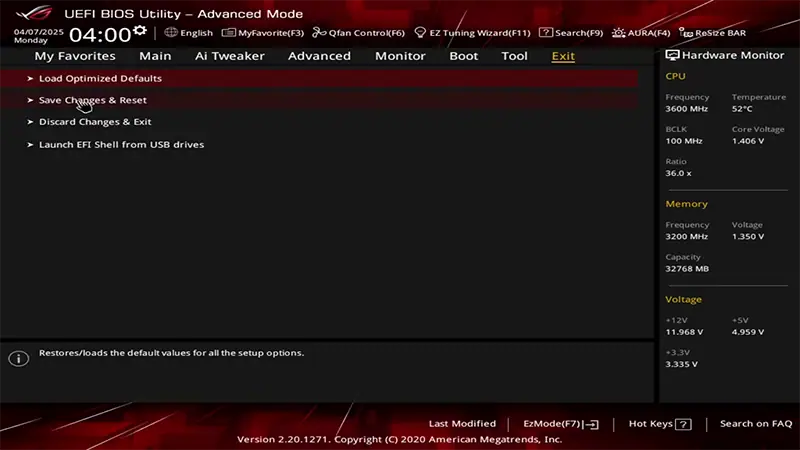
- On the Exit tab, choose Save Changes & Reset and confirm with Ok.
If the option cannot be changed, EA notes that some manufacturers require you to reset Secure Boot keys to factory defaults or set a BIOS admin password first. Once Windows starts, check msinfo32 again: Secure Boot State should be On. EA says some Windows versions need one more restart.
Secure Boot is on but FC 27 still won't start
Some players on EA's forums still get stuck at the anti-cheat stage with Secure Boot enabled. Try the steps from EA's Javelin troubleshooting page and forum replies:
- Update Windows: Javelin needs Windows 10 20H1 (10.0.19041) or newer.
- Close background software: overlays, hardware monitoring tools, VPNs, proxies and other anti-cheat programs can conflict with Javelin. EA's list of blocked drivers includes CPU-Z, Core Temp and some RGB software.
- Reinstall the anti-cheat: run EAAntiCheat.Installer.exe in C:\Program Files\EA\AC, uninstall it for FC 27, restart and install it again.
- Run the EA app as administrator: even if you bought the game on Steam, right-click the EA app, choose Run as administrator and launch the game from there.
- Error #701: in an administrator command prompt, run fsutil resource setautoreset true C:\ and restart.
Microsoft is also replacing the Secure Boot certificates first issued in 2011, which expire in June 2026. On supported Windows versions this happens automatically, which is one more reason to keep Windows Update current.
For the same issue in an older game, see our FIFA 23 Secure Boot fix.
Frequently Asked Questions
Can FC 27 run without Secure Boot?
FC 27's Steam requirements do not list Secure Boot. But the game uses EA Javelin Anticheat, and EA recommends enabling Secure Boot for anti-cheat errors. If you get a warning, you need to turn it on.
Do I need TPM 2.0 for Secure Boot?
According to EA's help article, Secure Boot needs TPM 2.0 turned on, a GPT Windows disk and UEFI BIOS mode.
The Secure Boot option is greyed out in my BIOS. What now?
EA says some manufacturers require you to reset Secure Boot keys to factory defaults or set a BIOS admin password first. Check your motherboard manual.
FC 27 is stuck on the anti-cheat screen with Secure Boot on. What should I do?
Update Windows, close VPNs and monitoring tools, reinstall the anti-cheat with the installer in C:\Program Files\EA\AC and run the EA app as administrator. If that fails, contact EA Help.
Frequently asked questions
Questions answered in this article
Sources
External links cited in this article
Newsletter
The week's biggest gaming news, every Friday morning
One email every Friday: the week's most-read stories and what's new. No spam, unsubscribe anytime.
LoL, TFT ve VALORANT sever bir oyun sever ve oyuncu. Mobil platformlarda ise tam bir Clash of clans hastası.