

Some VALORANT players get stuck in an update loop every time they launch the game; updating the Riot Client, running as administrator, and repairing files usually fix it.

- Some VALORANT players report getting stuck in a constant update loop every time they launch the game.
- Fixes include updating the Riot Client, running VALORANT as administrator, and repairing the game files.
- If none of those steps work, reinstalling VALORANT is likely the best solution.
Some VALORANT players say they get stuck in an update loop every time they launch the game. The issue shows up every time the user starts the game. While pinpointing the cause can be tricky, a few troubleshooting techniques can help clear it up. This issue, known as VALORANT updating every time I launch it, can be a major obstacle to playing the game. We'll walk you through the steps for the fix below. Here's how to solve the VALORANT constantly updating issue!
VALORANT Updating Every Time I Launch It in 2025
You can follow the steps below in order to fix the VALORANT issue where it updates every time you launch it:
Update and Restart the Riot Client
The Riot Client is software required for VALORANT to run. Any error in the client can cause the game to keep updating. Keeping the Riot Client up to date can help you avoid these kinds of errors.
- Fully close the Riot Client.
- Restart your computer.
- Reopen the Riot Client and check whether there's an update available.
Run VALORANT as Administrator
System permissions can sometimes prevent the game from saving updates properly. That's why running VALORANT and the Riot Client as administrator can fix the issue.
- Right-click the Riot Client shortcut.
- Select "Run as administrator."
- Do the same for the VALORANT shortcut and launch the game.
This will ensure the client and the game have full permissions while updating the necessary files.
Repair the Game Files
Missing or corrupted game files can cause the game to update every time it's launched. The Riot Client has a feature for verifying and repairing game files in these situations.
- Open the Riot Client.
- Click the VALORANT icon and go to the "Settings" section.
- Select "Repair" and wait for the process to finish.
This process re-downloads any missing or corrupted files so the game runs properly.
 Check Your Antivirus and Firewall Settings
Antivirus or firewall software can block or quarantine the game's update files. Because of this, it's worth checking your security software's settings.
- Open your antivirus software.
- Mark VALORANT and the Riot Client as trusted or add them to the whitelist.
- Check your firewall settings to allow VALORANT to update.
These steps will keep your security software from blocking the game's updates.
Check Your Disk Space
If you don't have enough storage during updates, the client may restart the update every time it launches. Check your disk space to make sure there's enough room free for the game.
- Check the main disk space on your computer.
- Delete unnecessary files or unused apps to free up space.
- Try to leave at least 10 GB of free space.
Install Windows Updates
An outdated Windows version can affect VALORANT's update process. Check your Windows updates to ensure system compatibility.
- Go to Settings from the Start menu.
- Open "Windows Update" under the Update & Security section.
- Download and install any available updates.
Reinstall VALORANT
If none of these steps fixed the issue, reinstalling the game may be the best solution. Uninstalling and reinstalling the game ensures all files are current and error-free.
- Uninstall VALORANT through the Riot Client.
- Go to the official VALORANT website and download the latest version of the game.
- Reinstall the game to complete the process.
For the latest news, follow Gamer Papers and our social media accounts.
Sources
External links cited in this article
Comments (0)
Log in to leave a comment giriş yap.
No comments yet. Be the first!
Related Posts
All General →
TFT Loot Orb Rewards for Every Luck Level (2025)
TFT's 2025 Loot Orb rewards give Teamfight Tactics players gold, units, and items based on luck level, ranging from a single gold orb up to 175 luck.
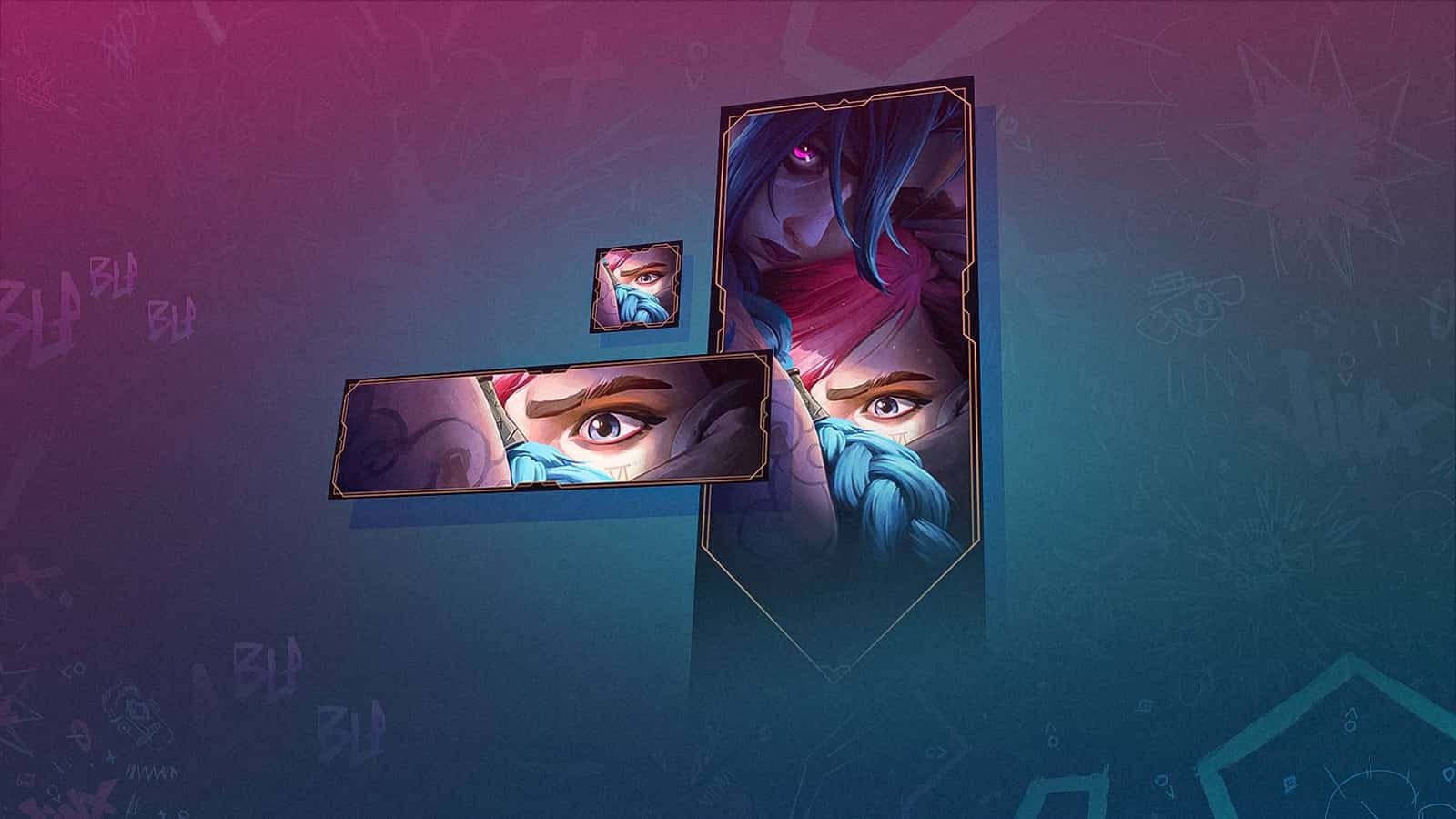
How to Claim Valorant's Arcane Season 2 Twitch Drops
Valorant's Arcane Season 2 Twitch Drops gave out free Vi and Jinx player cards for linking a Twitch account and watching an hour of stream time.
How to Fix the CS2 Downloading Content Error
CS2's Downloading Content error is usually caused by server issues, weak connections, low disk space or corrupted files, and is often fixed by verifying game files or restarting Steam.