

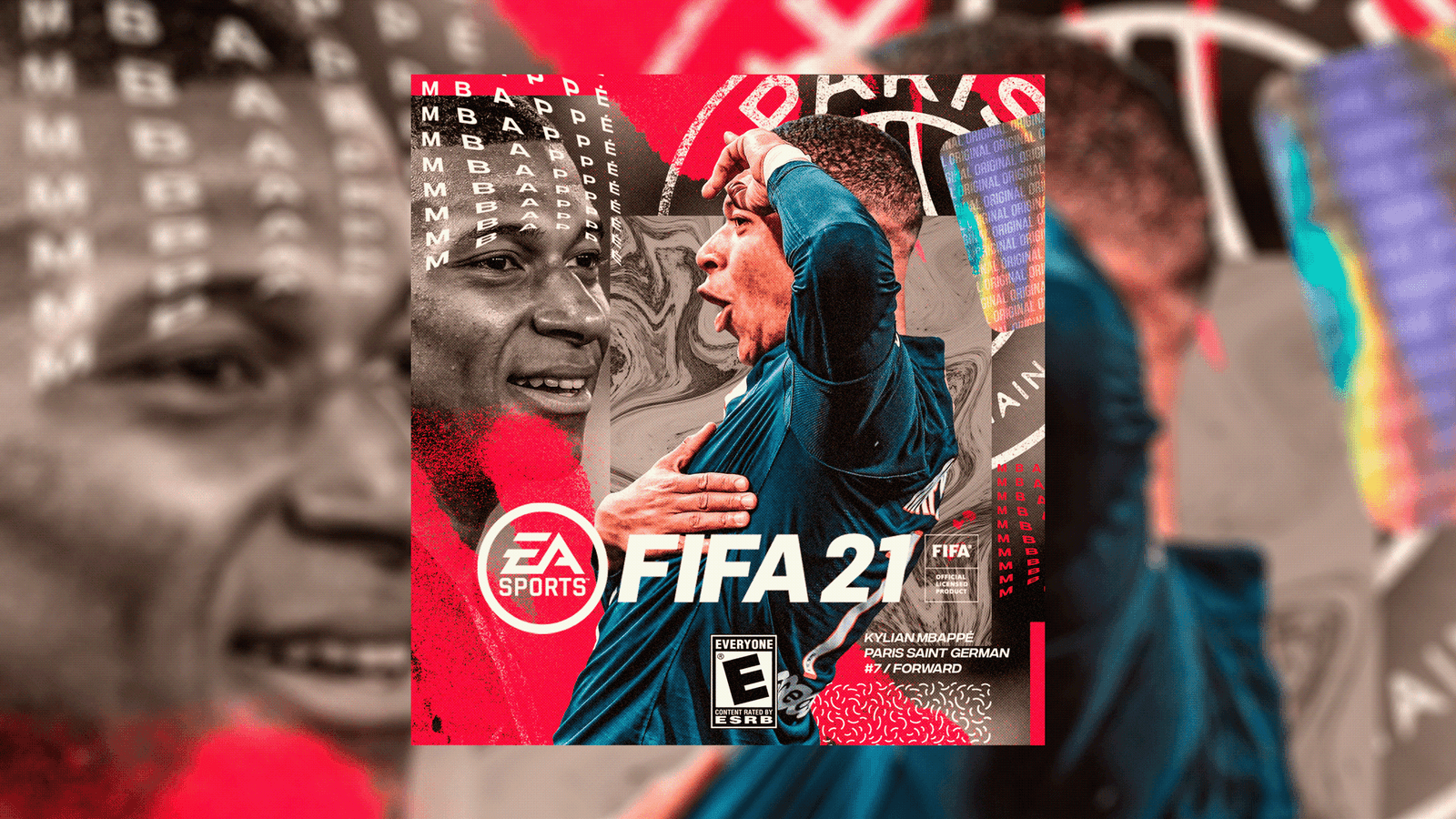
FIFA 21 PC players can customize keyboard bindings and swap controller buttons like Square/Circle or R1/R2 via Customize Controls.

- FIFA 21 control settings can be customized on both PC and consoles, with PC having a separate keyboard and mouse section.
- A common FIFA 21 remap swaps the default Square (long pass) and Circle (shot) buttons, or R1 and R2, since sprint defaults to R2 instead of R1.
- To change control settings mid-match, players must pause the game and go through the settings and Customize Controls menu.
FIFA 21 PC Settings
You can access the control settings page for FIFA 21 on both PC and consoles. Only on PC do keyboard and mouse options form a separate section.
 When you go into the Customize option in the main menu, you'll see the settings section. When you go into settings, you'll see a section for customizing controls. When you go into Customize Controls, you'll be met with input device settings. If you have the PC version of FIFA 21, one of the options you'll see here will be selecting your input device. If you're not using a joystick on PC, you'll see two options. These are listed as keyboard only, and keyboard + mouse.
FIFA 21 Console Settings
On game consoles, there's no such distinction. If you have a console version of FIFA 21, going into Customize Controls will take you directly to the in-game control customization options. In this section, you can make visual adjustments to settings like FIFA Trainer, timed finishing, and the next-player switch indicator. In the same section, you can also set preferences for various match-mechanic assist systems. You have detailed control to adjust these to your playstyle, such as choosing to get AI assistance.
 On the other hand, you might want to change your control settings during a match. To change control settings mid-match, you'll again need to find the Customize Controls section. To do this during a match, you'll first need to pause the game, then go through the settings and Customize Controls steps in order. Once you have done that, you can access the input device settings section we mentioned above.
How Do You Set Up Keyboard Controls in FIFA 21?
If you're playing FIFA 21 on PC, the settings for the keyboard are different from the settings for a controller. To change key bindings, follow the steps above to reach the input device settings section, either from the game's main menu or by opening the in-game menu during matches. The first option here is general controller settings. When you move to the side tabs, you can set up key bindings in two areas: attack and defense.
 If you're playing FIFA 21 on PC, the default key layout might feel a bit confusing and impractical. In this section, you should first make a change in the presets tab. Then, using your mouse, click on the spot showing the key you want to change and select the key you want from your keyboard. If you want to use the arrow keys in FIFA 21, you may need to check the alternate option in the presets tab. Once you have selected this option, you can assign the keys as you like. After choosing separate changes for attack and defense, save your settings and your new keys will be ready to use in the game.
How Do I Swap Key Bindings in FIFA 21?
Control settings for gamepads can be done on both PC and consoles. These settings are a bit different from keyboard settings. First, if you're going to use a controller on PC, you need to select your controller type from the input device settings. Note that different controllers need to be recognized by the PC beforehand. After making that selection, the next step is the same for both PC and consoles. Once the controller is recognized, instead of entering keys one by one to remap FIFA 21's controls, you swap their positions.
Whether you want to change attack or defense bindings, you first need to choose which keys you want to swap. For example, in the default controller layout, the long pass is mapped to Square and the shot to Circle. If you want Square to be shot and Circle to be long pass and cross, you can easily swap these two buttons. All you need to do is hover over the button icons and press the pass button in sequence. When you land on the button you want to change and press the pass button, a swap cursor appears.
After that, you need to press the pass button again on the icon of the other button you want to swap it with. In short, once you have selected both buttons you want to swap in sequence, you have done what you set out to do. Swapping the circle and square buttons, and swapping R1 and R2, are among the most common changes players make in FIFA 21. This is typically done when players want to use R1 for sprinting instead of the game's default R2 sprint button.
Check out the best cheap cards to buy in FIFA 21 Ultimate Team here!!!
Comments (0)
Log in to leave a comment giriş yap.
No comments yet. Be the first!
Related Posts
All FIFA →
FIFA 23 FUTTIES Team 2: Player Predictions
FIFA 23's FUTTIES Team 2 was predicted to launch July 28, 2023, with Messi, Ibrahimovic, Mudryk, Diaby, and Brahim Diaz tipped for pink cards.
FIFA 23 Shapeshifters Team 3 Review
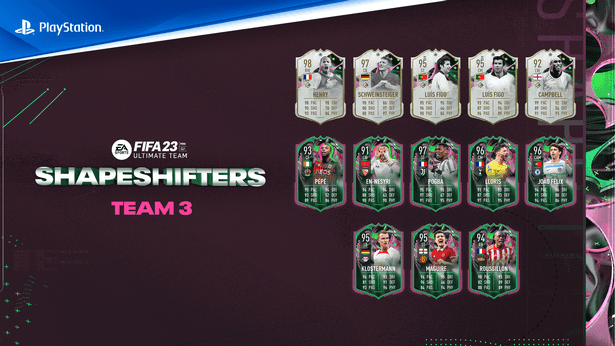
FIFA 23 Ultimate Team's Shapeshifters Team 3 has arrived, featuring Thierry Henry at RW (98 OVR) and Bastian Schweinsteiger converted to centre-back (97 OVR).

Why Fans Criticized FC 24's Player Faces
EA's FC 24 Ultimate Edition cover drew criticism over face scans of players like Ronaldinho, Marta and Bukayo Saka not matching their real likenesses.