


FIFA 23 cutscene and menu stuttering on PC can often be fixed by updating graphics drivers, closing background apps, or increasing virtual RAM.

- Several fixes are recommended for FIFA 23 players who run into performance issues on PC.
- Steps like changing high DPI settings, updating graphics drivers, and closing background apps can resolve the stuttering.
- Running FIFA 23 as administrator, enabling Game Mode, and increasing virtual RAM are also among the recommended fixes.
As you know, the FIFA 23 journey keeps going right where it left off! New upgraded cards and promos keep getting added to the game every day. In particular, the recently added Trophy Titans promo made a lot of players very happy. However, many players run into various performance issues after launching FIFA 23 on PC. One example of this is cutscenes and the menu stuttering in FIFA 23. So how do you fix the FIFA 23 cutscenes/menu stuttering issue? Without further ado, let's take a look at the fixes we'd recommend!
 FIFA 23 Cutscenes/Menu Stuttering 2023!
You can check out the fixes below to resolve the stuttering issue in the game; we hope these suggestions work for you!
Change the High DPI Settings
- Launch the Steam client and go to your Library.
- Right-click FIFA 23 and select Manage.
- Browse Local Files. (The folder where the game is installed will open in File Explorer.)
- You'll need to scroll down a bit to find the FIFA 23.exe application file.
- Right-click this file, then click Properties.
- Go to the Compatibility tab, then click Change High DPI Settings.
- Enable/check the "Override high DPI scaling behavior" option.
- Then click OK and try running the game again.
Update Your Graphics Drivers
- Right-click the Start Menu to open the Quick Access Menu.
- Click Device Manager from the list.
- Double-click the Display adapters category to expand the list.
- Right-click the name of your dedicated graphics card.
- Select Update driver > Search automatically for drivers.
- If an update is available, it will automatically download and install the latest version.
- Once done, restart your computer for the changes to take effect.
Close Background Applications
- Press Ctrl + Shift + Esc to open Task Manager.
- Click the Processes tab; click to select tasks that are running unnecessarily in the background and consuming enough system resources.
- Click End Task to close them.
- Once done, restart your system to apply the changes.
Run FIFA 23 as Administrator
- Right-click the FIFA 23 exe shortcut file on your PC.
- Click Properties > Compatibility tab.
- Make sure you check the "Run this program as an administrator" checkbox to confirm.
- Click Apply, then select OK to save the changes.
Enable Game Mode
- Press Windows + I to open Windows Settings.
- Open Gaming > Game Mode.
- Turn on the Game Mode toggle.
Increase the Virtual RAM
- Go to This PC and right-click from the Desktop/File Explorer.
- Then click Properties.
- Click Advanced system settings from the left sidebar.
- Click Performance Options under the Advanced tab.
- Go to the Advanced tab > click Change under Virtual Memory.
- Uncheck the option to automatically manage paging file size for all drives.
- Select the drive where you installed the game.
- Click the Custom size option > type 20000 into both the Initial and Maximum size fields.
- Finally, click Set, then OK.
- Once done, restart your PC and try launching the game.
Update FIFA 23
- Open the Steam client > go to your Library.
- Click FIFA 23 from the list of installed games in the left panel.
- The client will automatically check for an available update.
- If an update is available, you'll see an Update option; click it.
- Wait a few minutes for the update to finish.
- Once done, make sure you close the Steam client.
- Restart your computer to apply the changes, then relaunch the game.
Reinstall FIFA 23
- Open the Steam client > go to your Library, right-click FIFA 23 from the left panel.
- Click Uninstall and follow the on-screen instructions to complete it.
- Once done, make sure you close Steam and restart your computer.
- Launch Steam and reinstall the game.
Other FIFA 23 Issues and Fixes
Bazen yazar, bazen tasarlar. Film bağımlısı, oyunlar hakkında yazmayı sever✨
Comments (0)
Log in to leave a comment giriş yap.
No comments yet. Be the first!
Related Posts
All FIFA →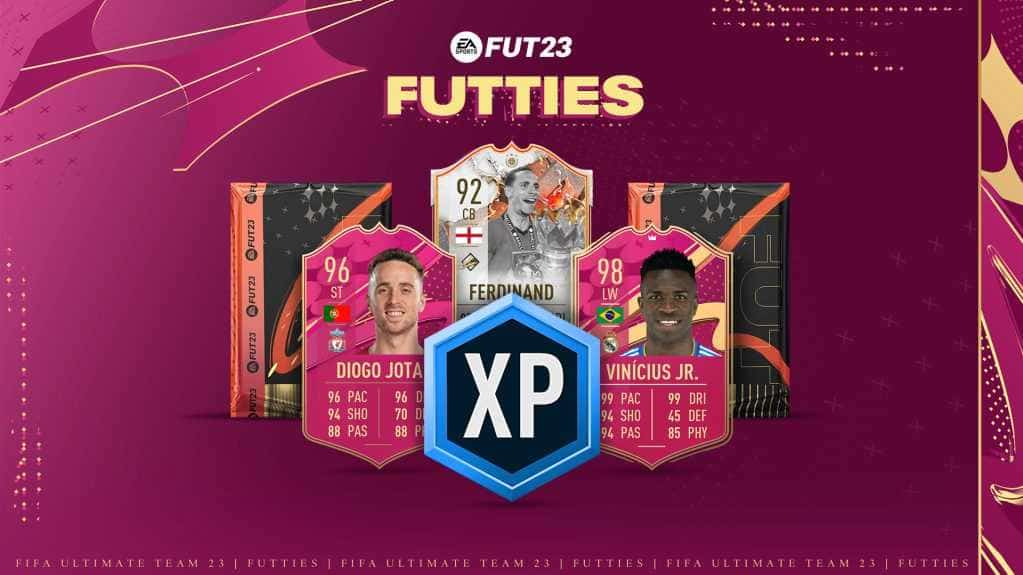
FIFA 23 FUTTIES Team 2: Player Predictions
FIFA 23's FUTTIES Team 2 was predicted to launch July 28, 2023, with Messi, Ibrahimovic, Mudryk, Diaby, and Brahim Diaz tipped for pink cards.
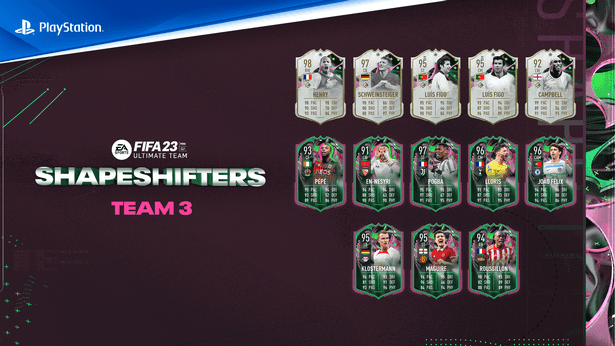
FIFA 23 Shapeshifters Team 3 Review
FIFA 23 Ultimate Team's Shapeshifters Team 3 has arrived, featuring Thierry Henry at RW (98 OVR) and Bastian Schweinsteiger converted to centre-back (97 OVR).
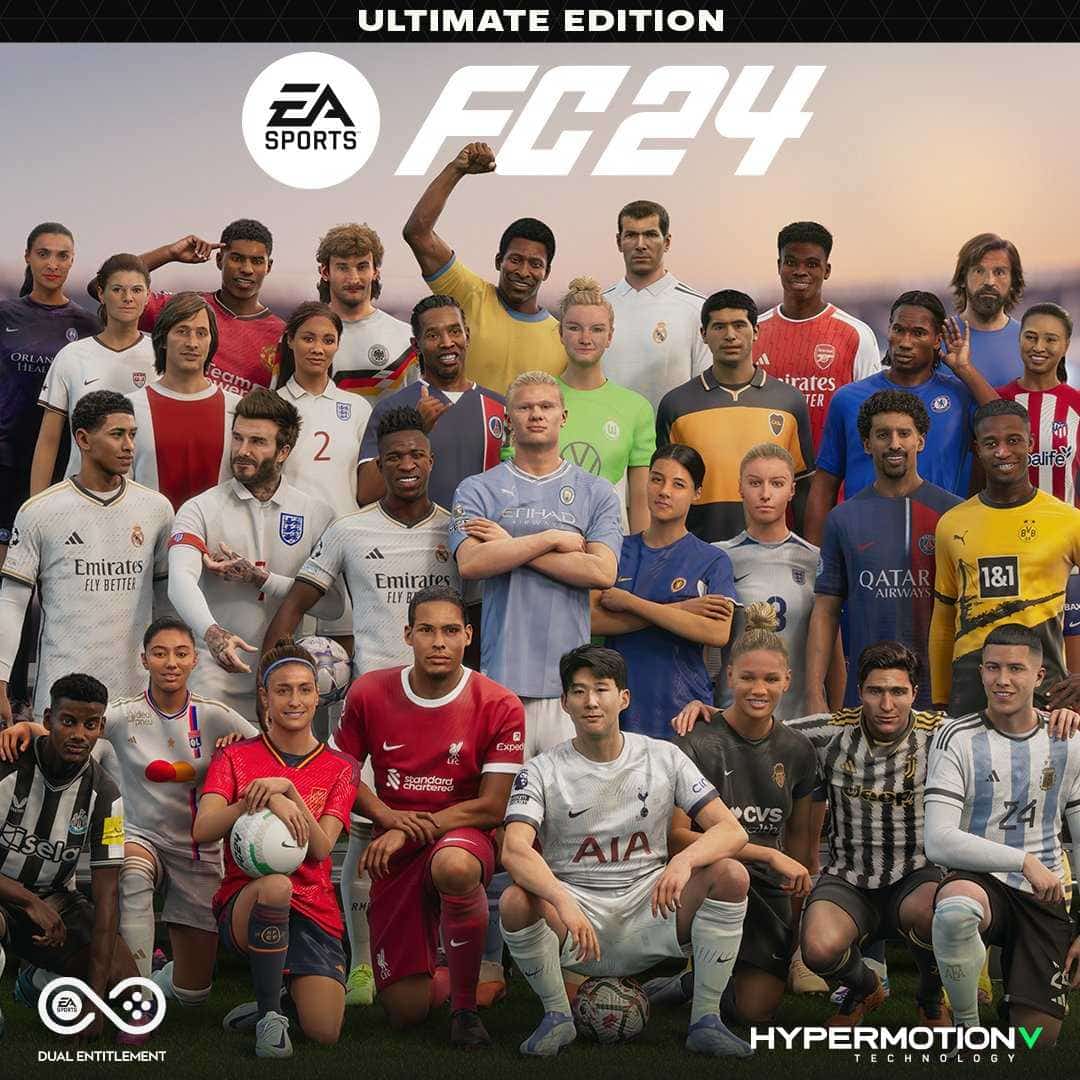
Why Fans Criticized FC 24's Player Faces
EA's FC 24 Ultimate Edition cover drew criticism over face scans of players like Ronaldinho, Marta and Bukayo Saka not matching their real likenesses.