

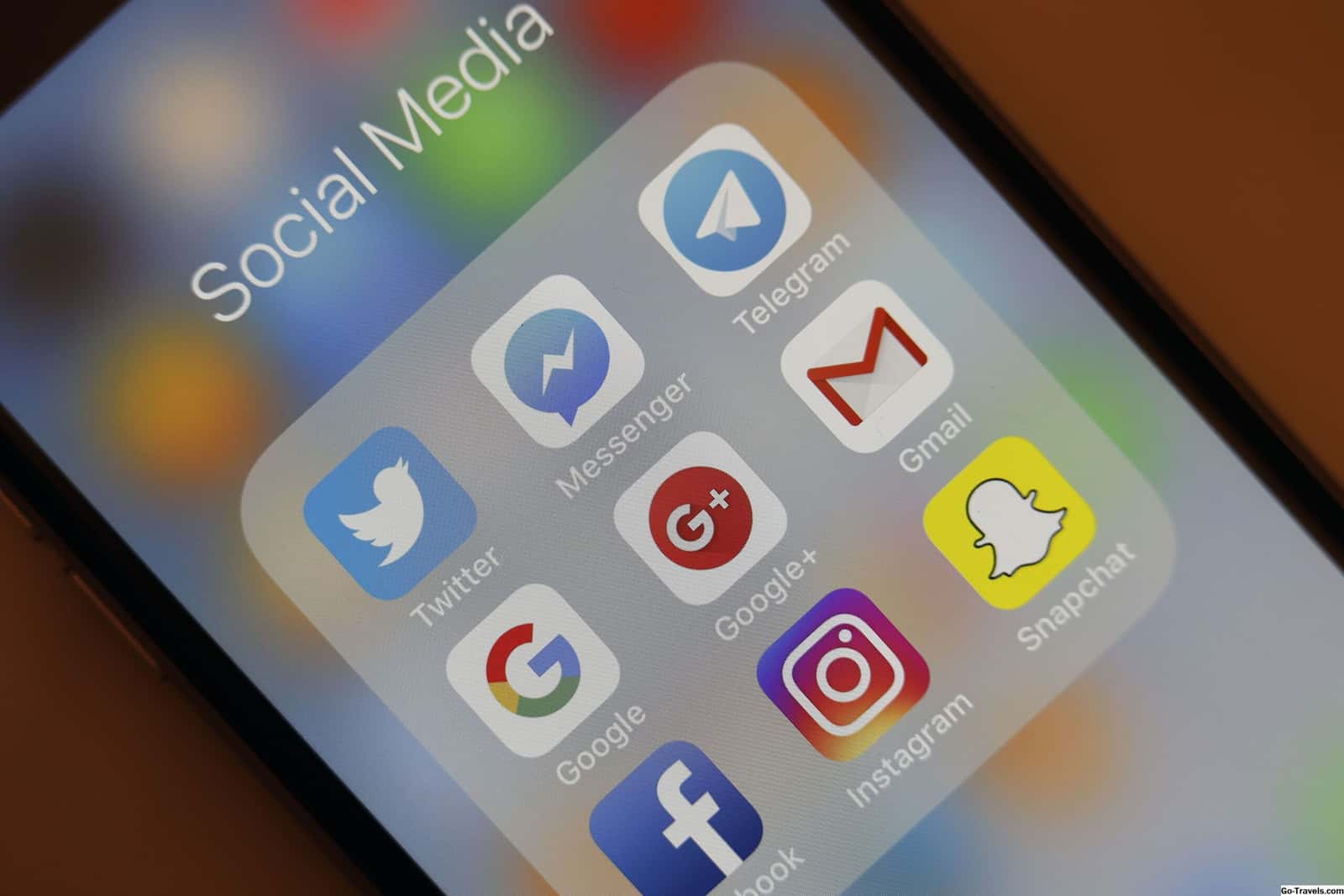
You create a folder on iPhone by dragging one app icon onto a second app icon on the home screen, which instantly opens a new folder.

- The iPhone App Library organizes nearly all installed apps into preset categories, letting users keep only their most-used apps on the home screen.
- Creating a folder on iPhone only requires dragging one app icon onto a second app icon on the home screen.
- Removing an app from an iPhone folder or the home screen does not delete it from the App Library.
Apple's modern iOS has one of its coolest features in the App Library. It cleans up the home screen by organizing nearly all your apps into preset categories. This way, you can move your most-used apps to the first screen you see while everything else stays tucked away. To see all your grouped apps on a single screen, all you have to do is swipe left. But what happens when you need to squeeze specific apps into a single folder? For example, you might need Microsoft Teams, Asana, Microsoft Word, and a few others in one central spot, but they're scattered across the App Library. Sure, you could drag them all to the home screen one by one, but that's just clutter — and you don't want clutter, you want a clean home screen. That's where folders come in. How do you create a folder on iPhone? Let's find out.

How Do You Create a Folder on iPhone?
Moving an App to the Home Screen
Follow these instructions if the apps you want to drop into a folder aren't already on the home screen.
- On the home screen, swipe Left to load the App Library.
- Find the app you want to move and press and hold on it. A pop-up menu will appear on screen.
If it's available, select Add to Home Screen, and iOS 15 will automatically add it to the next available app slot on the home screen.
- If you don't see this option, wait for the pop-up menu to disappear and for the other apps to start jiggling; iOS will place the app on the home screen in edit mode. You can then drag the app to move it wherever you want.
- Press the Home button, or on phones without a Home button, tap the Done button in the top-right corner.
Create an App Folder
Now that you have apps on your home screen, you can group them into a customized folder. You only need two apps to create a folder.
- To create a folder, press and hold on the app you want to add.
Wait for the pop-up menu to disappear. You'll see the app start jiggling, with a "minus" icon in the top-left corner of its logo.
- Drag the app icon onto a second app icon. Almost instantly, an open folder will appear on the screen containing the second app.
- Usually, iOS will automatically generate a label based on the apps you've paired together, but you can change it.
Tap the label name until you see the cursor, and use the keyboard to type a different name.
- Tap outside the folder to return to the home screen.
- Press the Home button, or on phones without a Home button, tap the Done button in the top-right corner to finish.
- You can keep adding (or removing) apps to the new folder by pressing and holding, then dragging.
Delete an App Folder
Tired of the folders on your home screen? Send their apps back to the App Library. Removing an app from a folder or the home screen doesn't delete it from your App Library.
- Press and hold the folder until a pop-up menu appears, and tap Remove Folder in the menu.
- A prompt will appear asking you to confirm removal of the apps inside the folder. Tap Remove from Home Screen.
More of Our Tech Articles
Comments (0)
Log in to leave a comment giriş yap.
No comments yet. Be the first!
Related Posts
All News →
Turkey Game Industry Report 2024 Released
Turkey's 2024 Game Industry Report shows the country's gaming market grew to over $810M with 48M+ active players, alongside a new digital guide to local game companies.

Loldle Answers: Daily League of Legends Puzzle
Loldle is a daily League of Legends guessing game with five modes (Classic, Quote, Ability, Emoji, Splash); December 6, 2024's Classic answer was Fiddlesticks.

Monopoly GO Dice Links: Free Dice Rewards
Monopoly GO's free dice links refresh daily and can be redeemed instantly for 25 or 30 free dice each, plus tips like auto refills every 60 minutes, daily gifts, and sticker trading to earn even more.