

How to Reset AirPods and AirPods Pro (iPhone and Android)
To reset AirPods or AirPods Pro, put them in the charging case, forget them in Bluetooth settings, then hold the Setup button on the case for about 15 seconds until the light flashes yellow and turns…

4 min read
In brief
AI summaryTo reset AirPods or AirPods Pro, put them in the charging case, close the lid, wait 30 seconds to one minute and make sure the case has some charge.
Before resetting AirPods, unpair them on an Apple device via Settings, Bluetooth, the blue i button and Forget This Device.
To finish the AirPods reset, hold the Setup button with the lid open for about 15 seconds until the light flashes yellow then white; on Android, re-pair manually in Bluetooth.
Contents7 sections
Apple AirPods and their top-tier cousins, AirPods Pro, are designed to be easy to use. If you already have an iCloud account and an Apple device, you can set them up in seconds. However, sometimes these little earbuds can develop problems, such as refusing to charge or sync properly. Or you may want to make sure the latest AirPod updates are installed. This requires a full factory reset, but how to do it is not always clear. Follow these easy steps for a safe reset! How do you reset Apple AirPods and AirPods Pro?
How Do You Reset Apple AirPods and AirPods Pro?

Put Your AirPods in Their Charging Case and Wait
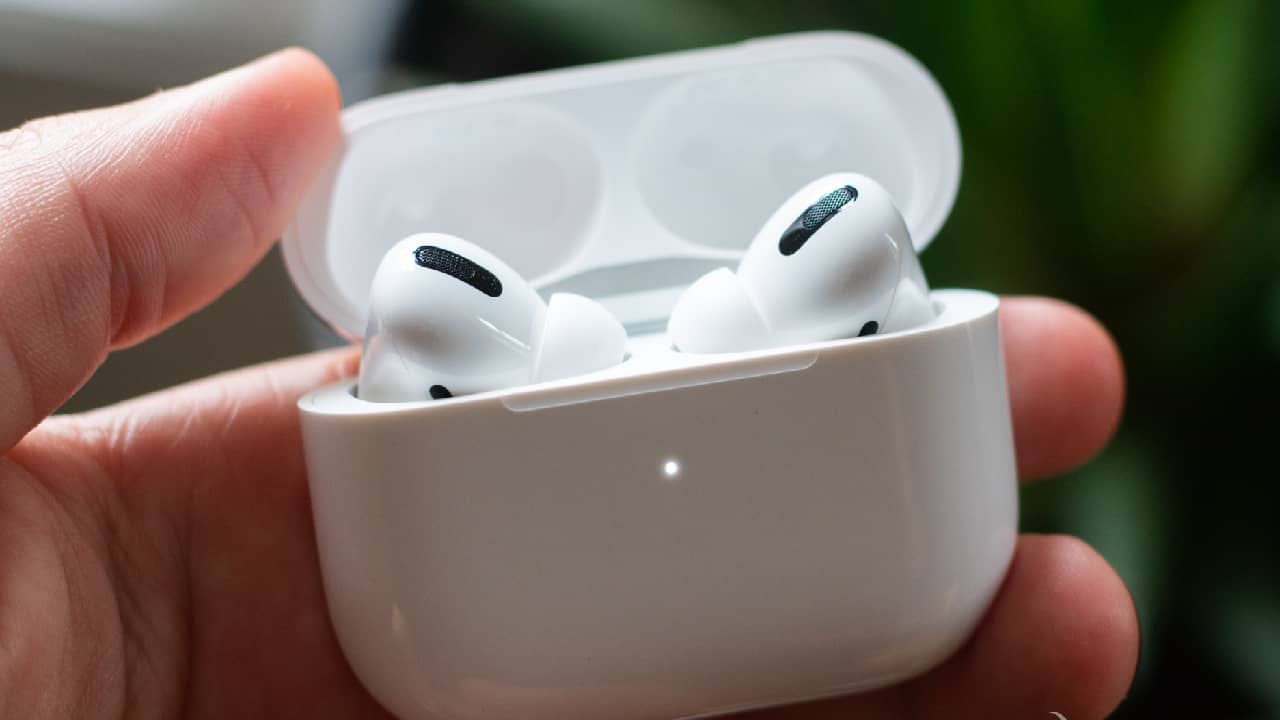
- Take your charging case and put your AirPods in it if you have not already. This also applies to AirPods Pro, where the reset instructions are the same.
- Close the case and wait between about 30 seconds and one minute. Apple recommends this so that if one of your AirPods has lost all its battery life, it can charge a little and be recognized by the case before the reset begins.
- If your case battery is low, it is a good idea to charge it before attempting the reset. If the case has no charge, you cannot reset it properly.
Activate and Unpair Your AirPods
- Keep the Apple device you use your AirPods with close at hand. Open your AirPods case so the Apple device can detect them, and then go to Settings.
- In Settings, go to Bluetooth and find your connected AirPods. Select the blue i button next to them, also known as More Info. Select the Forget This Device option. Confirm the decision, and when your AirPods are no longer connected, set your Apple device in another room and go back to your AirPods.
Note: If your AirPods/AirPods Pro have basic sound problems such as no audio, stop here. Try going back to Settings and reconnecting your AirPods manually. Sometimes this can fix minor issues, and you will not need to worry about a full reset.
Complete the Reset
- Keep the lid of your AirPods case open. Find the status light to keep an eye on it. On most AirPods models this light is usually on the front of the case, but on the first generation it is inside the case.
- Now turn to the back of your AirPods case and find the Setup button. This is a small, circular button marked with a slight bezel under the case lid.
- Press and hold the Setup button - you should be able to feel when it is pressed. Keep holding the button and watch the status light on your charging case, which should start flashing white. After about 15 seconds, you should see the light flash yellow and then turn white. When this happens, you can release the Setup button. Your AirPods are now reset.

Reconnect Your AirPods
Now you can take your Apple device and bring it close to your AirPods again so they can connect. Keep the AirPods charging case lid open and wait for your Apple device to start its setup procedures once more (if your AirPods do not appear, close the lid and open it again). Complete the setup and pairing and you are done! You will have to answer some basics again, such as fit tests for AirPods Pro and similar models, as well as learning motion controls and Siri.
How Do You Reset AirPods With an Android Phone?
If you use something like the Android platform instead, the steps are the same. However, instead of setting up your AirPods automatically at the end, you need to go to your Android device's Bluetooth section, search for your AirPods manually and then reconnect them.
More of Our Tech Articles
- Instagram Nickname Suggestions Are Here
- Instagram Posting Times 2022
- How Do You Create Instagram Filters?
- How Do You Change Your Instagram Username? 2022
- What Are the Instagram Photo Editing Tactics? 2022
- How Do You Add an Instagram Account on TikTok? 2022
- How Do You Create a Pinterest Business Account?
- Pinterest Account Finding Guide
- Pinterest Photo Download 2022
- Guide to Installing the Android Operating System on a PC 2022
- What Is ThrottleStop, What Does It Do and How Do You Use It?
- How Do You Fix the Throttlestop CPU Not Supported Error?
- Best Apple iPhone 13 Screen Protectors
Frequently asked questions
Questions answered in this article
How Do You Reset Apple AirPods and AirPods Pro?
Take your charging case and put your AirPods in it if you have not already. This also applies to AirPods Pro, where the reset instructions are the same. • Close the case and wait between about 30 seconds and one minute. Apple recommends this so that if one of your AirPods has lost all its battery life, it can charge a little and be recognized by the case before the reset begins. • If your case battery is low, it is a good idea to charge it before attempting the reset. If the case has no charge, you cannot reset it properly.
Go to sectionHow Do You Reset AirPods With an Android Phone?
If you use something like the Android platform instead, the steps are the same. However, instead of setting up your AirPods automatically at the end, you need to go to your Android device's Bluetooth section, search for your AirPods manually and then reconnect them. Instagram Nickname Suggestions Are Here • Instagram Posting Times 2022 • How Do You Create Instagram Filters? • How Do You Change Your Instagram Username? 2022 • What Are the Instagram Photo Editing Tactics? 2022 • How Do You Add an Instagram Account on TikTok? 2022
Go to section

