

What Is BIOS? What It Does and How to Change Its Settings
BIOS (Basic Input Output System) is permanent software stored in ROM that bridges a computer's hardware and software, and it is usually opened at startup with F10, F2 or DEL.

3 min read
In brief
AI summaryBIOS (Basic Input Output System) is permanent software stored in ROM that bridges hardware and software; it can be updated but not removed entirely.
BIOS settings are usually reached at startup with the F10, F2 or DEL keys, and the popular BIOS brands are AWARD, AMI and PHOENIX.
BIOS lets you change the boot device (hard disk, CD or USB) for formatting, tests hardware such as RAM and the graphics card at startup, and sets voltage and frequency.
Contents4 sections
BIOS is a term nearly everyone who uses a computer has heard at least once, and it is a tool with a vital role in the proper functioning of a computer. In this article we answer the questions What is BIOS? What does it do? How do you change its settings?

What Is BIOS?
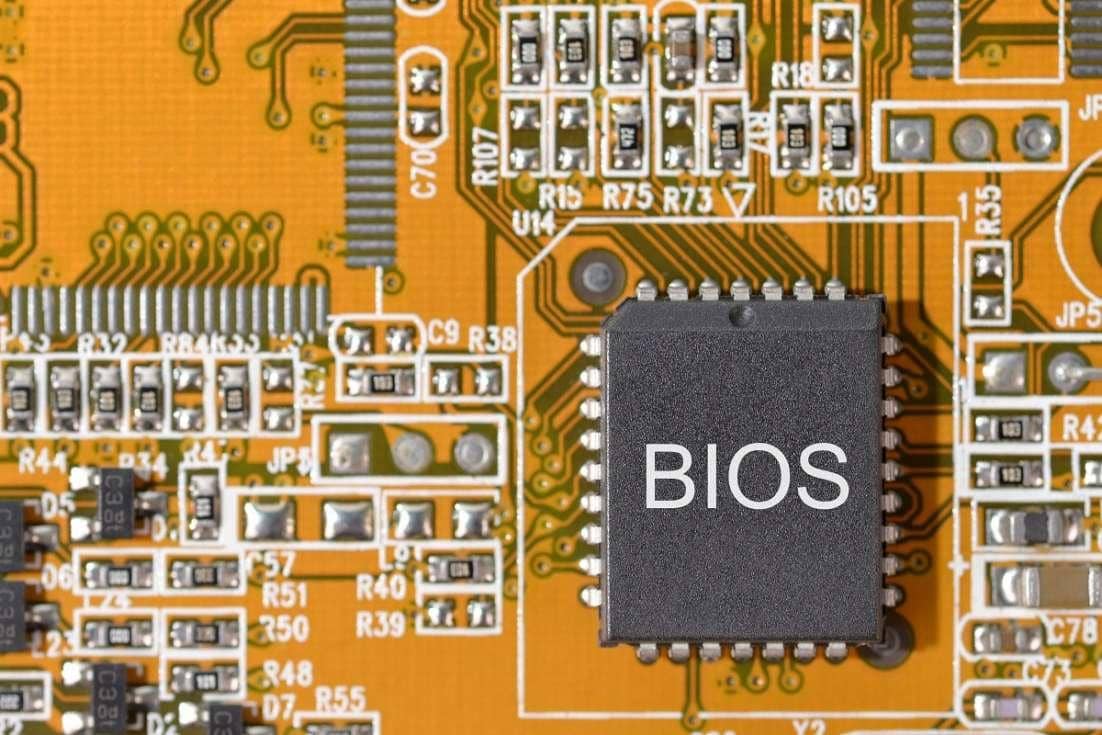
In short, BIOS stands for Basic Input Output System, and it acts as a bridge between the computer's hardware parts and its software. For this reason it is a very important element for the proper functioning of the computer. BIOS is permanent software stored in ROM memory. It can be updated but cannot be removed entirely. It plays a vital role in the computer being able to start up. A BIOS with a bug in its software will naturally cause problems in the computer's operating functions. So the most important advice we can give on this subject is not to bother much with BIOS updates if it is working properly. Applying a faulty update or one that does not fit your hardware can cause errors in how the computer operates. For this reason it is generally seen as a section that users without much knowledge should not use.
How Do You Change BIOS Settings?
You can usually reach the BIOS page with the F10, F2 and DEL keys when the computer starts up. This software, which controls the computer's basic functions, can be managed through a screen. How you can reach that screen is written at the bottom while your computer is starting up. It varies from computer to computer and depending on the mechanism used. We can say the most preferred brands on the market are AWARD, AMI and PHOENIX. After entering the Setup menu using the shortcuts we mentioned, changes can be made to the settings. On older computers, using a mouse in the menu is not possible. However, on newly developed motherboards and BIOS brands, using a mouse is possible. It usually has a very simple design and is kept as plain as possible. This way you can change the settings easily. On advanced desktop computers, the CPU fan speed and case fan speeds can be adjusted from its menu. In the latest BIOS menus there are also various efficiency profile settings.
What Are the Functions of BIOS?
Many operations can be performed using its menu. The most important of them, which will be useful to us many times, is formatting the computer. To format, the startup settings must be changed from the menu. Whether the computer will use the hard disk, a CD or a USB drive at startup can be changed in the settings. For example, to format with a USB drive, you select the setting to start from the USB drive in the Setup menu, and the Windows software on the USB drive can be installed on the computer after the format. The same process can be used for a CD. Besides formatting, BIOS tests hardware such as RAM and the graphics card at startup and makes sure they work properly. If there is a functional problem in any piece of hardware, it stops the computer from starting. This prevents the damage that could result from the computer starting up incorrectly. This is the main reason it plays a vital role between software and hardware. It also sets the voltage levels the hardware will use. It adjusts the frequency settings of the hardware. It allows us to turn off unused hardware parts.
More Tech Articles
Frequently asked questions
Questions answered in this article
What Is BIOS?
In short, BIOS stands for Basic Input Output System, and it acts as a bridge between the computer's hardware parts and its software. For this reason it is a very important element for the proper functioning of the computer. BIOS is permanent software stored in ROM memory. It can be updated but cannot be removed entirely. It plays a vital role in the computer being able to start up. A BIOS with a bug in its software will naturally cause problems in the computer's operating functions. So the most important advice we can give on this subject is not to bother much with BIOS updates if it is working properly. Applying a faulty update or one that does not fit your hardware can cause errors in…
Go to sectionHow Do You Change BIOS Settings?
You can usually reach the BIOS page with the F10, F2 and DEL keys when the computer starts up. This software, which controls the computer's basic functions, can be managed through a screen. How you can reach that screen is written at the bottom while your computer is starting up. It varies from computer to computer and depending on the mechanism used. We can say the most preferred brands on the market are AWARD, AMI and PHOENIX. After entering the Setup menu using the shortcuts we mentioned, changes can be made to the settings. On older computers, using a mouse in the menu is not possible. However, on newly developed motherboards and BIOS brands, using a mouse is possible. It usually has…
Go to sectionWhat Are the Functions of BIOS?
Many operations can be performed using its menu. The most important of them, which will be useful to us many times, is formatting the computer. To format, the startup settings must be changed from the menu. Whether the computer will use the hard disk, a CD or a USB drive at startup can be changed in the settings. For example, to format with a USB drive, you select the setting to start from the USB drive in the Setup menu, and the Windows software on the USB drive can be installed on the computer after the format. The same process can be used for a CD. Besides formatting, BIOS tests hardware such as RAM and the graphics card at startup and makes sure they work properly. If there is a…
Go to section

