

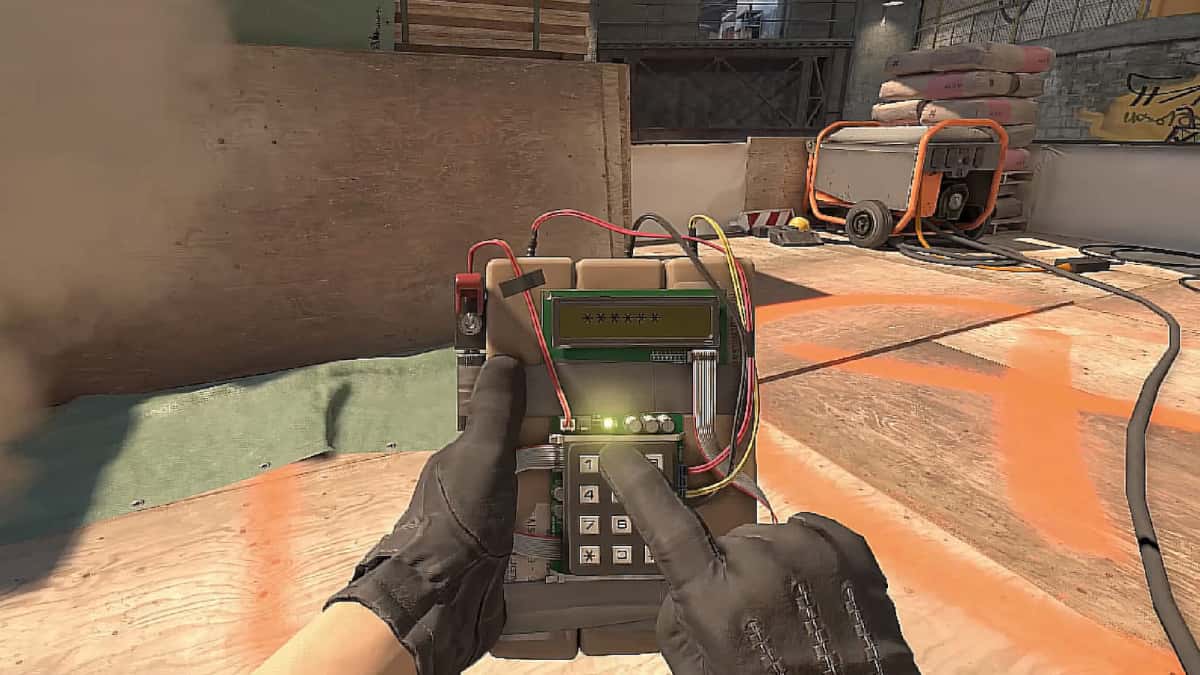
The best current CS2 (Counter-Strike 2) settings for 2025, covering resolution, graphics, mouse sensitivity, audio, and keybinds for smoother, more competitive gameplay.

- Counter-Strike 2 requires optimized graphics and game settings for a smoother, more competitive experience.
- A 1920x1080 resolution with Fullscreen mode is recommended for the best balance of visuals and performance.
- Correct audio settings are important for hearing enemy footsteps and communicating effectively with teammates.
CS2 (Counter Strike 2) — we keep answering your questions and bringing you the most up-to-date in-game settings! You've probably noticed that Counter-Strike 2 puts a lot more load on your CPU and graphics card. So it's time to change your settings in-game to make sure you get a smooth experience at the best possible frame rate. Let's see what the best current CS2 settings are.
Our Articles on CS2 Settings:
- CS2 Launch Options
- CS2 Can't Find a Match Issue
- CS2 Show Ping Code
- CS2 Remove Blood Code
- CS2 Current Viewmodel Codes
- How Do You Get the CS2 Weekly Care Package?
- CS2 Show FPS Code
- CS2 Switch Weapon to Left Hand Code
- CS2 Prime vs Competitive Difference
- CS2 Dot Crosshair Setup
Best CS2 (Counter Strike 2) Settings 2025
Video Settings
Video settings have a huge impact on your gameplay experience. To get good visual quality while still keeping smooth gameplay, you should consider the following settings:
- Resolution: 1920x1080 (1080p) is generally preferred. However, you can boost your FPS by using lower resolutions (such as 1600x900).
- Display Mode: Choose Fullscreen mode. This mode offers better response time and removes distracting elements.
- Graphics Settings: While high graphics settings look visually satisfying, it's important to prefer lower settings in a competitive environment. Low or medium graphics settings let you see enemies more clearly and boost your FPS.
Game Settings
In-game settings directly affect both your aim and your overall gameplay experience. That's why you should check out the recommendations below:
- Mouse Sensitivity: Mouse sensitivity comes down to personal preference. However, most professional players use a DPI between 400-800. Keeping your in-game sensitivity between 1.5 and 3.0 is generally ideal. This setting makes aiming easier and improves your reflexes.
- Field of View (FOV): You can't change the FOV setting in CS2, but you should use the right display settings to optimize your camera angle. A wide field of view helps you see enemies better.
- Frame Rate (FPS): You should aim for a minimum of 60 FPS. However, 144 FPS or higher delivers a much smoother gameplay experience. That's why it's important to optimize your graphics settings and system requirements.
 Audio Settings
Audio gives you a strategic edge in CS2. Correctly hearing enemy footsteps and environmental sounds can boost your in-game performance:
- Volume: Raise the overall volume, but tune down music and effects. What matters most is hearing footsteps clearly.
- Sound Effects: Setting sound effects to "Large" or "High" helps you better understand enemy positions.
- Microphone Settings: If you communicate with your teammates, optimize your microphone settings. Don't be afraid to adjust the input level so your voice comes through clearly.
Control Settings
Control settings directly affect players' ability to control their character. The right control settings can improve your reflexes and aim:
- Key Bindings: Customize your keyboard key bindings. Set easy-to-reach keys for the weapons and items you use most often. For example, you can pick easily accessible keys like "4" or "5" for grenades.
- Mouse Side Buttons: If you play with a gaming mouse, you can use the side buttons for quick access in-game. These buttons give you a big advantage when using a Molotov cocktail or grenades.
You can also boost your in-game performance with the following:
- Aim Lab or Kovaak's: These programs are excellent tools for sharpening your aim. Practicing regularly with them can improve your reflexes.
- Advanced Game Modes: Sharpen your strategic thinking by playing CS2's different game modes. Modes like Deathmatch, team-based fights, or Bomb Defusal help you develop different skills.
- Watching Professional Matches: Watching pro players is a great way to learn tactics and strategies. Following tournaments lets you understand different players' styles and apply them to your own game.
For the latest news;
follow our Gamer Papers website and our social media accounts.
Sources
External links cited in this article
LoL, TFT ve VALORANT sever bir oyun sever ve oyuncu. Mobil platformlarda ise tam bir Clash of clans hastası.
Comments (0)
Log in to leave a comment giriş yap.
No comments yet. Be the first!
Related Posts
All CS 2 →
CS2 FPS Boost Codes and Console Commands
These CS2 console commands and settings tweaks, including fps_max and cl_showfps, help you boost FPS and monitor performance in Counter-Strike 2.
How to Fix the CS2 Downloading Content Error
CS2's Downloading Content error is usually caused by server issues, weak connections, low disk space or corrupted files, and is often fixed by verifying game files or restarting Steam.
CS2 FPS Drop Fix: Causes and Solutions
CS2 FPS drops usually come from outdated GPU drivers, mismatched graphics settings, background apps, or an unstable network connection.