

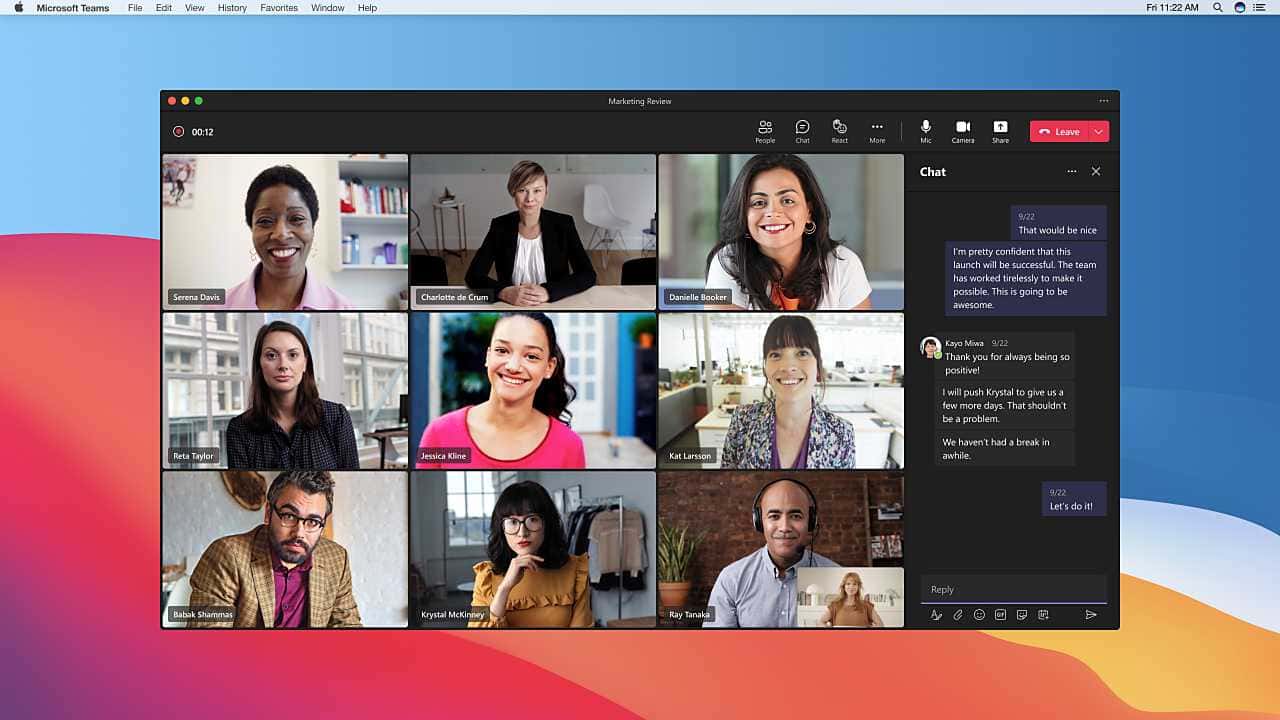
Only meeting organizers and organization members can record a Teams meeting, starting it from the More actions menu's Start recording option.

- Microsoft Teams requires certain subscriptions to record meetings, and only meeting organizers and members of the organization can start a recording.
- To start a meeting recording, select Start recording from the More actions menu, then use Stop recording from the same menu to end it.
- Recorded meetings are saved to SharePoint or OneDrive and can be shared through a link posted in the meeting chat.
Microsoft Teams is a video conferencing platform generally used for work-related meetings, consisting of notes and events. To avoid missing or forgetting important details from meetings held on the platform, you can record your meetings. So how do you record a Microsoft Teams meeting?
 How Do You Record a Microsoft Teams Meeting?
- First, you need to make sure you have permission to start the recording.
- You need a subscription such as Office 365 Enterprise, Business Premium, or Business Essentials.
- Some organizations may disable recordings by default except in certain cases. If you are working independently of an organization, you need to enable it by default.
- Only meeting organizers and those included in this organization can record.
- If you meet these requirements, sign in to Microsoft Teams and join a meeting. Ask one person among you to start and stop the recording, because you cannot record a meeting more than once at the same time.
- In the meeting, look at the menu at the top of the window and select the More actions option.
- Select Start recording from the drop-down menu. People who are in the meeting with you will receive a notification that the meeting is being recorded.
- When you want to stop the recording, go back to the more actions menu and this time select the Stop recording item.
- Microsoft Teams saves the meeting to SharePoint. However, it can also be saved to OneDrive. You can check these locations to find the meeting's file. Also, a link will appear in the chat where the meeting took place. This link can also be found in the channel's Files tab.
- You can share the file directly with other members in Teams, or copy it and use it on other platforms as well.
For More Tech News;
- Instagram Reels Posting Hours 2022!
- How Can You Mute Your Own Audio in Zoom?
- 5 Ways to Boost Your Computer's Gaming Performance!
- How Do You Connect a Keyboard and Mouse to the Steam Deck?
- What Is Microsoft DirectStorage? What Are the DirectStorage Requirements?
- What Is BIOS? What Does It Do? How Do You Change Its Settings?
- What Are Google Drive's Features? 2022
- How Do You Update Apps on a Samsung Smart TV?
- How Do You Transfer WhatsApp Messages From Android to iPhone?
- How Do You Fix the Netflix Black Screen Problem? 2022
Bazen yazar, bazen tasarlar. Film bağımlısı, oyunlar hakkında yazmayı sever✨
Comments (0)
Log in to leave a comment giriş yap.
No comments yet. Be the first!
Related Posts
All News →
Turkey Game Industry Report 2024 Released
Turkey's 2024 Game Industry Report shows the country's gaming market grew to over $810M with 48M+ active players, alongside a new digital guide to local game companies.

Loldle Answers: Daily League of Legends Puzzle
Loldle is a daily League of Legends guessing game with five modes (Classic, Quote, Ability, Emoji, Splash); December 6, 2024's Classic answer was Fiddlesticks.

Monopoly GO Dice Links: Free Dice Rewards
Monopoly GO's free dice links refresh daily and can be redeemed instantly for 25 or 30 free dice each, plus tips like auto refills every 60 minutes, daily gifts, and sticker trading to earn even more.