

VALORANT color settings can make the game's visuals more vivid, from Nvidia and AMD Radeon panels to in-game minimap and colorblind options.
- VALORANT color settings recommend several optimizations to make the game look more vivid, from in-game graphics options to Nvidia and AMD panels.
- Adjusting minimap size and zoom makes gathering in-game information easier by showing teammate positions and spotted enemies more clearly.
- Nvidia and Razer Cortex color settings, combined with monitor settings like brightness and saturation, improve overall visibility and gameplay experience.
VALORANT Color Settings 2024! How to Set Up Nvidia Color Settings!
VALORANT color settings can make the game look much more vivid. We'll give you a few tips that will make the game more vivid and improve the in-game visuals. We hope these tips help you make the game more vivid and take your gameplay experience to the next level!
 VALORANT Color Settings 2024
You can follow the steps below to play VALORANT with more vivid colors and set up your VALORANT color settings correctly:
- Optimize your game settings.
- Change the minimap size and zoom.
- Change the enemy highlight color.
- Set up your Nvidia color settings.
- Use Razer Cortex color settings.
- Change your monitor settings.
- Optimize your Nvidia Control Panel settings.
VALORANT Color Settings 2024: Optimize Your VALORANT Game Settings
You should change your VALORANT game settings to get a higher frame rate, or FPS. With a higher frame rate, the image on your screen updates more often, letting you spot enemies more easily and more quickly. For the full experience, your monitor's refresh rate needs to be equal to or higher than the FPS you're getting.
- Go to "Settings" from the game's main menu.
- Click the "Video" tab.
- Under the "General" tab, optimize the "Graphics Quality" settings:
- Brightness: Keeping brightness in the 70-80% range gives you better visibility in dark areas.
- Character Outlines: Keeping this setting on makes it easier to tell enemies and teammates apart.
- Saturation: Increasing this setting makes colors more vivid.
VALORANT Color Settings 2024: Change the Minimap Size and Zoom
The minimap is one of the tools that will come in handy for gathering information in-game. It helps with lineups and shows your teammates' positions along with spotted enemies' locations. You can control both the size and the zoom of the minimap in the general settings. Size determines how much space the minimap takes up on your screen, while zoom determines how closely the minimap is zoomed in on that space. You should adjust the minimap so you can clearly see sections of the map without it blocking your view. If you notice the minimap is blocking your view, you can shrink its size.
VALORANT Color Settings 2024: Change the Enemy Highlight Color
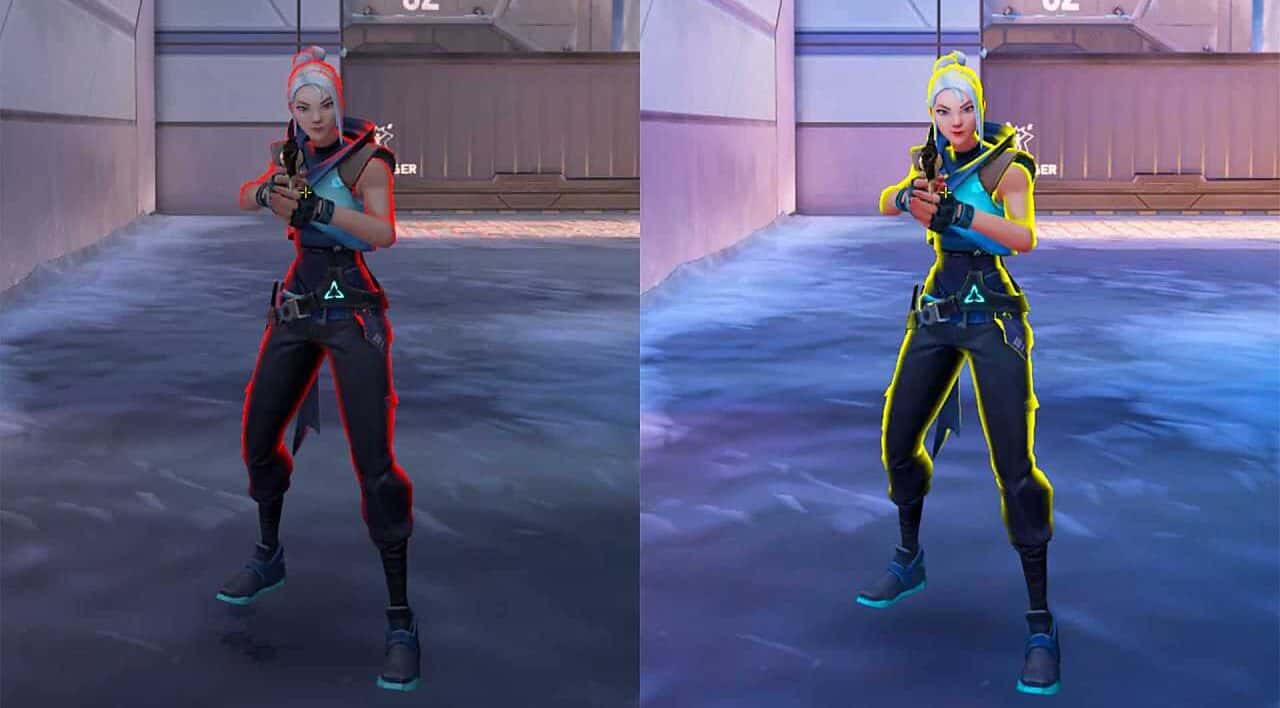
The enemy highlight color settings, or colorblind mode, are a feature designed to help colorblind players. You can also use the highlight options to turn enemies into a color you can react to faster. The Deuteranopia and Protanopia options turn the enemy glow yellow and are quite useful.
 Set Up Nvidia Color Settings
The best VALORANT color settings vary depending on your monitor, but the general settings are similar. Before making any changes, taking a screenshot and noting down your current settings will save you a lot of trouble.
- Right-click on your desktop and open the Nvidia Control Panel.
- From the side panel, select "Adjust desktop color settings."
- Select the monitor you use to play the game.
- Adjust the color settings however you like.
Use Razer Cortex Color Settings
You can use Razer Cortex as an alternative to Nvidia color settings. This feature lets AMD users make VALORANT more vivid. Cortex boosts your monitor's vibrance with its booster prime setting options. While making adjustments, reference images are provided to help you fine-tune your settings. Cortex applies changes across all your screens.
Change Your Monitor Settings
Gaming monitors have adjustable settings to increase visibility. However, the available settings can vary from monitor to monitor. To make the game more vivid, increase vibrance, saturation, and brightness. Increasing your monitor's gamma also helps brighten dark areas.
- Brightness: Keeping brightness in the 70-80% range gives you better visibility in dark areas.
- Contrast: Keeping contrast in the 50-60% range makes colors more vivid and distinct.
- Color Saturation: Increasing color saturation can help you tell enemies and the environment apart more easily.
Optimize Nvidia Control Panel Settings
- Right-click on your desktop and open the Nvidia Control Panel.
- Select "Manage 3D Settings" from the side panel.
- Use the global tab to make changes across all games, or program settings to change the setting for an individual game.
Set Up AMD Radeon Settings
Finally, you can also adjust your VALORANT color settings through AMD Radeon Settings:
- Open the AMD Radeon Settings app.
- Go to the "Display" tab.
- Adjust the Color Temperature, Brightness, and Contrast settings.
- Increasing the "Saturation" setting makes colors more distinct.
For the latest news, follow our Gamer Papers website and our social media accounts. 🙂
Sources
External links cited in this article
Comments (0)
Log in to leave a comment giriş yap.
No comments yet. Be the first!
Related Posts
All News →
Turkey Game Industry Report 2024 Released
Turkey's 2024 Game Industry Report shows the country's gaming market grew to over $810M with 48M+ active players, alongside a new digital guide to local game companies.

Loldle Answers: Daily League of Legends Puzzle
Loldle is a daily League of Legends guessing game with five modes (Classic, Quote, Ability, Emoji, Splash); December 6, 2024's Classic answer was Fiddlesticks.

Monopoly GO Dice Links: Free Dice Rewards
Monopoly GO's free dice links refresh daily and can be redeemed instantly for 25 or 30 free dice each, plus tips like auto refills every 60 minutes, daily gifts, and sticker trading to earn even more.