

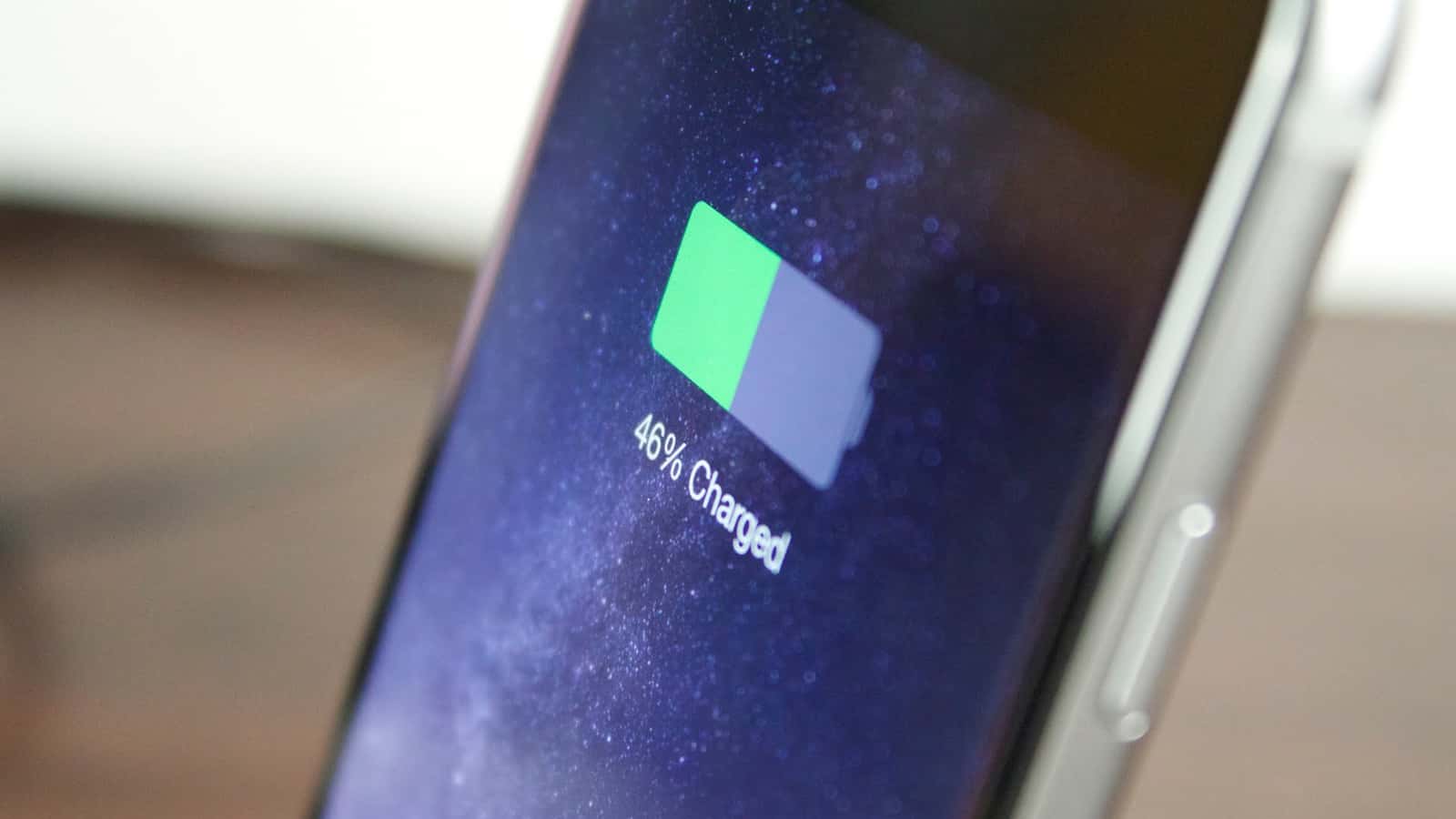
iPhone X and later show battery percentage in Control Center, while home-button iPhones enable it in Settings > Battery > Battery Percentage.

- Showing the battery percentage on iPhone and iPad works differently depending on whether the device has a home button.
- On the iPhone X and later, battery percentage is viewed by opening Control Center, while home-button devices enable it in Settings.
- Low Power Mode on iPhone turns off background app refresh and reduces screen brightness to extend battery life, and also shows the battery percentage.
Your iPhone will show the current state of your battery in the top right corner of the screen with an indicator that's white while it's draining and green while it's charging. But what if you want more precise information about your battery's status? Viewing the exact battery percentage on your iPhone and iPad is easier than you think. We'll show you how.

How Do You Show iPhone Battery Percentage?
When it comes to displaying the battery percentage, there are differences depending on whether your phone model has a home button, rather than your phone's age or operating system. The design of the iPhone SE (2022), all other iPhone SE models, all iPads, and iPod Touch models follow the guidelines for older devices because of their home button layout.
How Do You Show Battery Percentage on the iPhone X and Similar Models?
If you have an iPhone X or later model, accessing your battery percentage is a piece of cake.
- Swipe down from the top right corner of your screen to open Control Center.
- View the battery percentage displayed in the top right corner.
On newer, buttonless Apple iPhones, there's no way to permanently display the battery percentage. That's because the screen's notch limits the display area.
How Do You Show Battery Percentage on Home Button Devices?
If you have an older iPhone like the iPhone 8 or SE, or an Apple device with a home button, the steps below let you show your battery percentage in the status bar.
- Open the Settings app.
- Tap the Battery option.
- Tap to turn on Battery Percentage.
Now your Apple device will always show the battery percentage in the top right corner of your screen.
How Do You Turn On Low Power Mode on iPhone?
If you want to save battery life on your iPhone, the best way to do it is to turn on Low Power mode. This automatically turns off non-essential, dynamic background features like Background App Refresh and applies power-saving steps such as reducing screen brightness. It also gives you a 30-second auto-lock.
If you have an iPhone with a home button, you'll see the battery percentage in the top right corner of your screen. If you have a buttonless model like the iPhone X or later, you won't see it.
The battery icon changes color across all iPhone versions depending on your battery charge: green for full or sufficient battery charge, yellow for Low Power mode, and red for a critically low battery. When you use Low Power mode on older devices and iPad tablets, the battery percentage is always shown.
- Open the Settings app.
- Tap the Battery option.
- Tap Low Power Mode.
- Alternatively, you can go to Control Center and turn on Low Power Mode from there.
- Control Center can be customized by going to Settings > Control Center > Customize Controls - add the Low Power Mode command here to turn it on without waiting for Apple's prompt.
For More Tech News:
- Instagram Reels Posting Times 2022!
- How Can You Mute Your Own Audio on Zoom?
- 5 Ways to Boost Your Computer's Gaming Performance!
- How Do You Connect a Keyboard and Mouse to the Steam Deck?
- What Is Microsoft DirectStorage? What Are the DirectStorage Requirements?
- What Is BIOS? What Does It Do? How Do You Configure It?
- What Are Google Drive's Features? 2022
- How Do You Update Apps on a Samsung Smart TV?
- How Do You Transfer WhatsApp Messages from Android to iPhone?
- How Do You Fix the Netflix Black Screen Issue? 2022
Comments (0)
Log in to leave a comment giriş yap.
No comments yet. Be the first!
Related Posts
All News →
Turkey Game Industry Report 2024 Released
Turkey's 2024 Game Industry Report shows the country's gaming market grew to over $810M with 48M+ active players, alongside a new digital guide to local game companies.

Loldle Answers: Daily League of Legends Puzzle
Loldle is a daily League of Legends guessing game with five modes (Classic, Quote, Ability, Emoji, Splash); December 6, 2024's Classic answer was Fiddlesticks.

Monopoly GO Dice Links: Free Dice Rewards
Monopoly GO's free dice links refresh daily and can be redeemed instantly for 25 or 30 free dice each, plus tips like auto refills every 60 minutes, daily gifts, and sticker trading to earn even more.